Task-based orders
Some products require customers to complete actions before fulfilment. These task-based orders are central to clinical and service-led workflows in Priorly.
How task-based orders work
When a product has tasks configured, any order containing that product becomes task-based. The order enters Under review while staff review submissions. Once all required tasks are complete, the order moves to Unfulfilled and is ready for fulfilment.
Task types
Priorly supports six task types for product workflows.
Customer uploads files or images for staff review.
Customer submits a linked form; staff review full responses and AI summary.
Customer enters a value such as current weight for review.
Staff approve, reject, or hold based on order and profile context.
Customer books a linked service like a consultation.
Flexible custom workflow step with your own labels.
The review queue
Click or hover the numbered pins to explore the review queue interface.
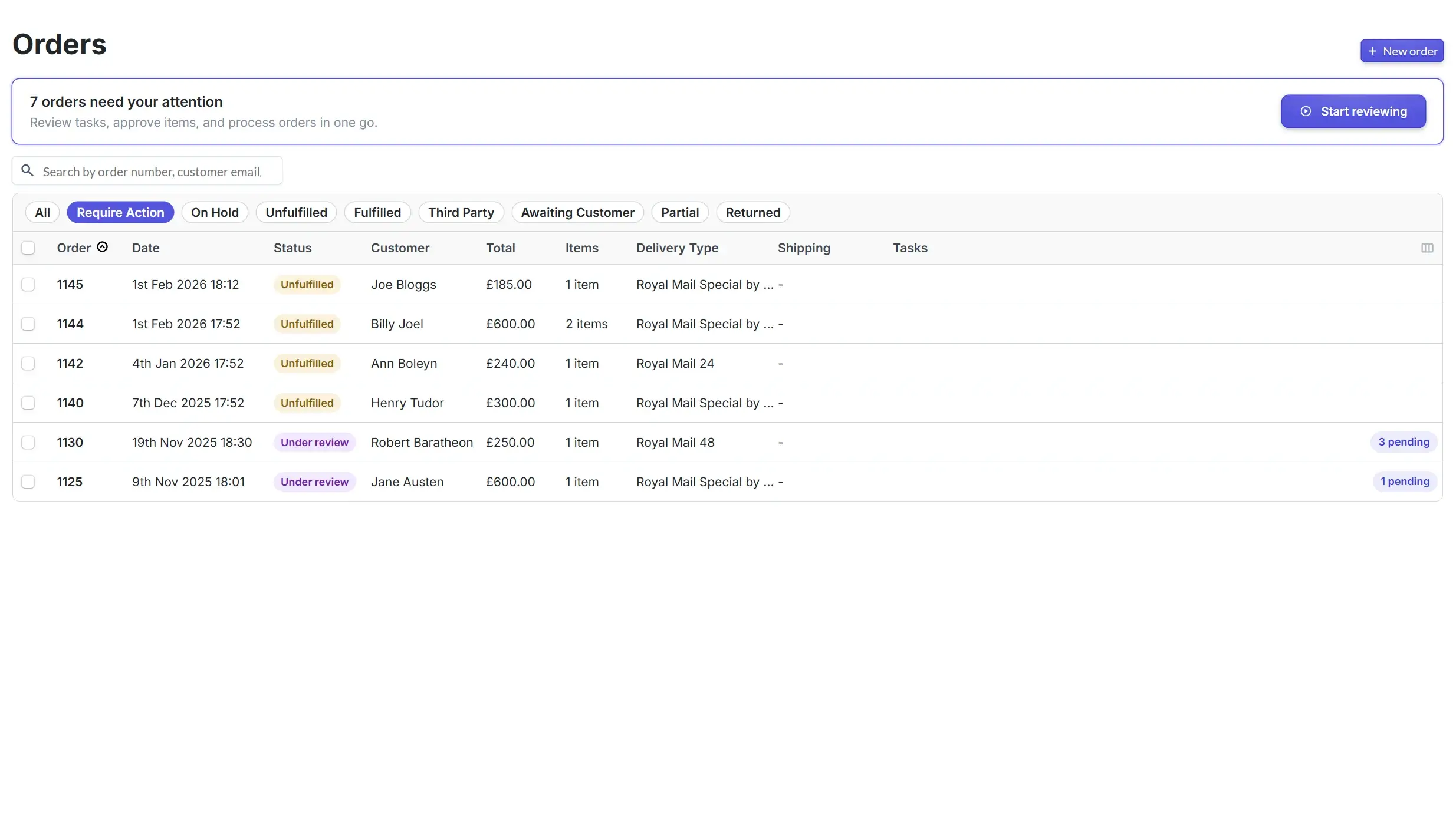
Shows how many orders need action. Click Start reviewing to walk through all pending tasks in sequence — Priorly will guide you through each one automatically.
Begins the review queue, opening each order with outstanding tasks one by one. You can also right-click any individual order row to open it directly.
Filter the order list by status. Require Action shows unfulfilled orders or orders with pending tasks.
Other tabs include On Hold, Unfulfilled, Fulfilled, Third Party, Awaiting Customer, Partial, and Returned.
Displays each order the columns shown can be edited via the column button. Click any order number to open that order.
Colour-coded labels showing where each order is in the workflow. These update automatically as orders progress.
Shows how many tasks still need completing on that order. Click the pending task count to see and action them.
Reviewing tasks
Task content changes by type. Staff can reject or mark complete where applicable.
Example of a submission
Click or hover the numbered pins to explore each part of the interface.
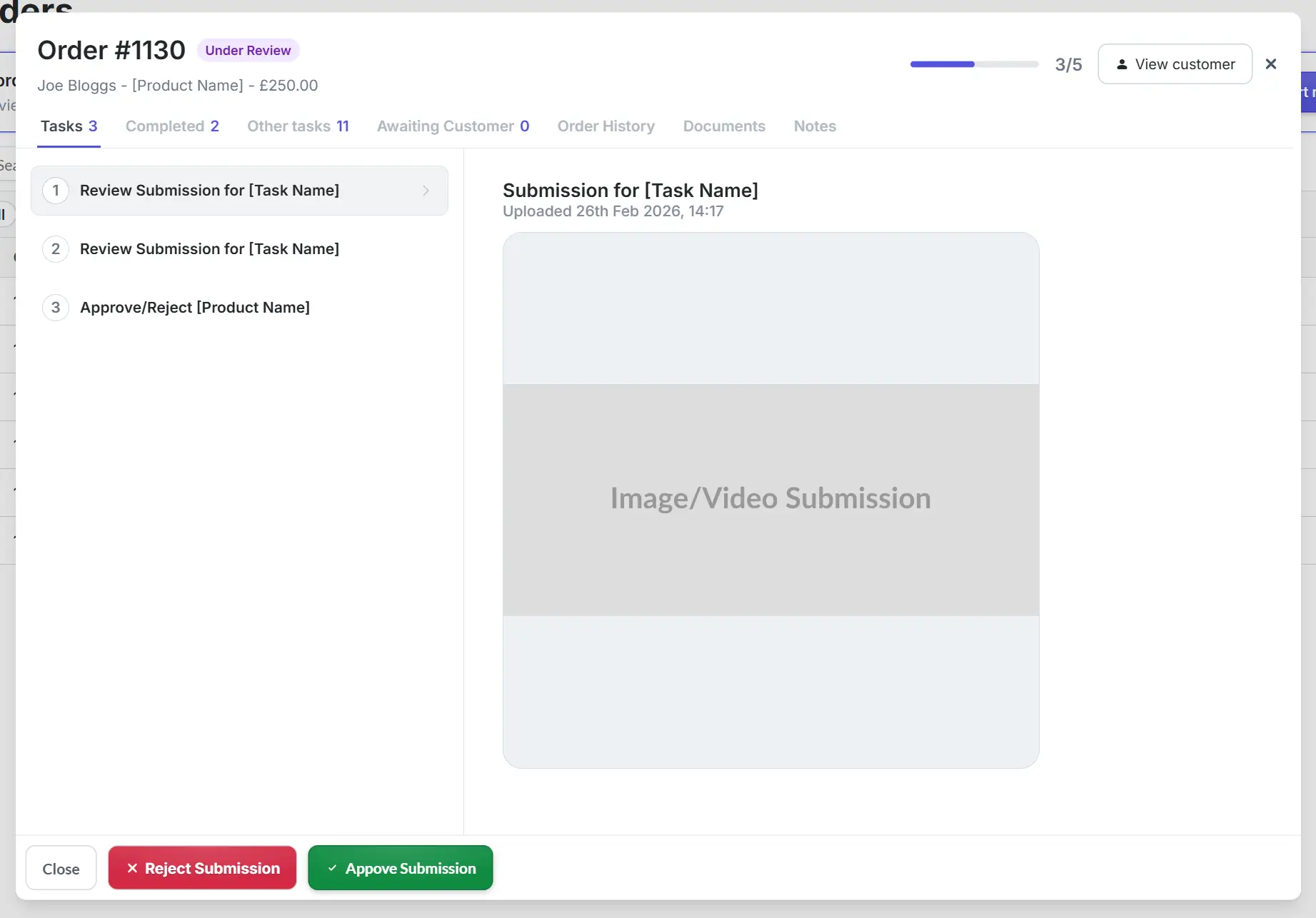
Shows the current stage of the order (e.g. Under Review). Updates automatically as tasks progress.
Shows completed vs total tasks (e.g. 3/5). The bar fills as tasks are marked done.
Tasks = outstanding.
Completed = finished tasks for this order.
Other tasks = tasks from other orders.
Awaiting Customer = tasks waiting on the customer.
Order History, Documents, Notes = customer profile info.
All outstanding tasks for this order. Click a task to load its details on the right.
Displays the customer's uploaded image or video and upload timestamp. Review this before acting.
Approve advances the order. Reject sends it back to the customer. Close dismisses without action.
Approve or reject an item
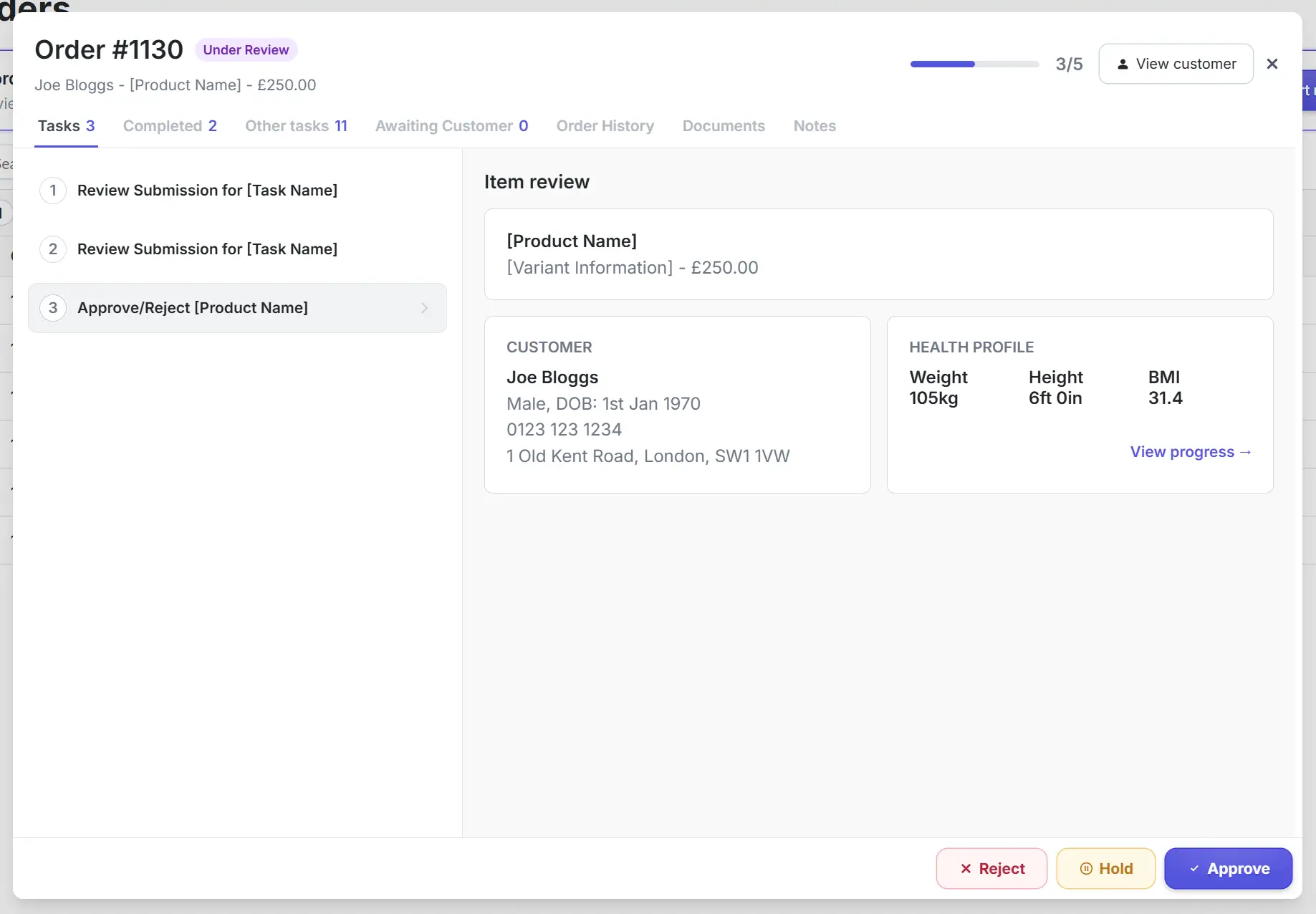
When all tasks have been reviewed
Finalisation depends on whether the order includes prescription items and prescriber permissions.
Orders without prescription items
These move directly to Unfulfilled.
Orders with prescription items for non-prescribers
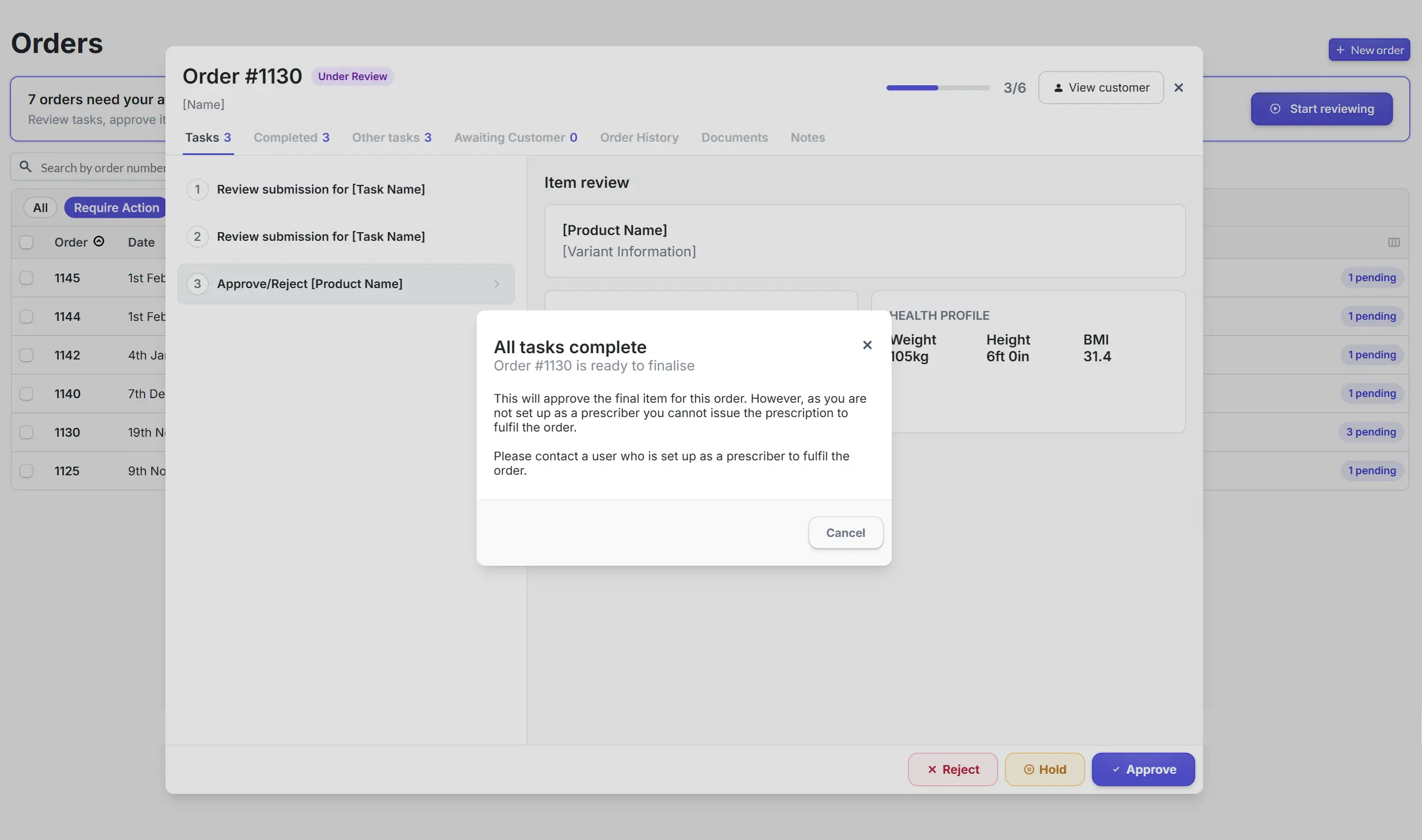
Orders with prescription items for prescribers
Click or hover the numbered pins to explore each part of the approval flow.
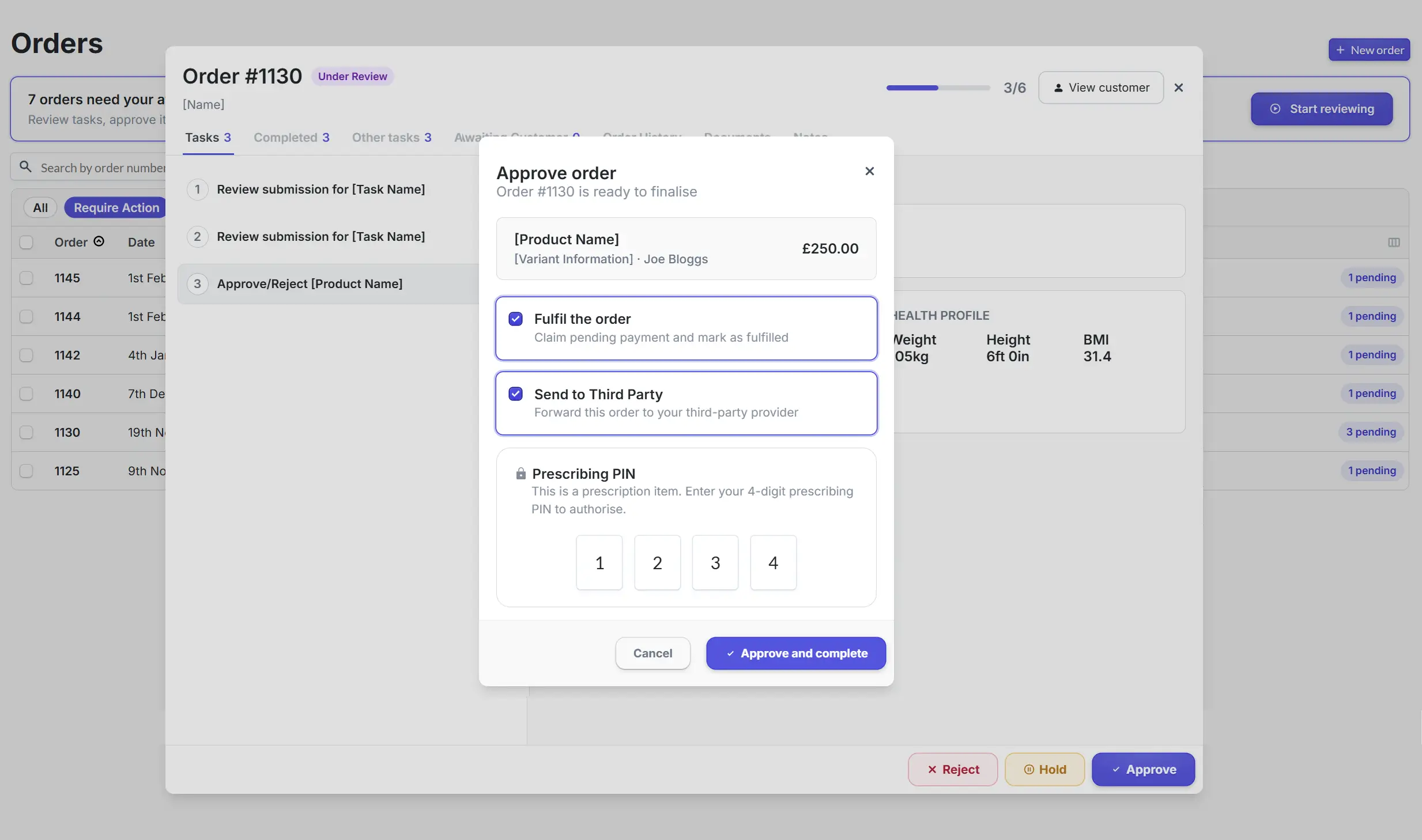
Confirms the order number, product, variant, customer name, and price before you finalise.
When checked, claims the pending payment and marks the order as fulfilled immediately on approval. Leave it unchecked to generate the prescription now and let an authorised staff member fulfil and dispatch the order later.
If this option appears, it means a third-party fulfiller is configured for this product. It's ticked by default - untick it if you'd prefer to fulfil the order in-house.
Because this is a prescription item, your 4-digit prescriber PIN is required to authorise the approval. This replaces a standard confirm button.
Submits your PIN and selected fulfilment options. With fulfilment switched off, the button changes to Approve and generate prescription and leaves the order ready for later fulfilment.
Closes the approval modal without making any changes to the order.
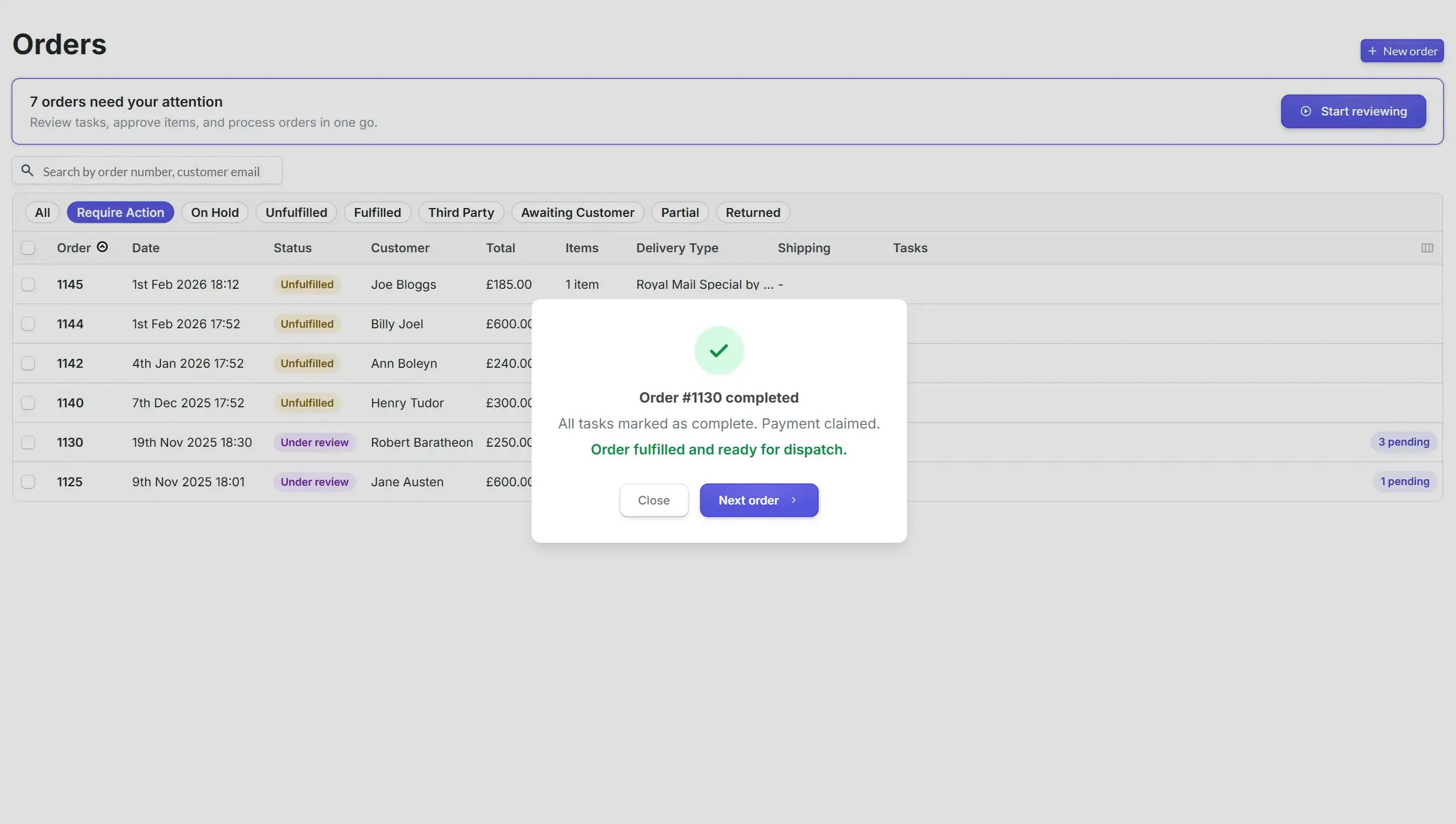
Order complete
After approval and successful payment claim, staff can close the queue or move to the next order.