Editing orders
There's no single Edit button: you change each part of an order where it shows on the order's page. You can change an item or lower its quantity, change the addresses or the shipping option, and add or remove a discount while the payment is only held.
Items
On the order's page, open the item's ⋯ menu. In quick view's item review, use the buttons beside the item.
- Lower the quantity
- Choose a lower number, from 1 up to one fewer than now; the dialog shows what the item then comes to. The item keeps its price and its approval. A quantity can't go up.
- Change product
- Search by name or SKU, choose the product and its variant, then Change product. The item takes the new product's price, and if the new product needs approval, it waits for approval again.
- On a subscription
- Only this order changes. To change what the subscription sends next time, see A subscription's page.
- Items that can't change
- A clinic's prescription item can't change. Once an item is approved, or it's on the order's signed prescription, only its quantity can go down. Once the prescription is signed, an item can't become one that goes on a prescription. The menu greys out what can't change and says why. An item that's fulfilled, part sent, rejected, cancelled or returned has no menu: its status says why.
When the total changes:
- The card is only held
- If the order now costs less, or no more than the hold, nothing else happens: only what the order comes to is taken when it's fulfilled. If it costs more than the hold, Priorly asks first, then puts a new hold for the new total on the customer's saved card and releases the old one. If it can't, the item isn't changed.
- It's paid
- If the order now costs more, it's Partly paid, with the rest left to pay; send a payment link from the Payment card. If it costs less, the Refund dialog opens with the difference. See Capturing payments.
The customer isn't emailed about the change. The order's timeline records it.
Addresses
On the Patient or Customer card, click Edit on the Delivery row.
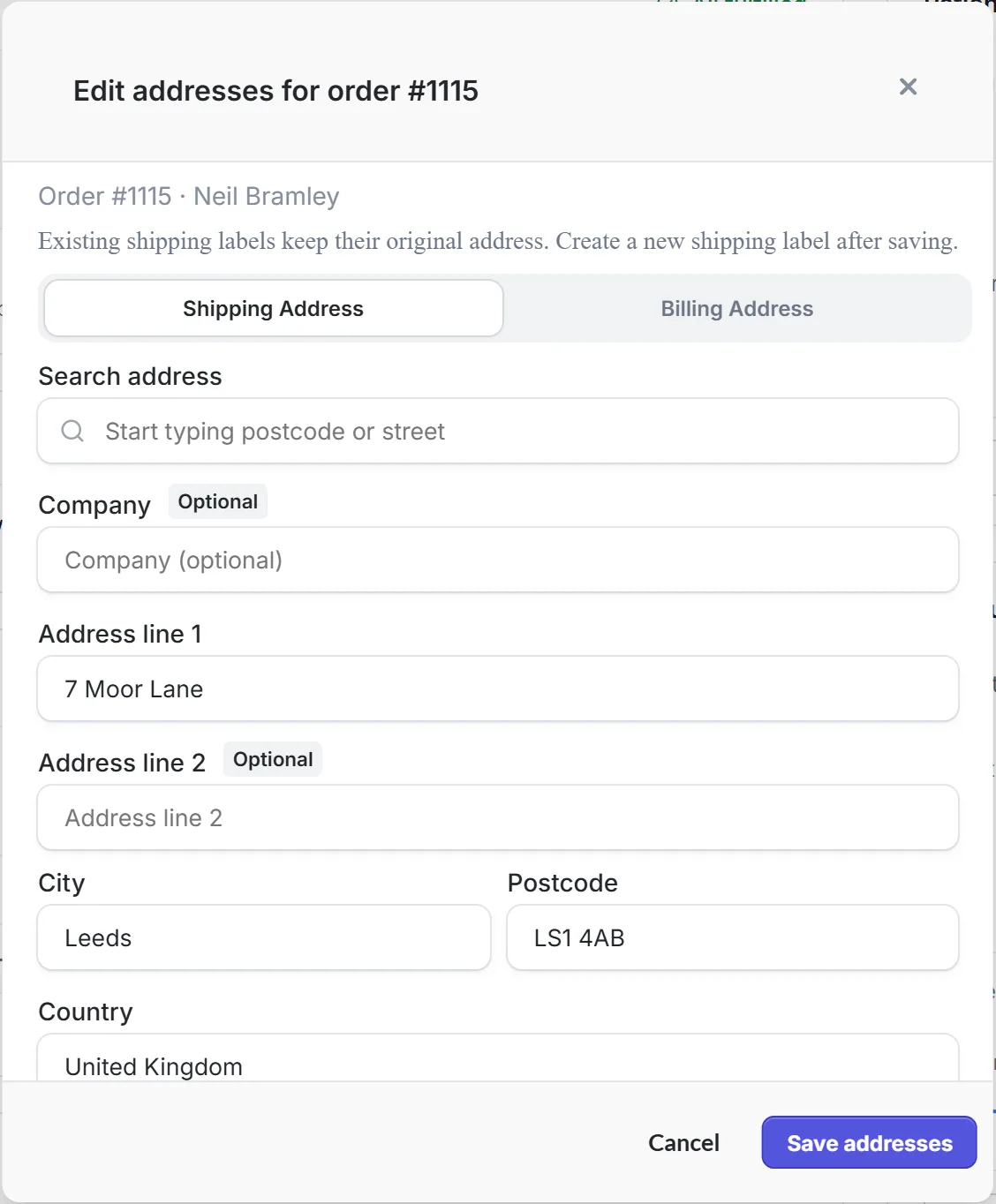
- Shipping and billing
- Switch between the two. The billing address can be the same as shipping.
- Search address
- Start typing a postcode or street, or fill the address in yourself.
- Labels
- A shipping label already made keeps the old address, so make a new one after saving. See Fulfilling.
The new address is saved to the customer's addresses too. To change their name, email or phone, edit their record; see Editing, merging and archiving.
Shipping option
On the Items card, open the delivery row's ⋯ menu, then Change shipping option.
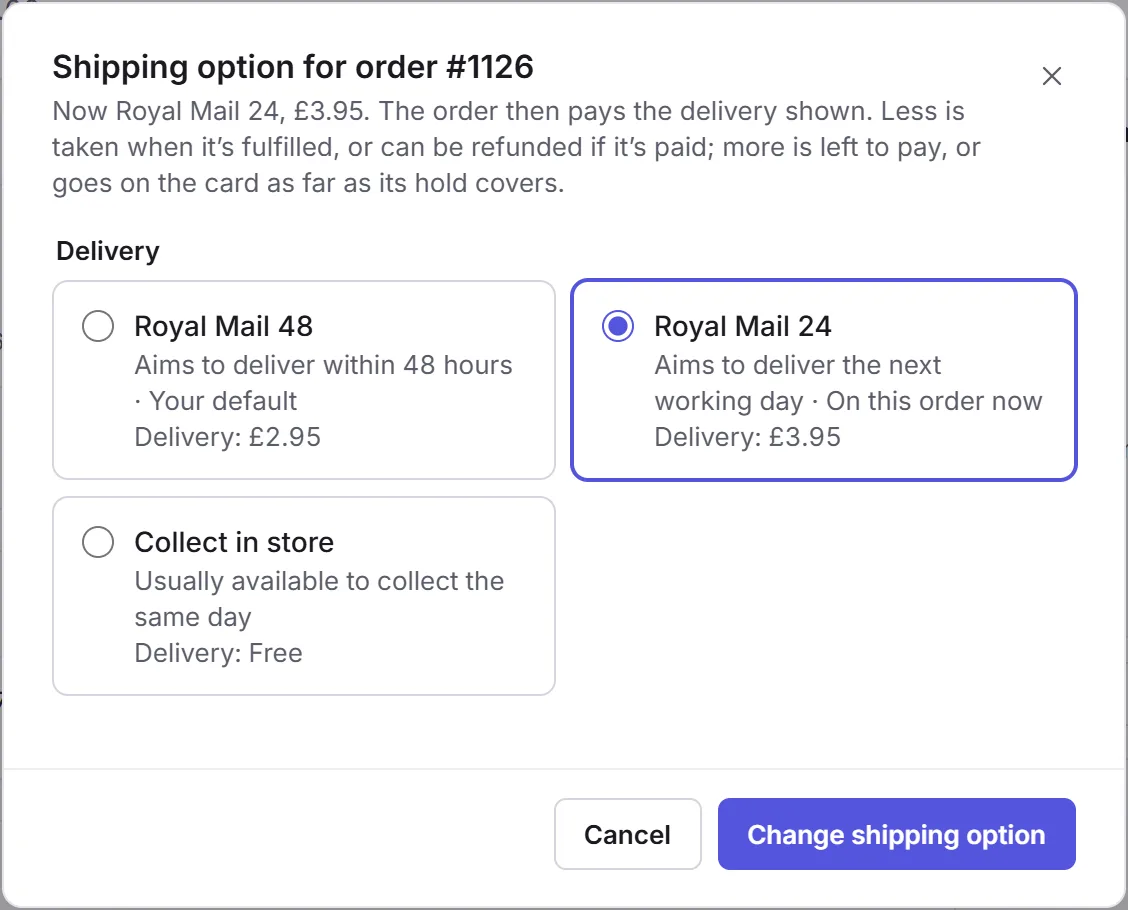
Each option shows what the order would pay for delivery. If it's less, less is taken when the order's fulfilled, or you can refund it if it's paid. If it's more, the rest is left to pay, or goes on the card as far as its hold covers; Priorly warns you when it's past the hold.
Once Royal Mail has the order's shipping order, the option is on the shipment's ⋯ menu instead. Changing it makes Royal Mail's shipping order again with the new service, so a label already printed for it stops working. If you've already changed the service in Click & Drop, untick Make Royal Mail's shipping order again, and only the option here changes. You can't change it once part of the order has been sent.
Each shipment has its own option. After New shipment (a split order's second parcel, or one sent again), Change shipping option on the new shipment changes only that parcel: the ones sent before keep theirs, only delivery options show, and what the order pays for delivery stays the same. Once anything is fulfilled after the New shipment, its option can't change.
A collection order that's ready to collect can still be posted instead: only delivery options show. Choosing one puts the order back to unfulfilled, and if delivery costs more, the difference is left to pay. Then fulfil it as usual, and the customer is emailed that it's been dispatched.
Discounts
While the payment is only held, you can add a coupon or a one-off discount, or remove one, from the Payment card; the amount taken changes with it. Once the payment's taken, use a refund instead. See Capturing payments.
What can't change
You can't add an item, raise a quantity, or set your own price on an item, and some items can't change at all (see Items). Cancelled and rejected orders, and checkouts that weren't paid, can't be changed. Changing an order needs the Edit permission under Orders.