An invoice's page
A sent invoice's page shows its lines as they were sent, how they pay, what's been paid, where it's been sent, and everything that's happened to it.
The page
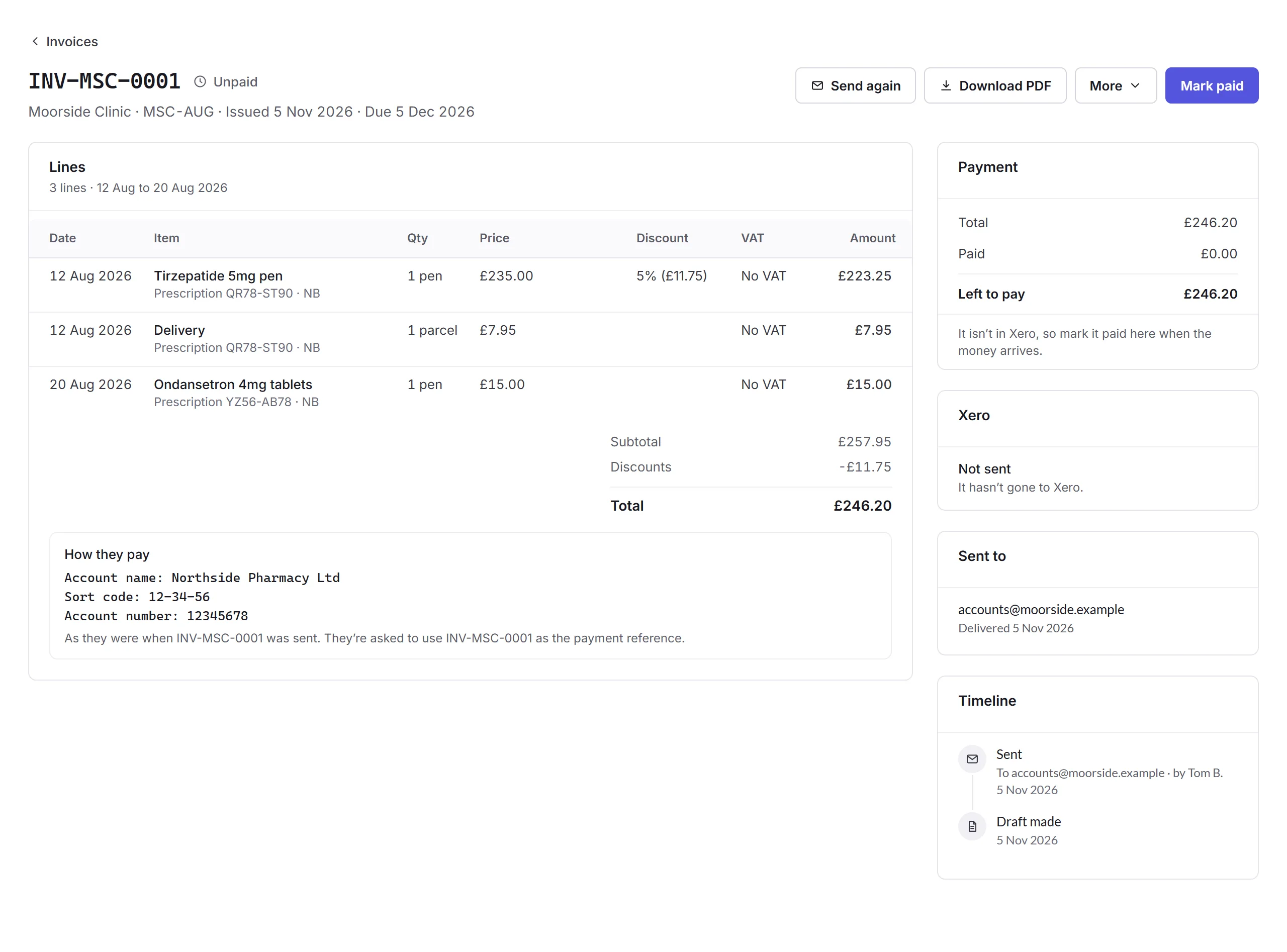
- Lines and How they pay
- What it's for, with each line's VAT, and the bank details as they were when it was sent. They're asked to use the invoice number as the payment reference.
- Payment
- The total, what's been paid, and what's left to pay.
- Xero, Sent to and Timeline
- Whether it's in Xero, each email sent and whether it arrived, and everything that's happened to it.
At the top: Send a reminder for an overdue invoice, Send again before then, or Send a copy once it's paid; Download PDF; and More, with Copy invoice number and Void invoice….
Recording a payment
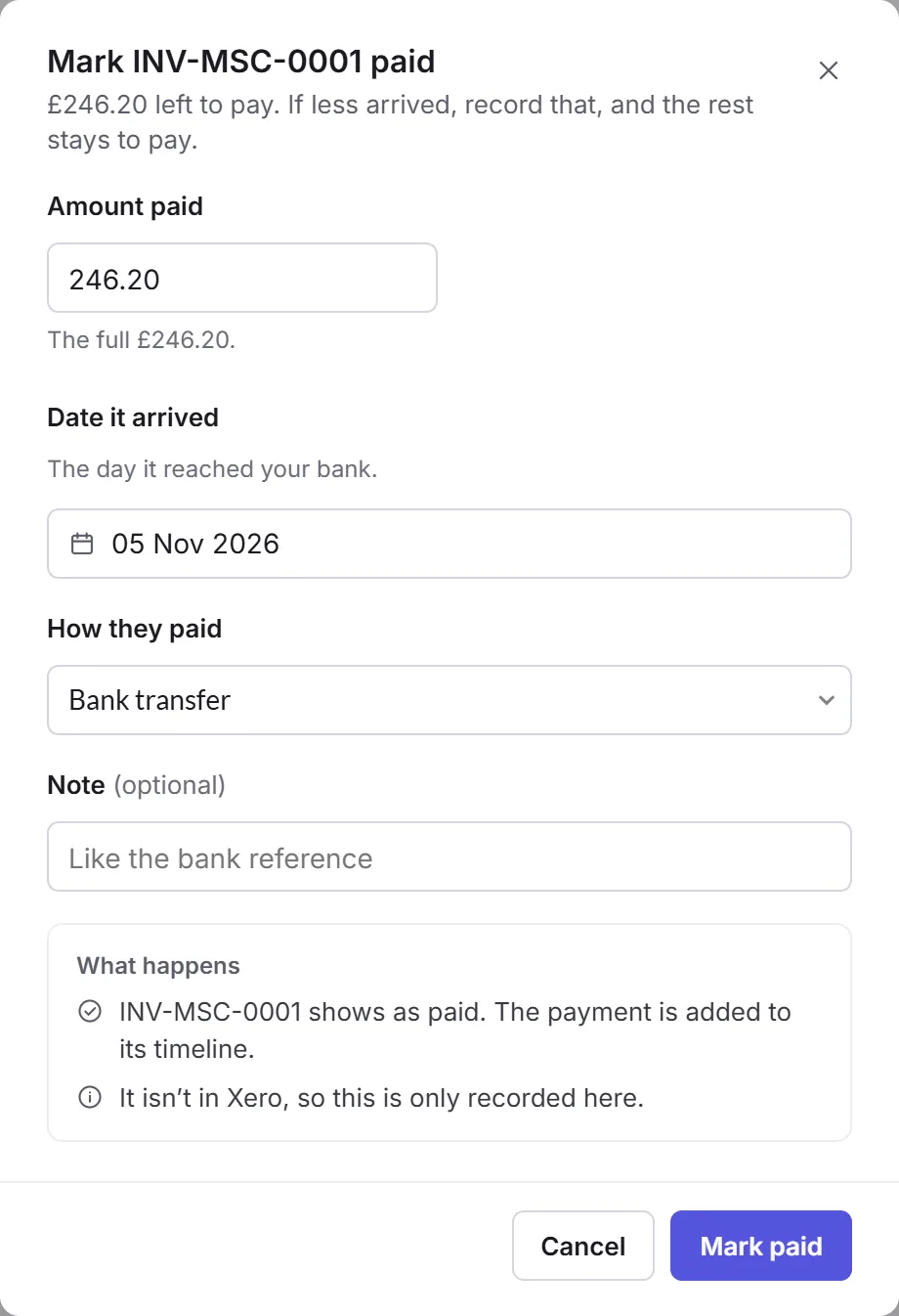
For an invoice that isn't in Xero, click Mark paid when the money arrives. Enter the Amount paid, the Date it arrived and How they paid, and add a Note, like the bank reference. If less than the full amount arrived, record that, and the rest stays to pay. A payment's Remove takes it off again.
An invoice in Xero is paid in Xero: reconcile it there, and it shows as paid here within about half an hour.
Voiding an invoice
Choose More, then Void invoice…, give a Reason, and click Void invoice. A void invoice keeps its number. One with a payment can't be voided until the payment is removed, here or in Xero.