Waitlists overview
A waitlist collects people who want to hear when something opens, like a new clinic or a travel season. They join from a form on your website or a link you share, and you email them when it's ready.
Your waitlists
Open Waitlists from the sidebar. The tabs are Open, Closed and All.
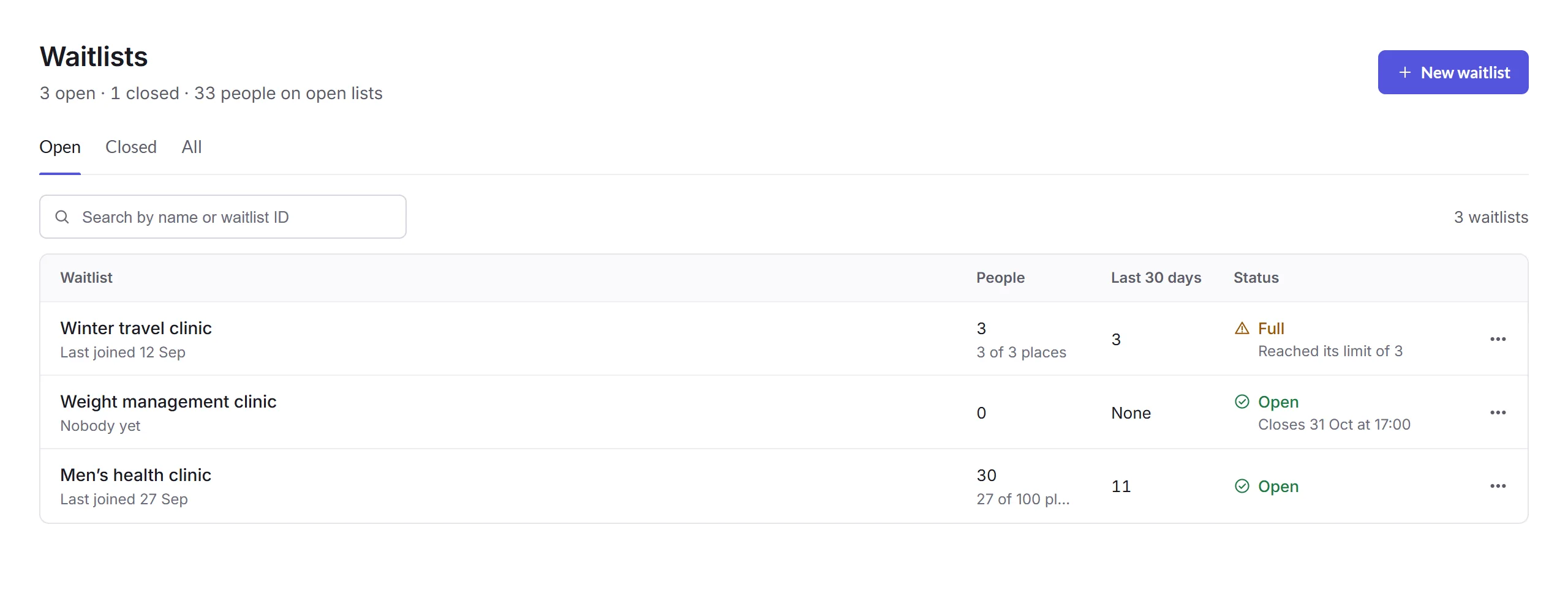
Each waitlist shows how many people are on it, how many joined in the last 30 days, and whether it's Open, Full or Closed. Its menu has Copy share link, Email people, Export CSV, Duplicate, Close to new signups or Reopen for signups, and Delete.
Making a waitlist
New waitlist
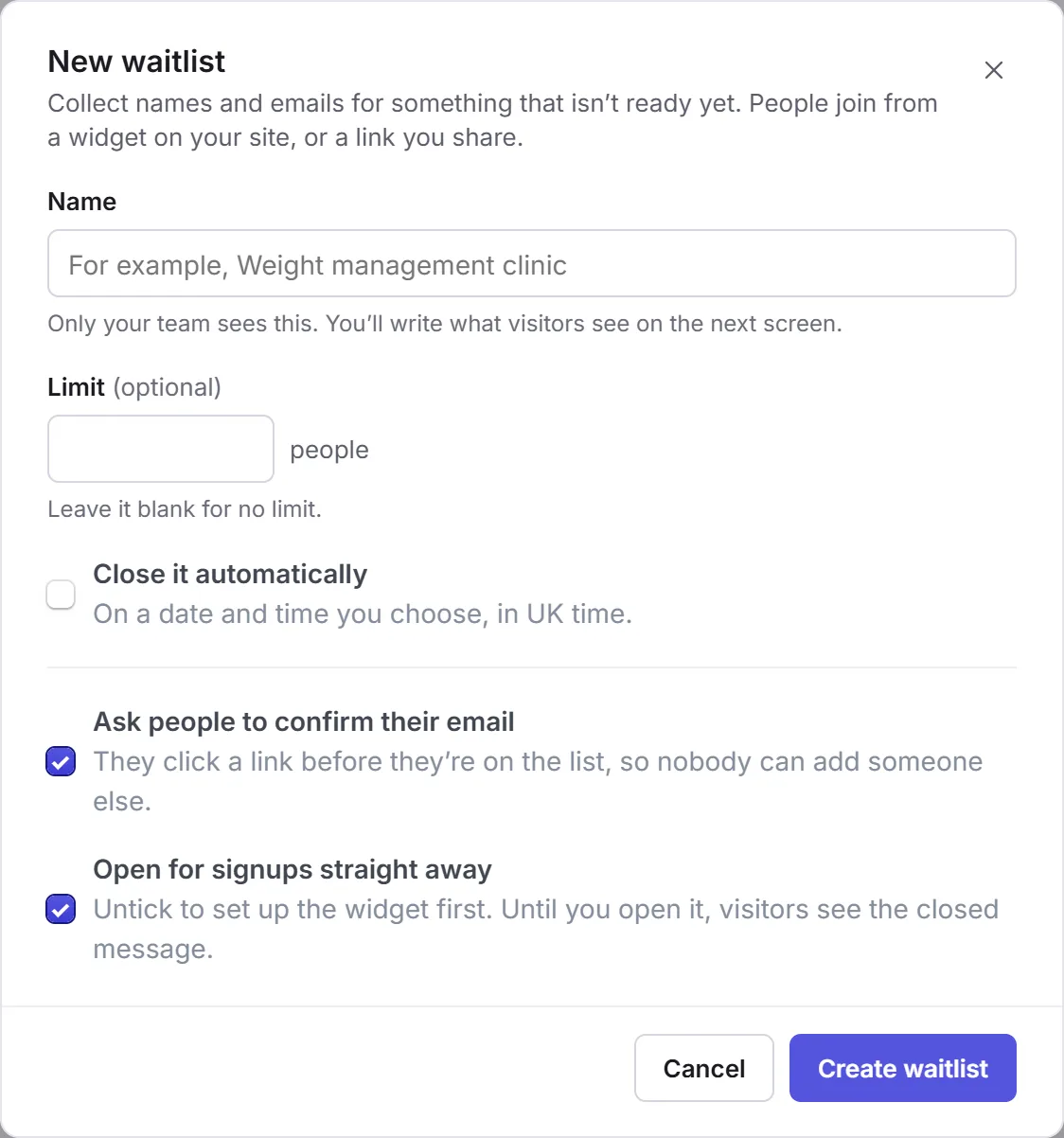
Click New waitlist and give it a Name; only your team sees it.
Limits and checks
Set a Limit if places are few, Close it automatically at a time, and whether to Ask people to confirm their email. A waitlist with a limit always asks.
Create waitlist
Leave Open for signups straight away ticked to start now, and click Create waitlist. Its Widget tab opens, to put it on your site.
Who can use it
Staff permissions have a Waitlists row: View, Edit, Delete and Export. At a business with the Clinic tool, seeing who is on a list needs permission to see health information; without it, staff see how many joined, not who.
In this section
Carry on with the detailed Waitlists guides: