Customers overview
Customers lists everyone who has ordered, booked or signed up with you, or whom your team has added. If your business has the Clinic tool, it's called Patients, and it shows each person's date of birth.
The list
Open Customers (or Patients) from the sidebar. Click a name to open their record.
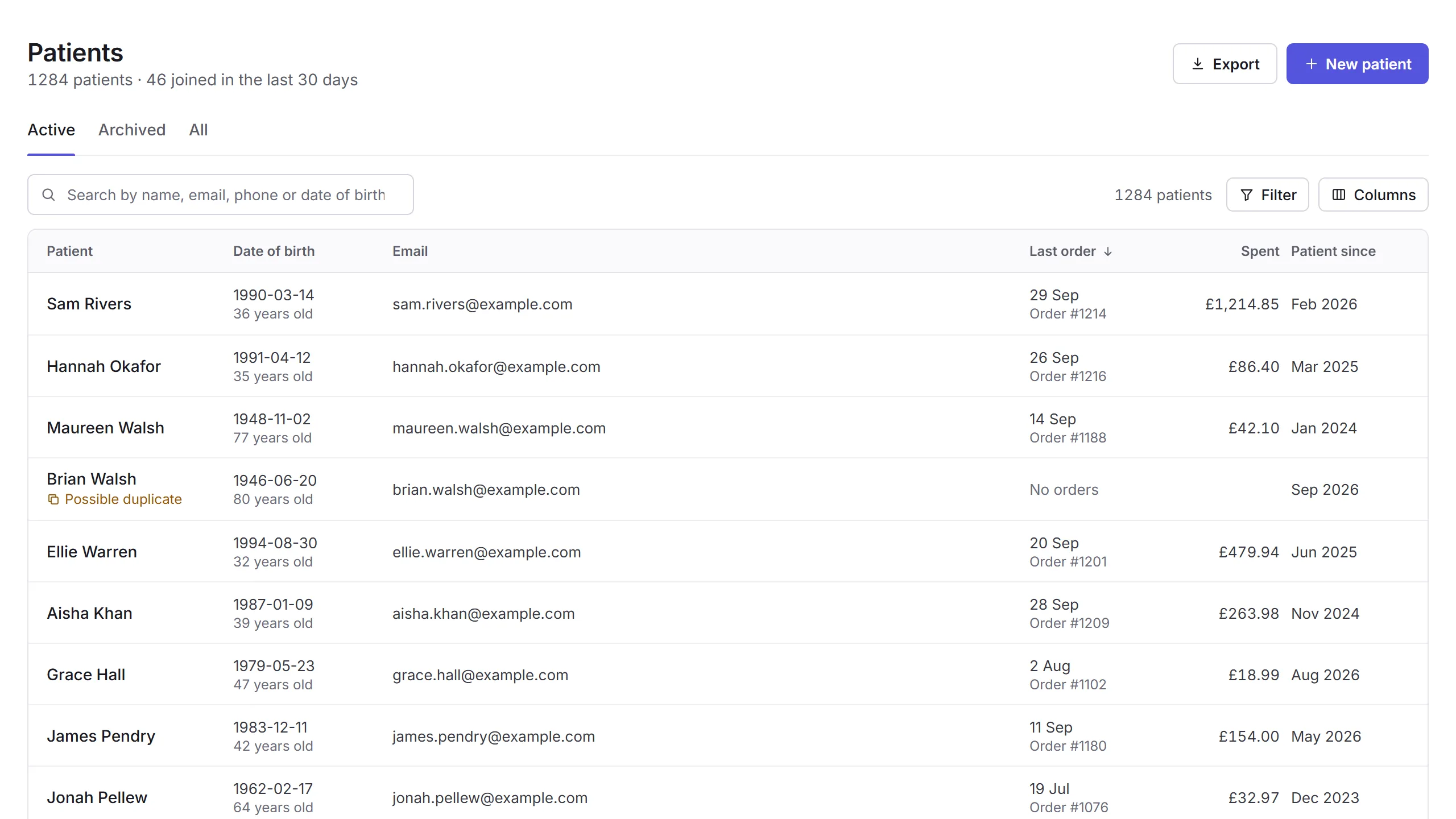
- The summary
- How many active customers you have, and how many joined in the last 30 days.
- Export and New patient
- Download a list, or add someone. See Exporting a list and Adding someone.
- The tabs
- Active, Archived (people you've archived, whose records are kept) and All.
- Search
- Finds someone by their name, email, phone number or date of birth.
- Filter and Columns
- Narrow the list, and choose which columns you see. See Finding someone.
- A patient
- Their name opens their record. See A customer's record.
- A possible duplicate
- Another record has the same email, or the same name and date of birth. Check them, and merge them if they're the same person. See Merging two records.
- Sort by a column
- Click a heading with an arrow, like Last order or Spent, to sort by it; click again to turn it round.
Finding someone
Type in the search box, or use Filter to narrow the list by:
- Tag
- People with one or more of your tags.
- Customer since, Last order and Last booking
- On or after, on or before, or between dates.
- Bookings, Spent and No-shows
- At least, at most, or between amounts.
With more than one location, you can also choose a location. Columns chooses what the list shows: email, phone, last order, next booking, what they've spent, when they joined, and their tags. Priorly remembers your choice. The list keeps your search and filters in its address, so Back and a shared link keep them too.
Spent only shows if you can see payments or your business's financials.
Adding someone
Most people add themselves, by ordering, booking or signing up. To add someone yourself, click New customer (or New patient). Their First name, Last name and Email are needed; their date of birth, mobile, sex at birth and address can go in now or later. Click Create customer, and their record opens.
Adding someone needs Create for customers in your permissions.
Exporting a list
Export downloads a CSV file of one location's customers. Clinical and payment information is never included. Choose what it's for:
- Marketing campaign
- Only people who've agreed to hear from you by email or text, with the record of when they agreed. You confirm you'll use it only for that campaign and respect opt-outs.
- Operational data migration
- Everyone, including people who haven't agreed to marketing, for moving your records. It must not be used for marketing.
Tick Use the filters from this page to export only who the list shows, choose the columns, and click Download CSV. Exporting needs View and Export for customers, at your location or every location.
In this section
Carry on with the detailed Customers guides: