A service's page
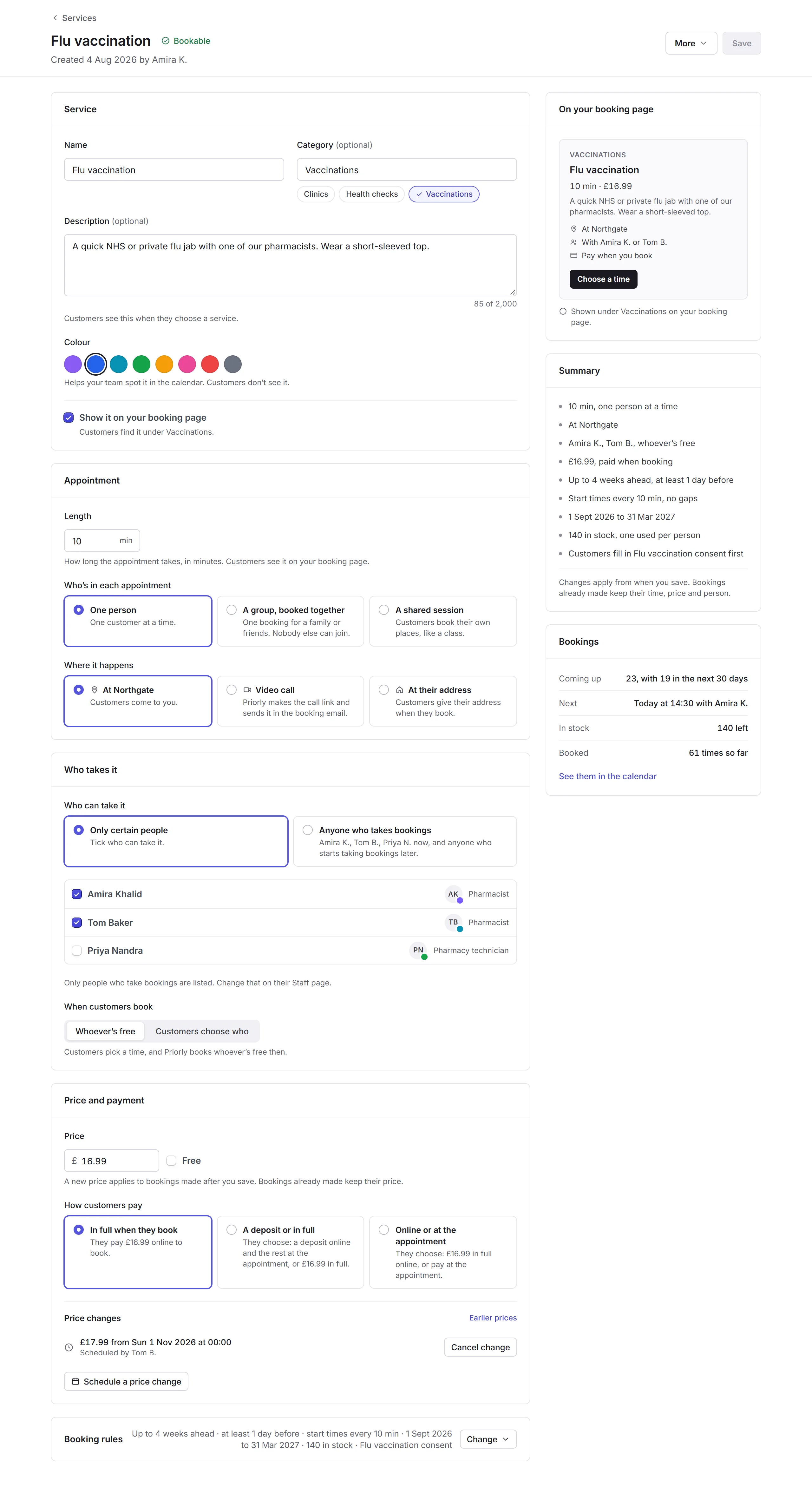
A service's page is cards down the left for what it is and how it's booked, and on the right how it looks on your booking page, a summary, and its bookings. Change anything, then click Save.
The page
At the top: its status, and when it was created and by whom. More has Copy booking link, Duplicate, Pause bookings and Archive.
What it is and who takes it
- Service
- Its Name, a Category (your booking page groups services by it), and a Description customers see when they choose it. Its Colour helps your team spot it in the calendar. Untick Show it on your booking page to hide it; its booking link still works.
- Appointment
- Its Length in minutes. Who's in each appointment: One person; A group, booked together, like a family, with the most people in one booking; or A shared session, like a class, where customers book their own places. Where it happens: at your location, by Video call (Priorly makes the call link), or At their address.
- Who takes it
- Only certain people, ticked from the people who take bookings here, or Anyone who takes bookings, including people who start later. To list someone, turn on Bookable on their Staff page. When customers book: Whoever's free, or Customers choose who, as groups always do.
Price and payment
Set its Price, or tick Free. How customers pay: In full when they book, A deposit or in full, or Online or at the appointment. With a deposit, customers pay it online and the rest at the appointment, or all of it online; tick Also let them pay at the appointment to let them pay nothing until then. A new price applies to bookings made after you save; bookings already made keep theirs. Only business admins can change prices.
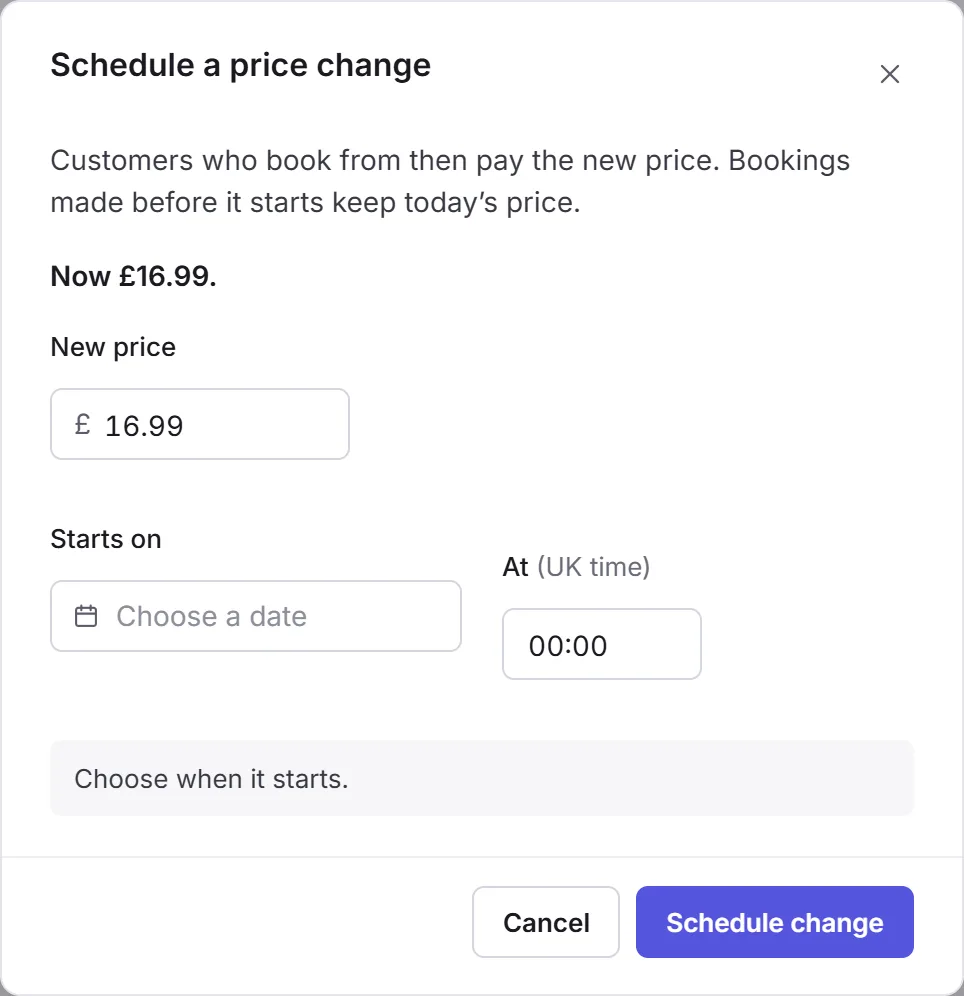
To change the price from a later date, click Schedule a price change, enter the New price, choose when it Starts on, and click Schedule change. Customers who book from then pay the new price. A change still to come shows under Price changes, with Cancel change; Earlier prices lists the old ones.
Booking rules
The card shows its rules in a line; click Change to open it.
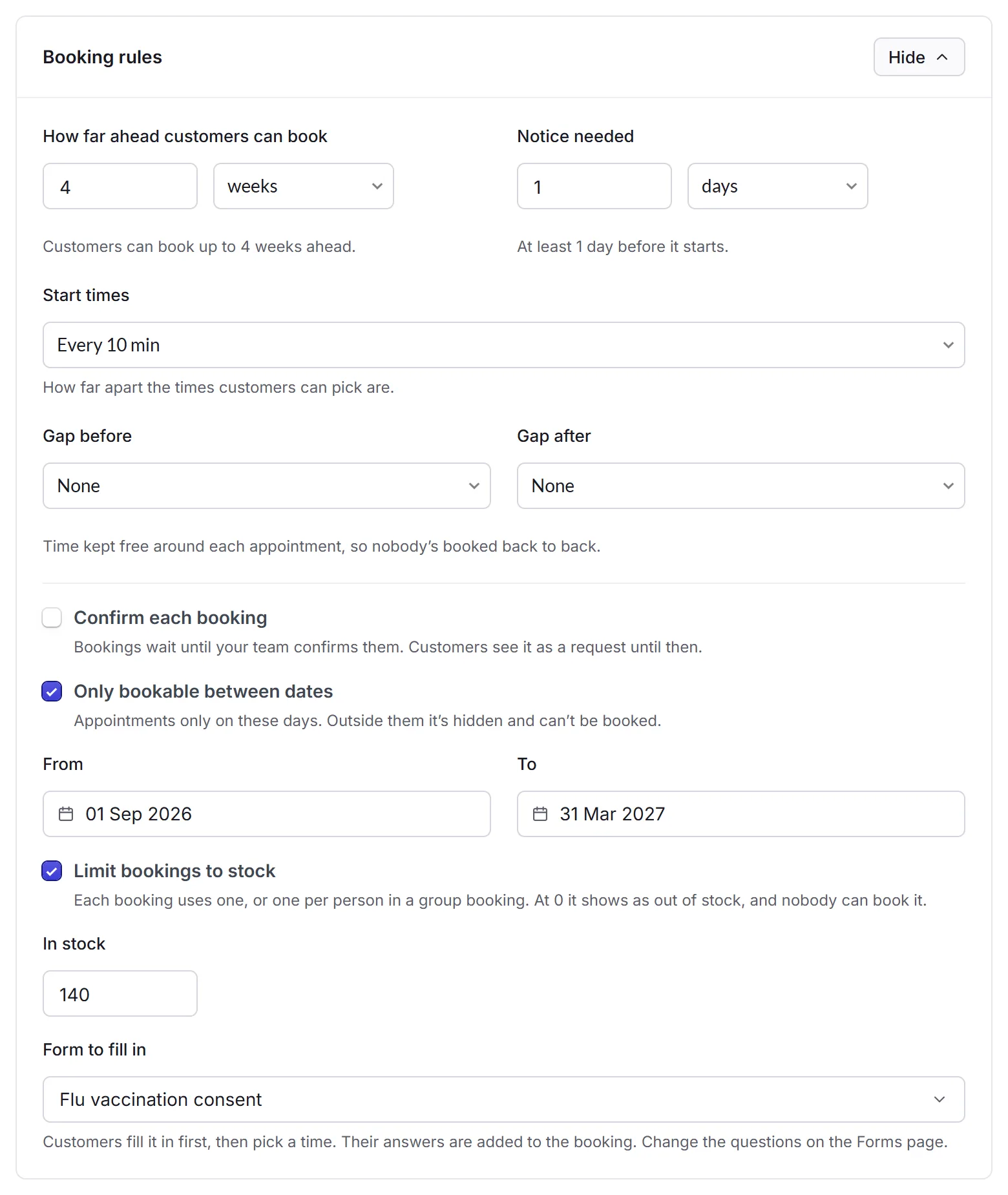
- How far ahead and Notice needed
- How far ahead customers can book, and how long before it starts they must book.
- Start times
- How far apart the times customers can pick are.
- Gap before and Gap after
- Time kept free around each appointment, so nobody's booked back to back.
- Confirm each booking
- Bookings wait until your team confirms them; customers see a request until then.
- Only bookable between dates
- Appointments only from one day to another, like a flu season.
- Limit bookings to stock
- Each booking uses one, or one per person in a group. At 0 it shows as out of stock, and nobody can book it.
- Form to fill in
- A form customers fill in before they pick a time, like a consent form; their answers are added to the booking. Only live forms that anyone can open are listed. With no form, customers just give their details.
On the right
- On your booking page
- How the service looks to customers, as you change it.
- Summary
- The service in a few lines. Changes apply from when you save; bookings already made keep their time, price and person.
- Bookings
- How many are coming up, the next one, how many are left in stock, and how many times it's been booked. See them in the calendar shows only this service's bookings.
Where your customer accounts suggest services, a Suggestions card sets whether this one is suggested in customers' accounts, to every customer or only some.