Trackers
A tracker lets customers record things like their weight, blood pressure or a photo in their account, as often as they need. Your team sees the readings on their record. A product offers a tracker to everyone who buys it.
Your trackers
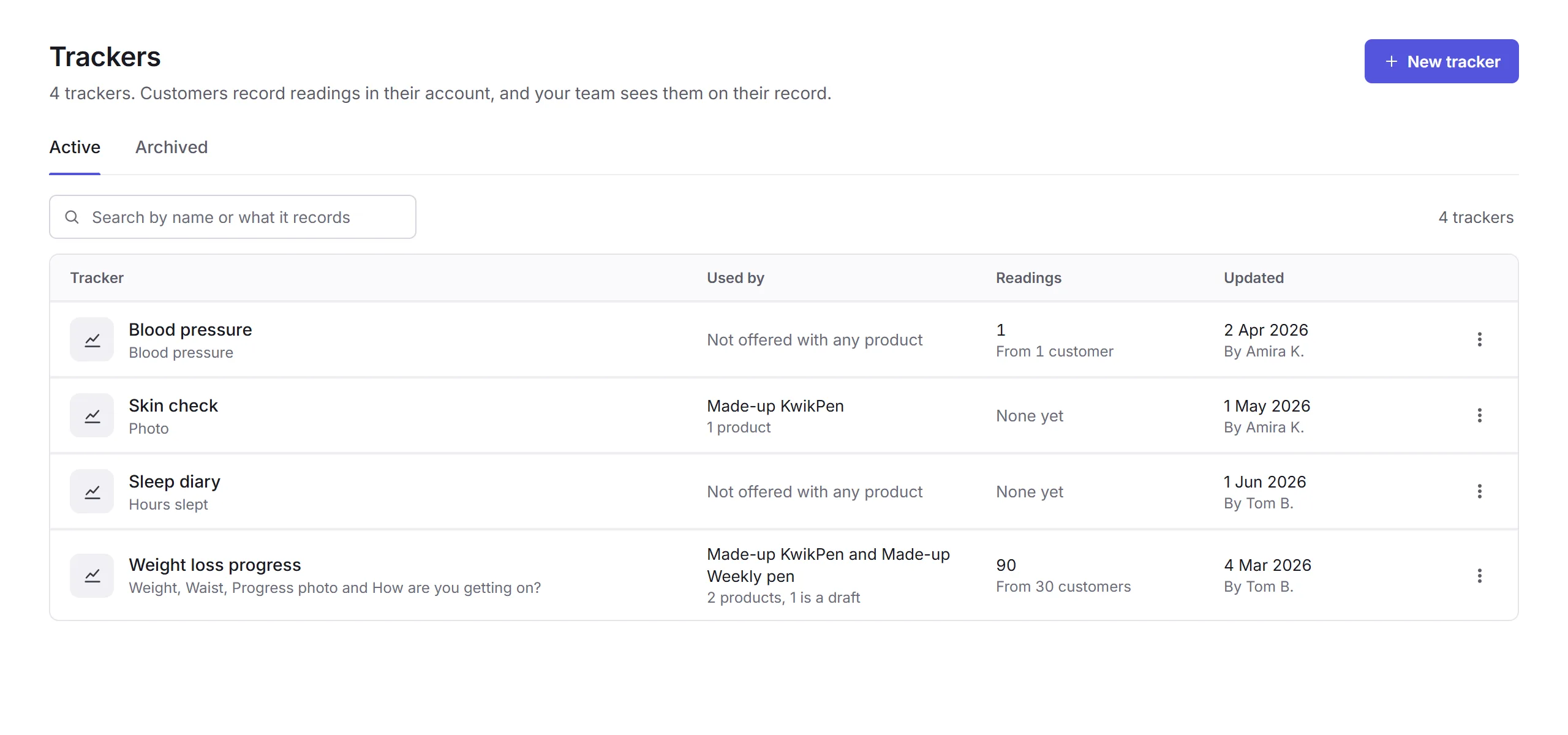
Open Trackers, under Products in the sidebar. Each tracker shows what it records, the products that offer it, and how many readings customers have recorded. Readings are health information, so only staff who can see health information see them.
Making a tracker
Details
Click New tracker. Give it a Name, and optionally what to tell customers. Choose How often they record, Whenever they like or Once a month, and how many photos each month.
What customers record
Click Add a question for each thing they record: Weight, Height, Number, Blood pressure, Text, Photo or Date, with help for customers and whether they must answer it.
Create tracker
Click Create tracker. On the right, What customers see previews it, and Who sees readings says who on your team can.
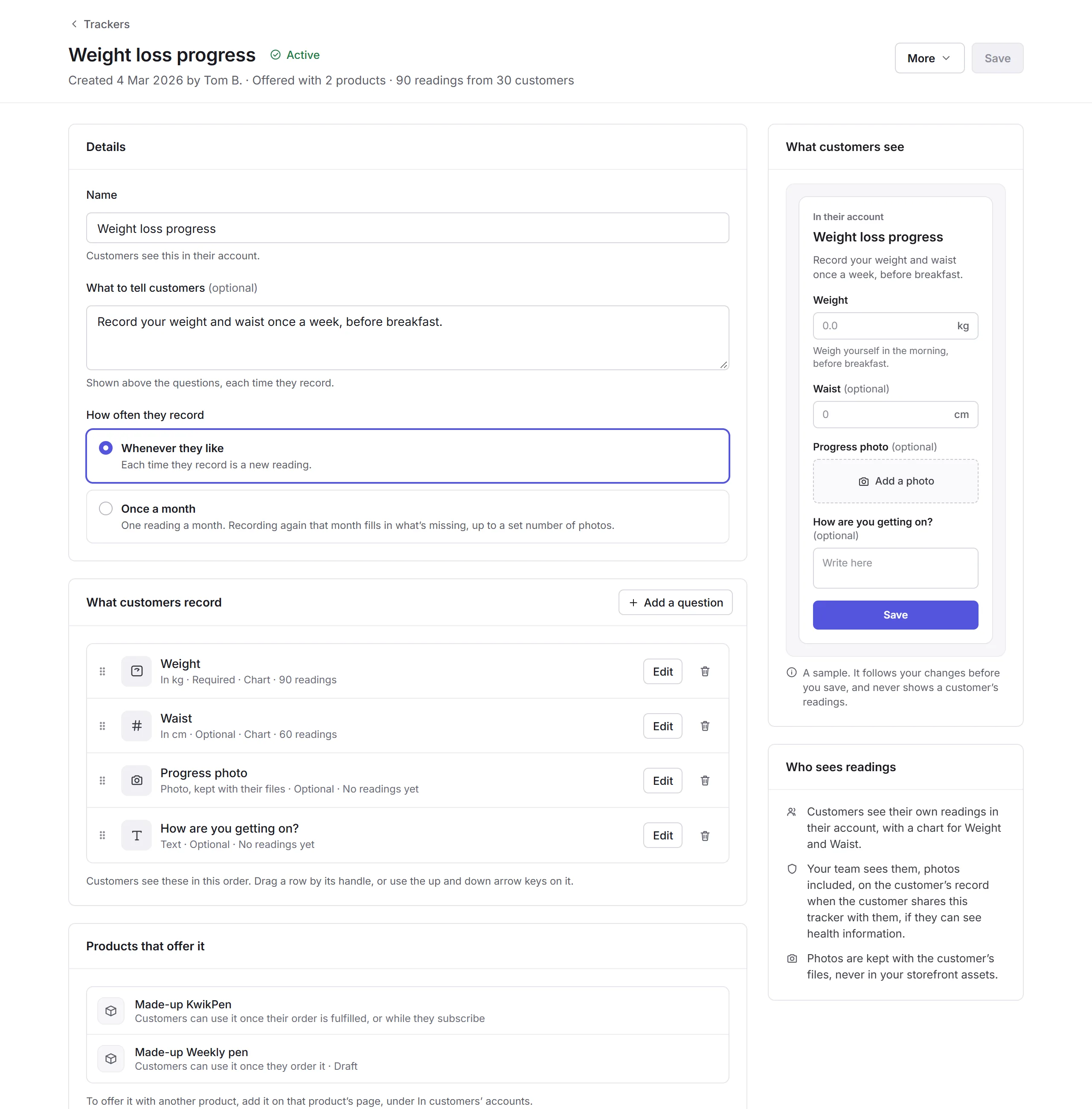
To offer it, open a product's page, find In customers' accounts, click Add tracker, and save. A tracker's More menu has Duplicate and Archive tracker; an archived one comes back with Restore.