A subscription's page
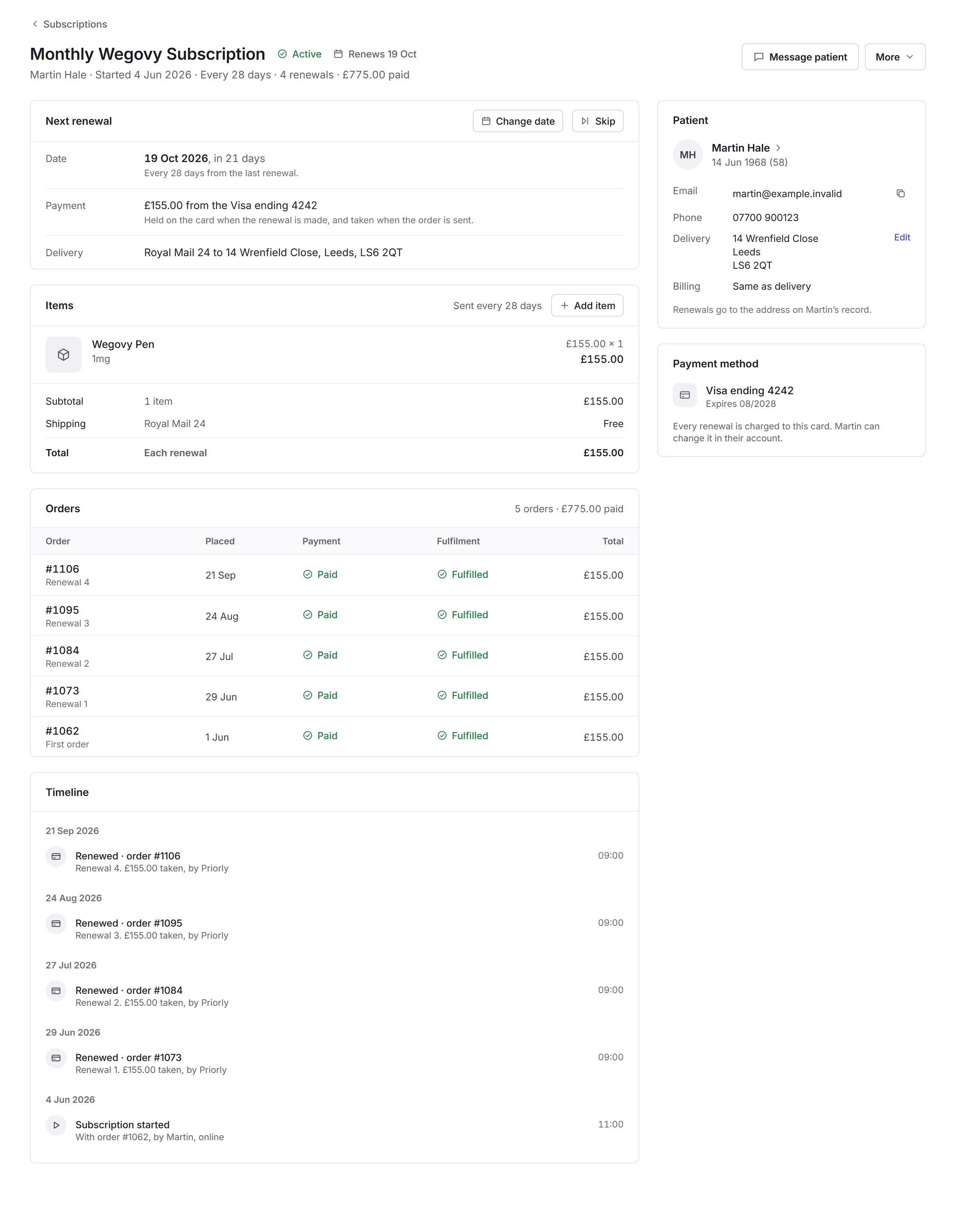
A subscription's page shows its next renewal, what's sent each time, its orders and everything that's happened to it, with the customer and their card on the right.
The page
At the top: the plan, its status, who it's for, when it started, how often it renews and what's been paid. Message patient (or customer) opens a conversation. When something's waiting, the main button is the next step: Remind them about their tasks, Retry payment, Resume now or Restart subscription.
- Next renewal
- Its date, the payment and the delivery. The payment is held on the card when the renewal is made, and taken when the order is sent. Change date and Skip move it.
- Items
- What's sent each time, the totals, and any code on the next renewal. Add item adds one; with two or more, each has Remove.
- Orders and Timeline
- Every order it's made, and everything that's happened to it, newest first.
- Patient and Payment method
- Their details and delivery address, and the card renewals are charged to. Renewals go to the address on their record. They can change their card in their account.
More
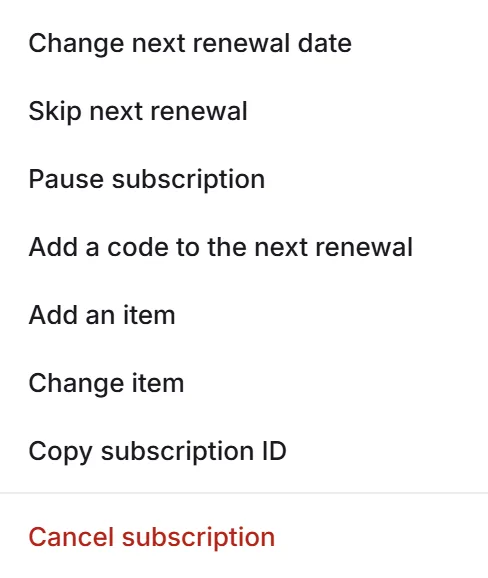
What it offers follows the subscription: Resume now on a paused one, Retry payment and Record a bank transfer after a failed payment, Remove the code when there is one, and Combine with another subscription when they have another on the same schedule. Most changes let you add a Note for your team and message the customer about it.
Moving or skipping a renewal
Change date
Click Change date, under Next renewal.
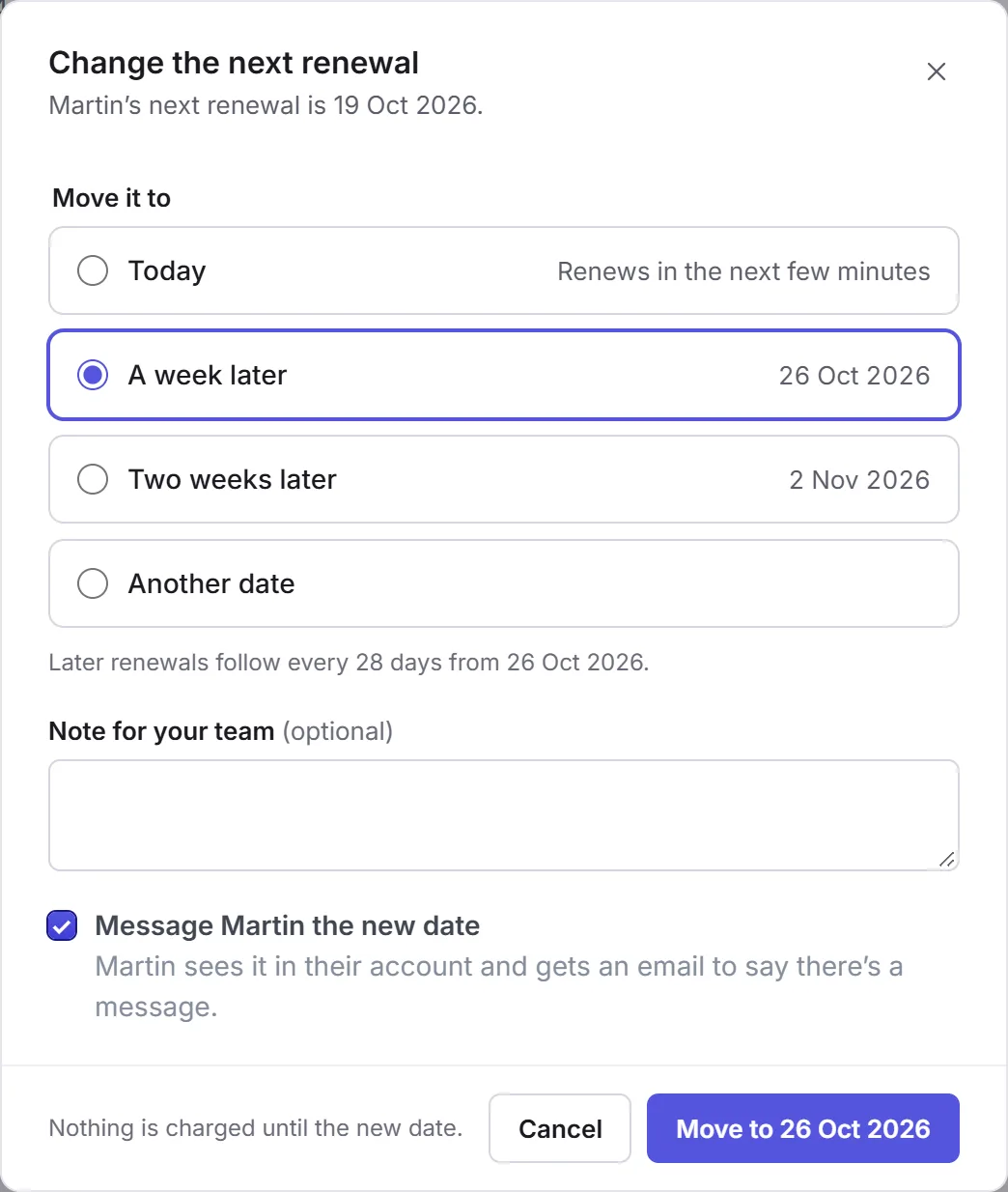
Move it to
Choose Today (it renews in the next few minutes), A week later, Two weeks later or Another date. Later renewals follow on from the new date.
Move
Leave Message ticked to tell them the new date, and click Move to the date, or Renew today. Nothing is charged until the new date.
Skip skips the next renewal: the date moves on by one period.
Pausing, cancelling and restarting
- Pause subscription
- No renewals until someone resumes it; there's no end date. Resume now starts it again: the next renewal is its due date, or now if that's passed.
- Cancel subscription
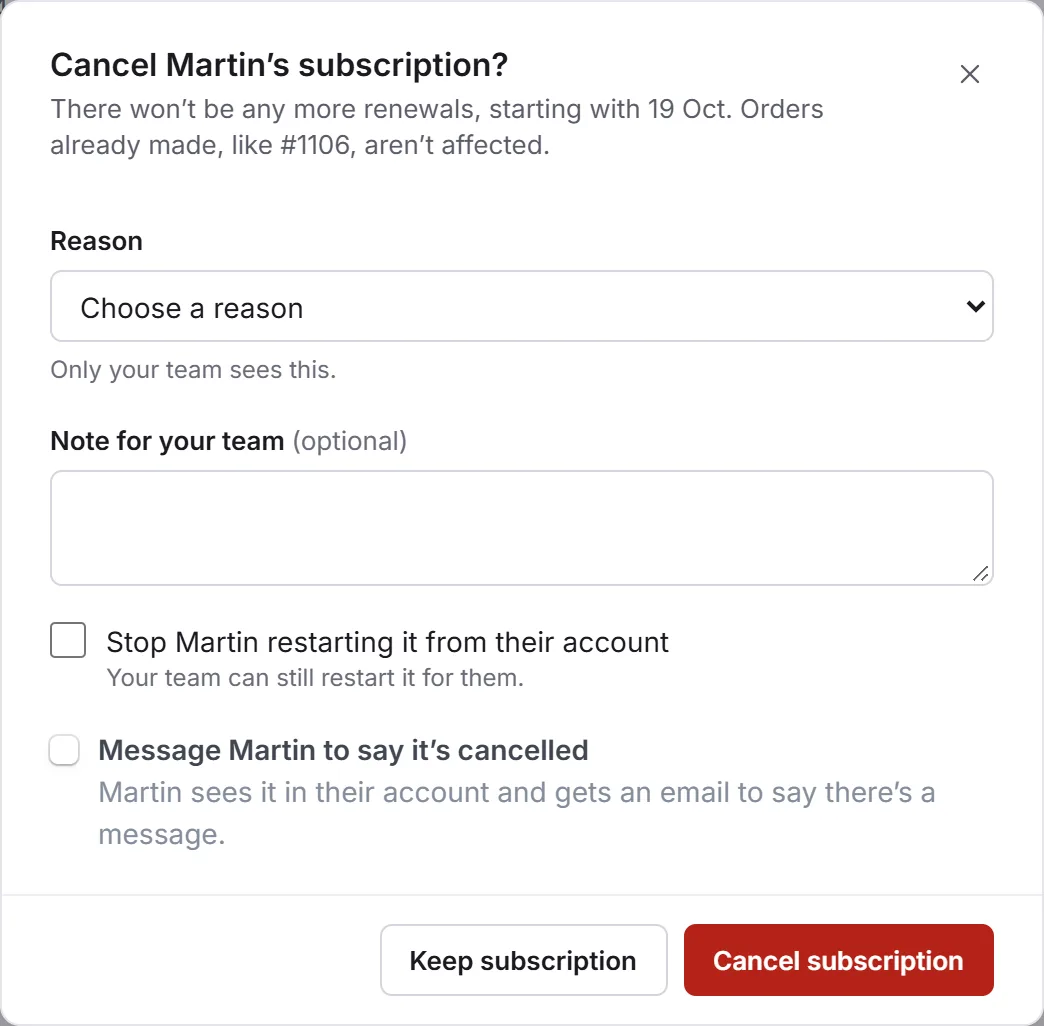
- No more renewals; orders already made aren't affected. Choose a Reason, and tick Stop them restarting it from their account if they shouldn't. A subscription still on its first order cancels that order too, and the hold on their card is released.
- Restart subscription
- Brings a cancelled or ended one back, with its first renewal date and, if you like, a code for that renewal. The page says if it can't be restarted, and why.
Items and codes
Change item swaps what's sent for another product, priced from its own plan. Add an item sends something else each time too. Add a code to the next renewal puts a discount code on it. Combine with another subscription takes another of theirs on the same schedule into this one as an add-on, so they renew as one.