Drafts and sending
An invoice starts as a draft: one Priorly makes each month for a monthly account, or one you start. You can change a draft as much as you like. Once you send it, it gets its number and its lines are fixed.
Checking the monthly drafts
On the first day of each month, Priorly makes a draft for each monthly account, with everything on its account the month before. Nothing is sent by itself.
Check drafts
On the Invoices tab, click Check drafts. The arrows beside Draft 1 of 3 move between them.
What's on it
Untick a charge to leave it for the next invoice. Change a line's Discount, as a percentage or an amount, or click Add a line for something else. Click Save changes.
Details
Check the Reference, which goes on the invoice and into Xero, and add a Note on the invoice if you like. The number and date are given when you send it.
Send
Click Send. See Sending.
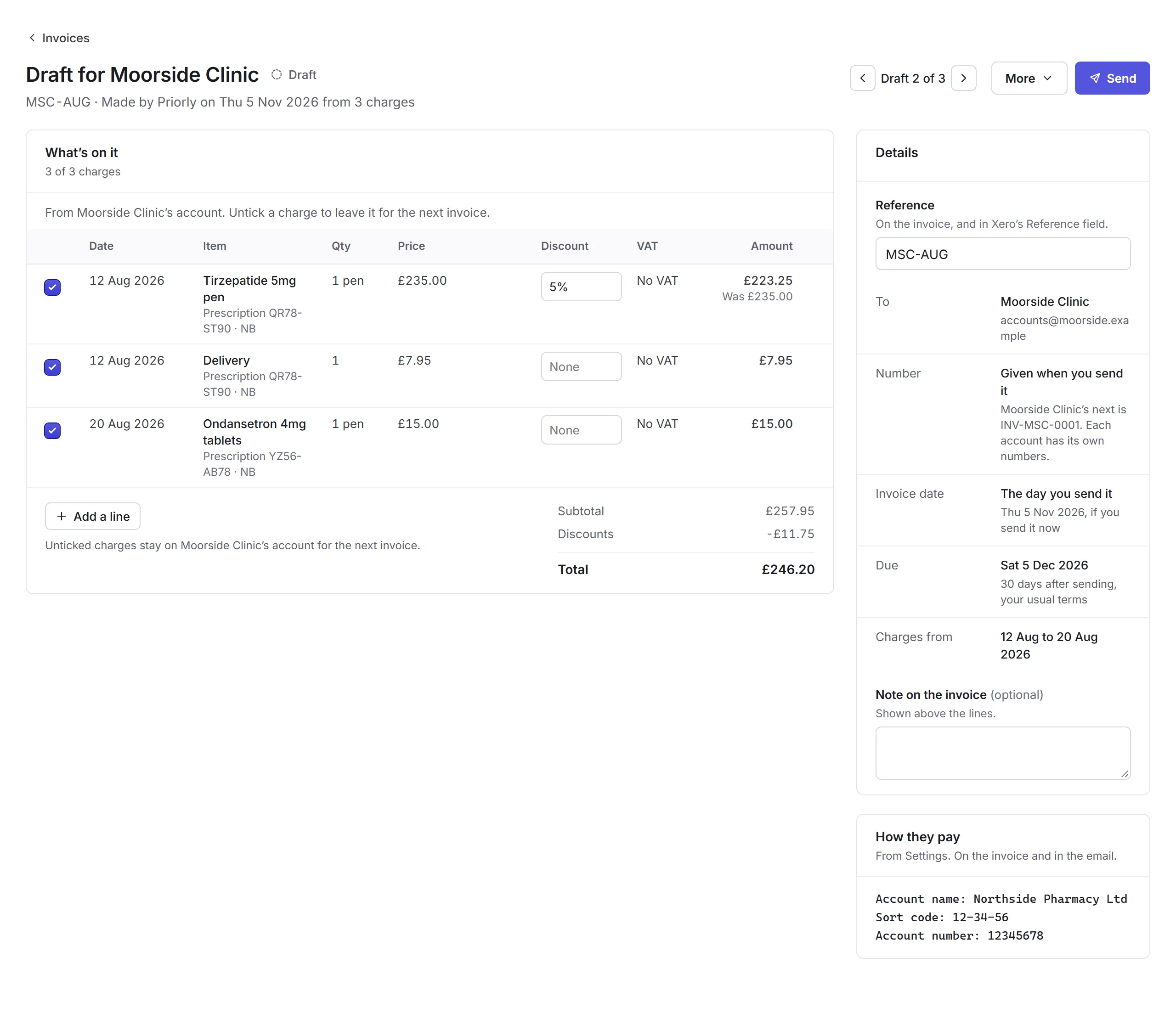
A clinic's agreed discount, set on the Clinics page, is already on its lines. Prescription references and initials show to staff who can see health information.
Making an invoice
Click New invoice, choose Who it's for, and a draft starts with anything on their account. Add lines, then send it. An account's Make invoice does the same. To invoice someone new, add them as an account first.
Sending
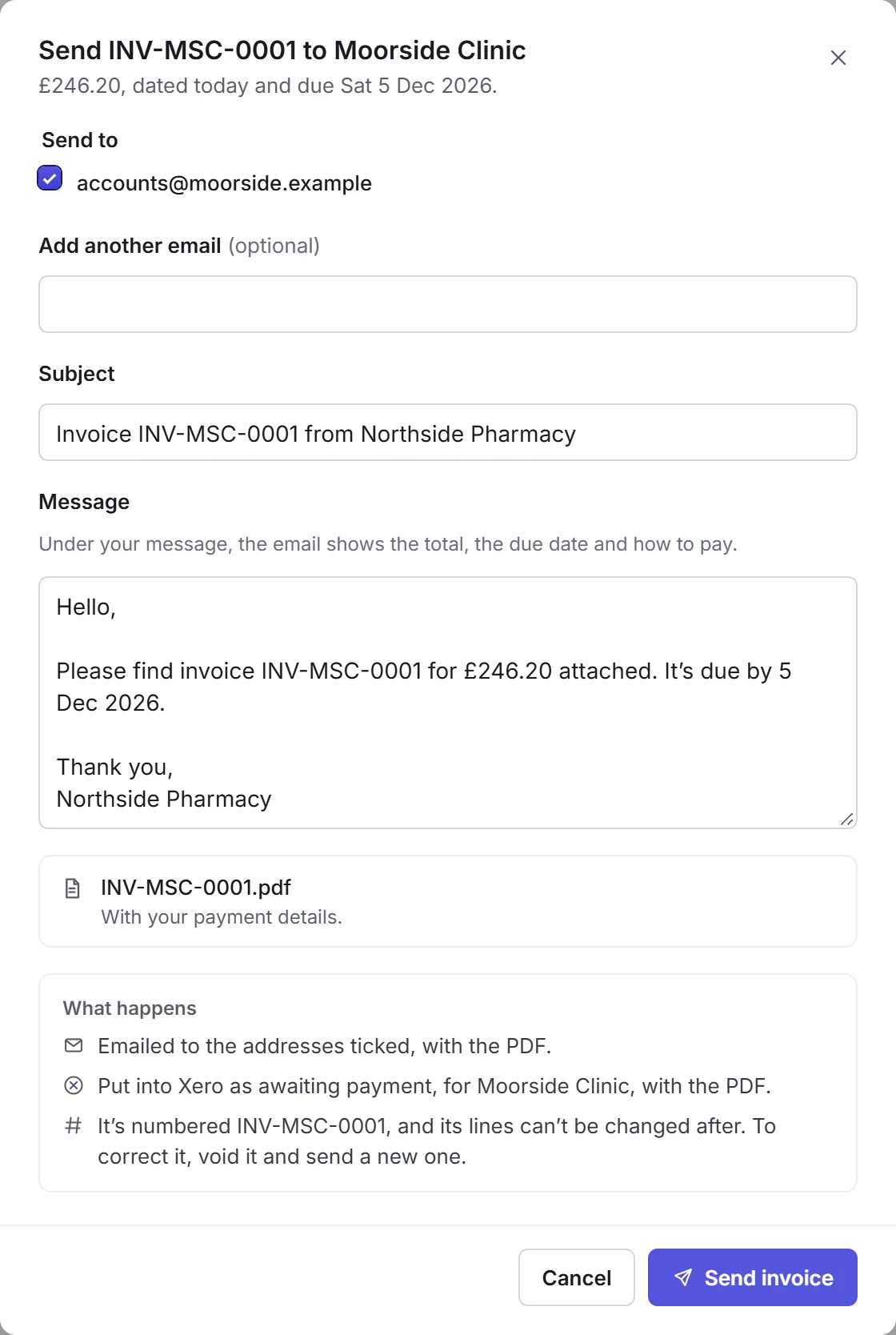
Send opens the email: who it goes to, with Add another email, its Subject and Message. The invoice goes as a PDF, with your payment details. Click Send invoice.
- Its number
- INV-, the account's code, then 0001, 0002 and so on, like INV-MSC-0001. An account needs a code before its first invoice is sent; Priorly asks for one if it hasn't got one.
- Xero
- With Xero connected, the invoice goes into it as awaiting payment, with the PDF.
- Changing it later
- A sent invoice's lines can't be changed. To correct one, void it and send a new one.