Services overview
A service is anything customers book with you, like a flu jab, a blood pressure check or a travel consultation. Services sets how long each one takes, who takes it, what it costs and when it can be booked, and your booking page and calendar follow it.
Your services
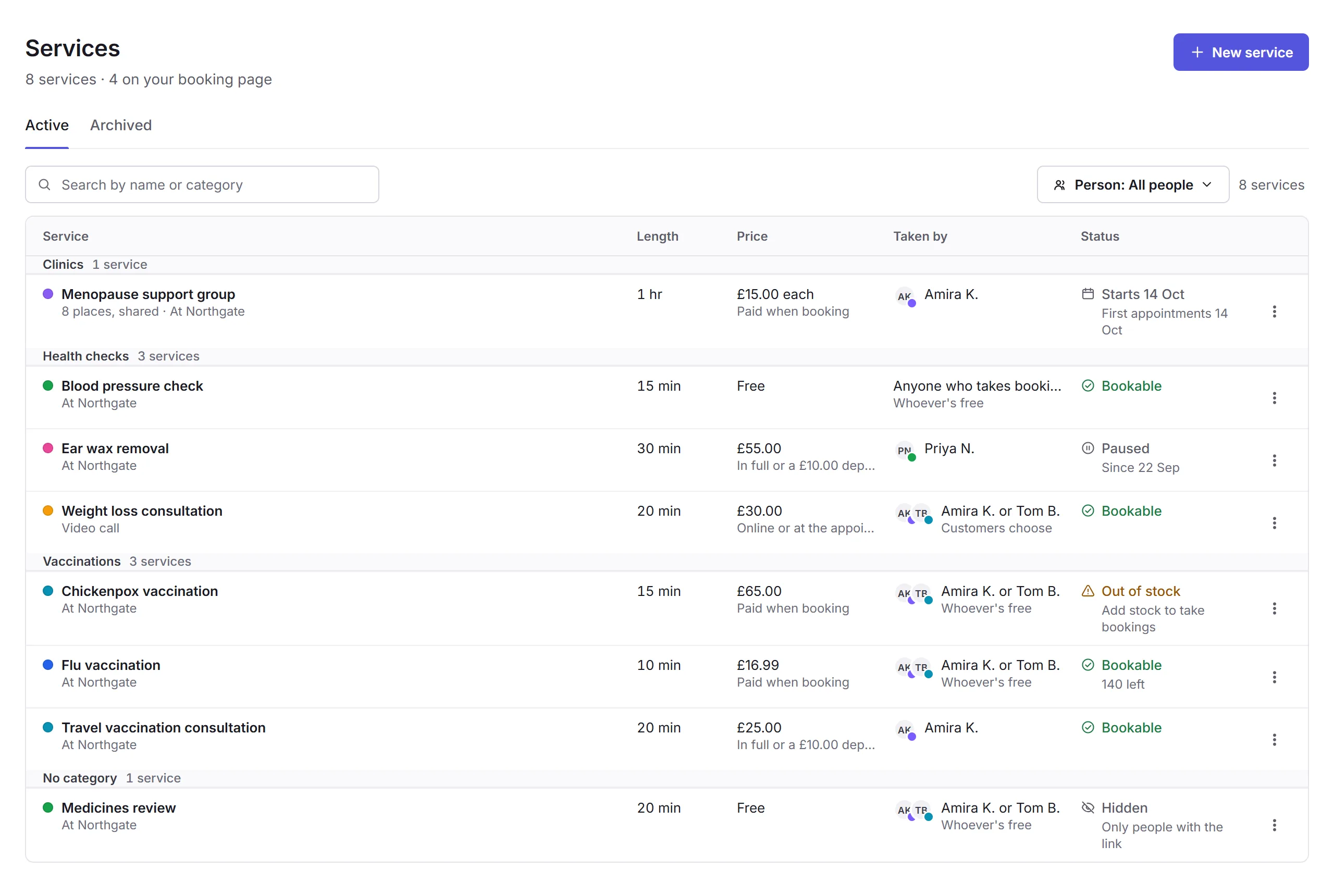
Open Services from the sidebar. It lists the services at the location you're in, by category. Click a service's name to open its page.
- The summary
- How many services you have, and how many customers can book on your booking page now.
- New service
- Add one. See Adding a service. With two or more locations, Add from another location offers a service you already have elsewhere here too.
- Active and Archived
- Archived services are kept, with their bookings, and can be restored.
- Search and Person
- Find a service by name or category, or choose a person to see only the services they take.
- A category
- Services are grouped by their category, A to Z, with No category last. Each shows its length, its price and how customers pay.
- Taken by
- Who takes it, and whether Customers choose who, or it's Whoever's free.
- Status
- Whether customers can book it now. See Statuses.
- A service's menu
- Copy booking link, Duplicate, Pause bookings or Resume bookings, and Archive.
Statuses
- Bookable
- On your booking page, and customers can book it.
- Hidden
- Not on your booking page, but anyone with its booking link can still book it.
- Starts and Ended
- It's only bookable between dates, and the first one hasn't come yet, or the last one has passed.
- Nobody takes it
- Nobody who takes bookings is set to take it, so it can't be booked.
- Out of stock
- Its bookings are limited to stock, and none is left. Add stock to take bookings again.
- Paused
- Nobody can book it until you resume bookings. Bookings already made carry on.
Adding a service
New service
Click New service. If Olly is on for your business, you can describe the service and click Fill in the page, then check what Olly filled in.
Fill it in
Give it a name, a length, who takes it and a price. Everything else starts with everyday settings, like bookable up to 4 weeks ahead with a day's notice. See A service's page.
Create service
Click Create service. If something needs fixing, Priorly lists it first.
Duplicate starts a new service from a copy of one you have. It copies everything except the name, the stock count, price changes, whether it's paused, and suggestions. Adding a service, duplicating one, and anything about prices are for business admins.
Pausing and archiving
Pause bookings stops new bookings for a while, with Undo for a moment after. Resume bookings lets customers book it again. Pausing needs Edit for services, at all locations; archiving and restoring need Delete.
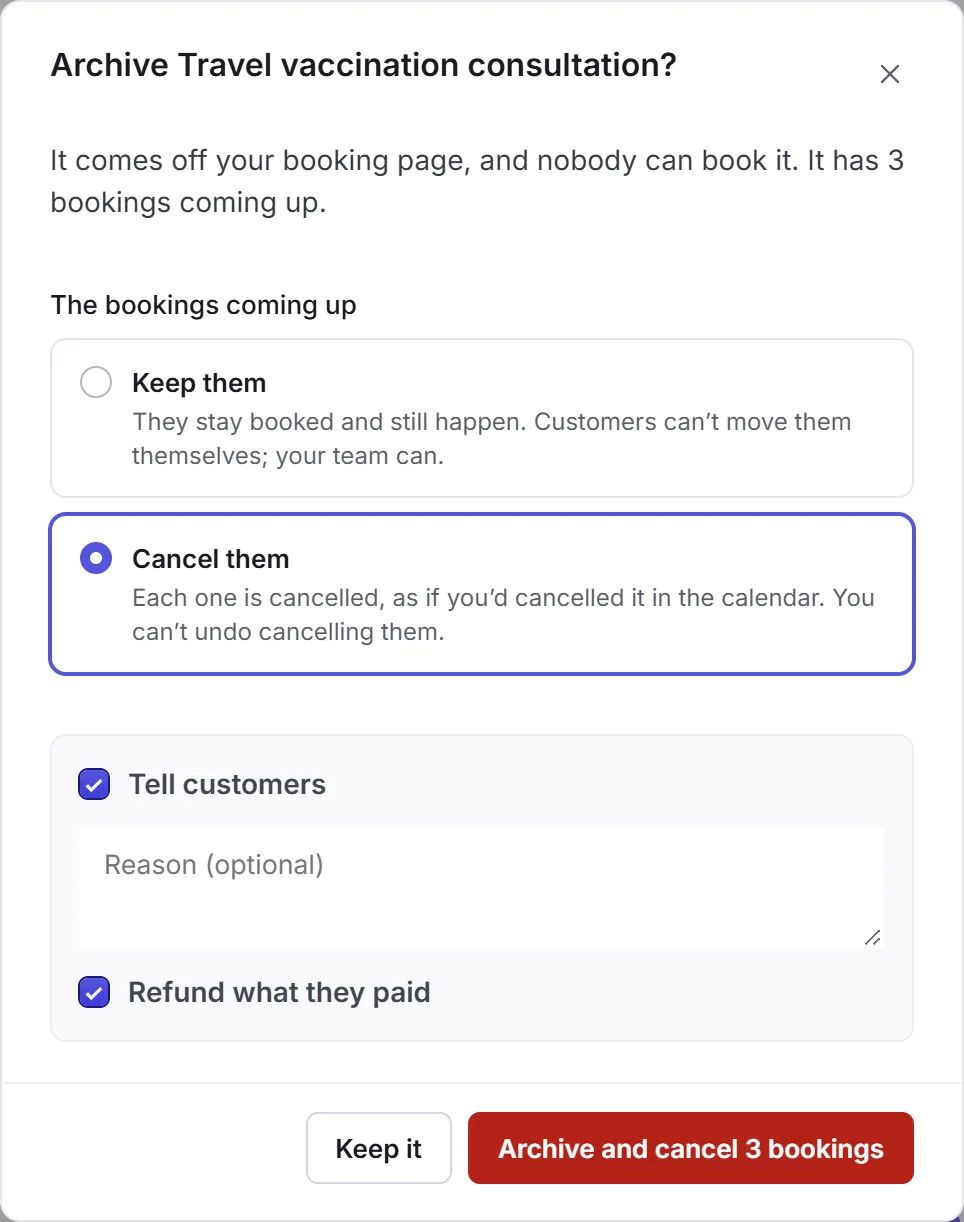
Archive takes a service off your booking page for good, so nobody can book it. If it has bookings coming up, choose to Keep them, so they still happen, or Cancel them, with an email to customers and a refund of what they paid. Cancelling them can't be undone.
To bring one back, open Archived and choose Restore. It comes back paused, so you can check it before customers can book it. There's no deleting a service: archiving keeps its bookings and history.
In this section
Carry on with the detailed Services guide: