Fulfilment
Fulfilment holds your delivery options, which customers choose from at checkout, and your packaging, which rates use to work out a parcel's weight and size.
Delivery options
Open Fulfilment, under Products in the sidebar. Each option shows what customers pay, how long it takes, and whether it's Offered at checkout. The one marked Selected first is already ticked when customers reach delivery.
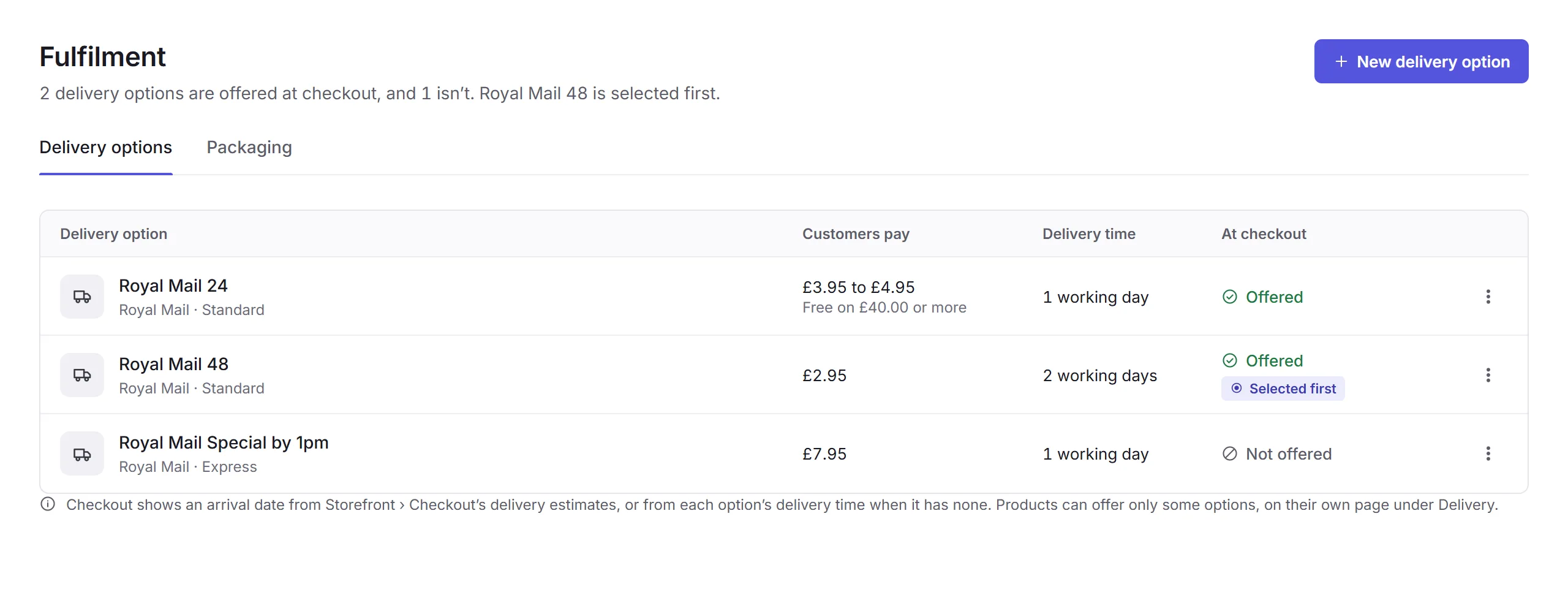
An option's menu has Edit, Duplicate, Select it first at checkout, Stop offering or Offer at checkout, and Delete. Delete is only for an option no order or subscription has used; for one that has, stop offering it instead.
Adding a delivery option
New delivery option
Click New delivery option and choose how customers get it: Sent by a carrier, like Royal Mail or a courier, or Collected from one of your locations.
Fill it in
Give it a name, price and delivery time. For a carrier, add how it's sent; for collection, choose the location. No label is made for collected orders.
Create delivery option
Click Create delivery option. Customers can choose it while Offered at checkout is on.
A delivery option's page
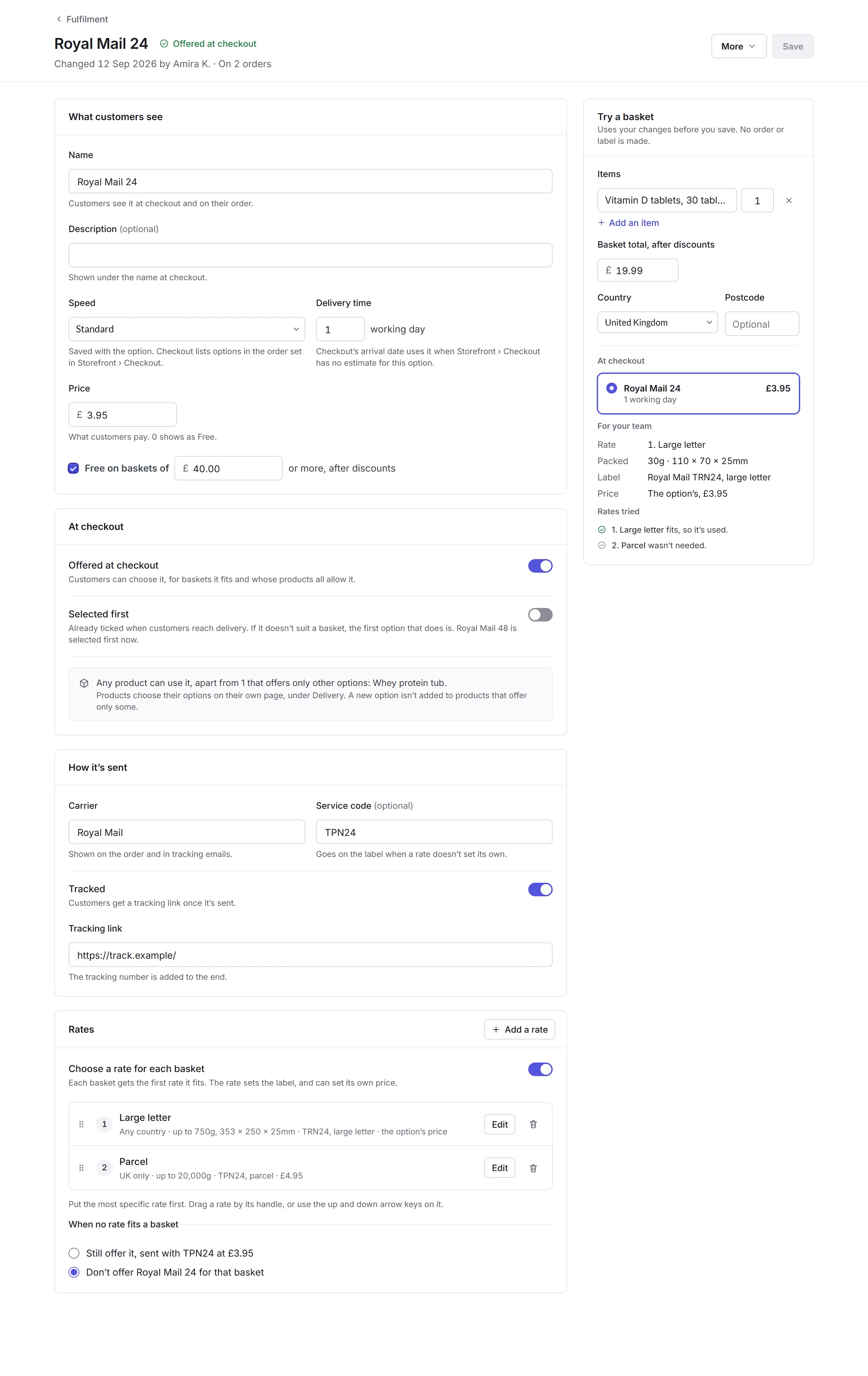
- What customers see
- Its Name and Description, its Speed, its Delivery time in working days, and its Price (0 shows as Free). Tick Free on baskets of to make it free over a total, after discounts.
- At checkout
- Offered at checkout lets customers choose it for baskets it fits. Selected first ticks it for them. A product can offer only some options, on its own page under Delivery.
- How it's sent
- The Carrier, shown on the order and in tracking emails, and the Service code for the label. Turn on Tracked and add the Tracking link: the tracking number is added to the end.
- Rates
- Turn on Choose a rate for each basket to send baskets differently by weight, size or where they're going: each basket gets the first rate it fits, which sets the label and can set its own price. Put the most specific rate first. When no rate fits a basket, either still offer the option, or don't offer it for that basket.
- Try a basket
- Choose items, a basket total and where it's going, and see what checkout would offer, and which rate, packing, label and price your team gets. It uses your changes before you save, and makes no order or label.
If you change the price of an option that subscriptions renew with, Priorly asks first: they pay the new price from their next renewal.
A rate
Click Add a rate, or Edit on one.
- The baskets it's for
- Where to: any country, only some countries, or only postcodes starting with, say, BT or IM. Its packed weight, from and up to, and its packed size, up to.
- Packing
- As the items are, using each item's own weight and size, or In your packaging: the first packaging the items fit in is used, its weight added and its outside size taken.
- The label
- The service code and package format, like Large letter or Parcel.
- Price
- The option's price, or Its own price. What it costs you is only seen by staff with Business financials.
Packaging
Open the Packaging tab and click New packaging to add a box or mailer you send in.
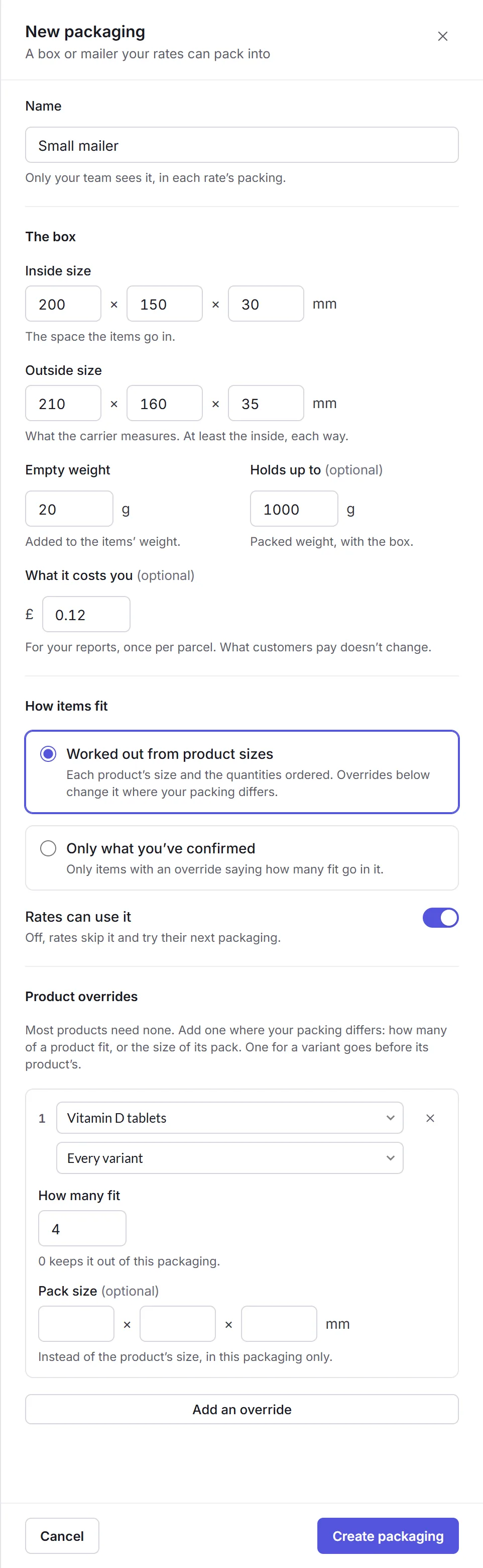
- The box
- Its Inside size, its Outside size (what the carrier measures), its Empty weight, added to the items', and how much it Holds up to. What it costs you is for your reports; customers pay the same.
- How items fit
- Worked out from product sizes, or Only what you've confirmed, where only items with an override go in it. Turn off Rates can use it to have rates skip it.
- Product overrides
- Where your packing differs: how many of a product fit, or the size of its pack in this packaging. One for a variant comes before one for its product.
Click Create packaging, then choose it in a rate, under Packing. Packaging can only be deleted when no rate uses it.