Forms overview
A form collects answers from customers: on its own page, before they book a service, before they choose what to buy, or from a private link you send. Forms shows them all, where each is used, and what's new.
Your forms
Open Forms from the sidebar. Each form is a card; click its name to open it.
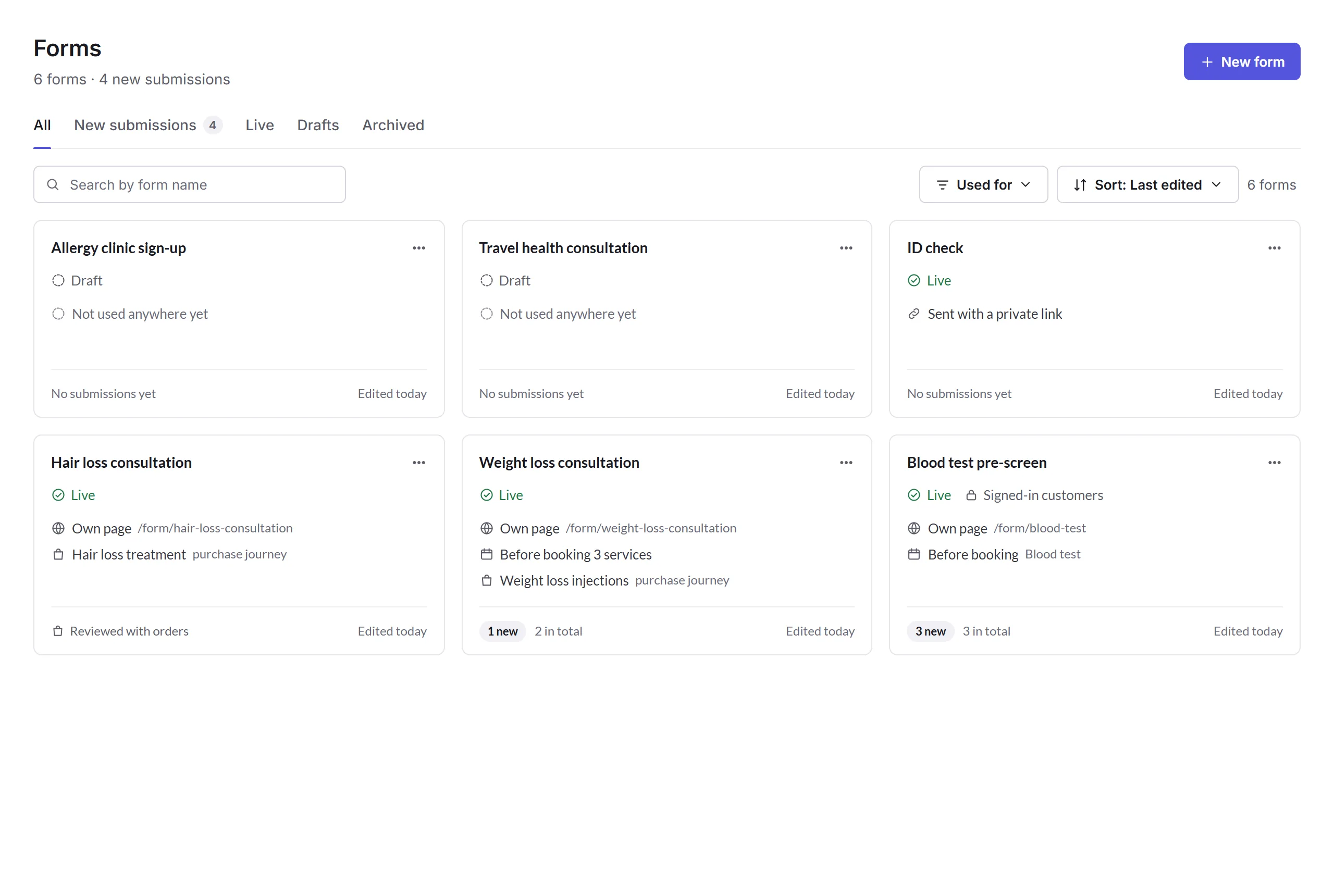
- The summary
- How many forms you have, and how many new submissions are waiting.
- New form
- Start from a template or from nothing. See Making a form.
- The tabs
- All, New submissions (forms with answers nobody has reviewed), Live, Drafts and Archived.
- Search, Used for and sort
- Find a form by name, show only forms used one way (like Before a booking or Purchase journeys), and sort by when they were last edited, their name, or how many new submissions they have.
- A form
- Its name opens it. See A form's settings.
- Its status
- Live, Draft or Archived, and Signed-in customers for a form only they can fill in.
- Where it's used
- Its own page and its address, the services it's asked before, the purchase journeys it starts, a private link, or Not used anywhere yet.
- New submissions
- How many new answers are waiting, and how many there are in all. A form whose answers go with orders says Reviewed with orders.
- Its menu
- See A form's menu.
Making a form
New form
Click New form. Choose a template, like a consultation or a consent form, and click Use this template; or click Blank form to start with no questions. Your team's own templates are there too.
Form name
Customers see this name on the form and in their account. You can change it later. Click Create form.
Questions and settings
It starts as a draft. Add or change its questions (see Building a form), then choose who fills it in and where (see A form's settings).
Go live
Click Go live on the form's page. Priorly checks it first and says if anything's missing.
Making forms needs Create for forms in your permissions.
A form's menu
The … on each card has what applies to that form:
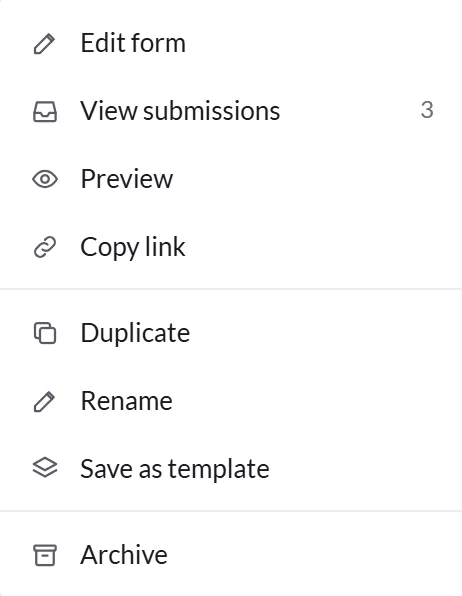
- Edit form, View submissions, Preview and Copy link
- Open it, see its answers, see it as customers do, or copy its page's address.
- Duplicate, Rename and Save as template
- A copy starts as a draft. A template shows under New form for your whole team.
- Archive
- Takes it off its page and its services. Priorly says what changes first, and won't archive a form a purchase journey starts on. Restore as a draft brings it back. A form nobody has answered, and that no purchase journey, order or subscription asks for, can be deleted instead.
In this section
Carry on with the detailed Forms guides: