A product's page
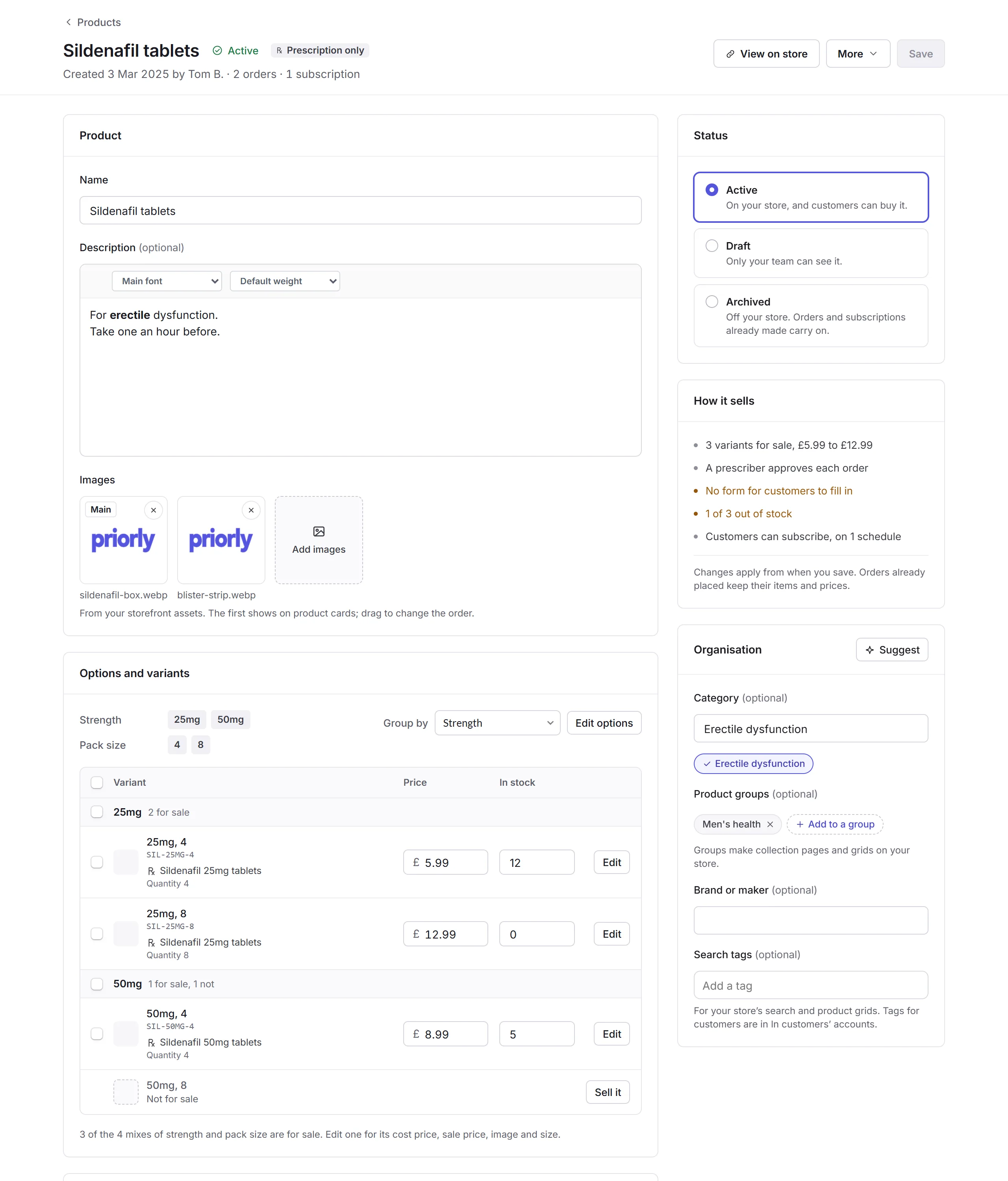
A product's page is cards down the left for what it is and how it sells, and on the right its status, a summary of how it sells, and how it's organised on your store. Change anything, then click Save.
The page
At the top: its status, marks like Prescription only, when it was created and by whom, and how many orders and subscriptions it has. View on store (or Preview for a draft) shows it as customers do. More has Duplicate, Archive, Restore and Delete.
What it is and what it costs
- Product
- Its Name, Description and Images, from your storefront assets. The first image shows on product cards; drag to change the order.
- Options and variants
- For a product that comes in sizes, strengths or pack sizes. Add options or Edit options sets them; each mix is a variant with its own price, stock, SKU and, for a medicine, prescription item. A mix you don't sell shows Sell it. Tick several to set their price, stock or size together.
- Price
- Price, Cost price (only with Business financials), On sale with a Sale price, and VAT.
- Stock
- Track stock, how many are In stock, the SKU, and Keep selling when it's out of stock. Changing stock needs the Manage stock permission. See Inventory.
- Delivery
- Its size and weight, and which of your delivery options it can go with. See Fulfilment.
Before it's sent
What has to happen before an order for it goes out:
- Form customers fill in
- A form they answer at checkout, like a consultation, or No form.
- Approval
- No approval, Your team checks it, or (at a healthcare business) A prescriber approves it. With approval on, customers pay by a hold: it's taken when the order is fulfilled, and released if it's rejected. Only a pharmacist or prescriber can lower approval.
- Prescription item
- For a prescriber's product, each variant links to the medicine the prescription is for, with its default directions and quantity: Link a prescription item.
- Review layout and Review queue
- What your team sees when reviewing it in quick view (see Review layouts), and which review queue its orders wait in.
Selling, subscriptions and accounts
- Selling
- Sold On its own, Only as an add-on, or Both; the Most in one order; and Add-ons and related products to suggest with it.
- Subscription
- Tick Customers can subscribe (and They can also buy it once), then add renewal schedules, and tasks for customers to do before each renewal, like a check-in form.
- In customers' accounts
- What people who buy it get in their account: Trackers to record readings like their weight (see Trackers), and Benefits.
On your store
- Status
- Active, on your store, and customers can buy it; Draft, only your team can see it; or Archived.
- How it sells
- A summary of the product as it is now: its variants and prices, who approves it, its form, stock and subscriptions. Anything missing shows in amber.
- Organisation
- Its Category, the Product groups it's in (which make collection pages on your store), its Brand or maker, and Search tags.
- Product page content
- The product's own page on your store. Edit content opens it in its own editor, which saves and publishes separately, so saving the product never publishes it. Its Profile suggests the sections; see Profiles.
Saving
Click Save, or Discard to undo your changes. If something needs fixing, Priorly lists it first. If a change affects people who already buy it, like a subscription's price, Priorly asks before saving. Orders already placed keep their items and prices.