Editing, merging and archiving
Keep each customer's record right: correct their details, merge two records for the same person, and archive someone who's left. Priorly never deletes a customer outright; archiving keeps their records.
Editing their details
Click Edit on their Details card, or choose Edit followed by their name under More. Change their name, date of birth, email, mobile, sex at birth or address, then click Save customer (or Save patient). Editing needs Edit for customers in your permissions.
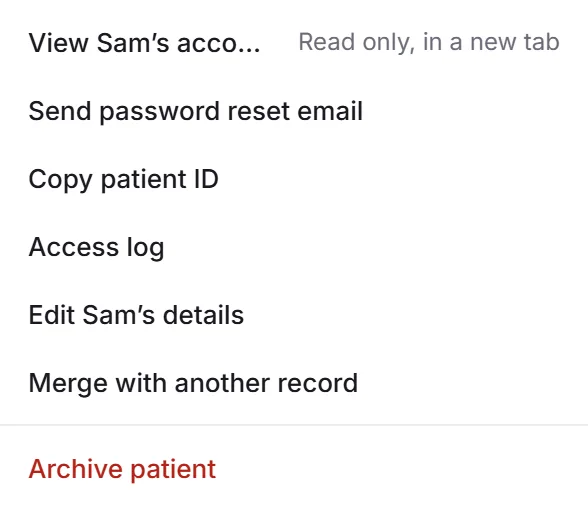
More also has:
- View their account
- Their account as they see it, read only, in a new tab. It shows their health information too, so it needs both the View their account and the health information permissions.
- Send password reset email
- Emails them a link to choose a new password. Priorly checks first: Send email.
- Copy customer ID
- Their ID, for your team or Priorly support.
- Access log
- For admins: who on your team opened their record and what they looked at.
Merging two records
The list marks a Possible duplicate when another record has the same email, or the same name and date of birth. If they're the same person:
Open the record to merge away
Choose Merge with another record under More.
Record to keep
Search for the other record and choose it.
Merge records
Tick I've checked both records are the same customer and click Merge records. Their orders, bookings, messages and documents move to the record you kept, which opens, and this one is archived.
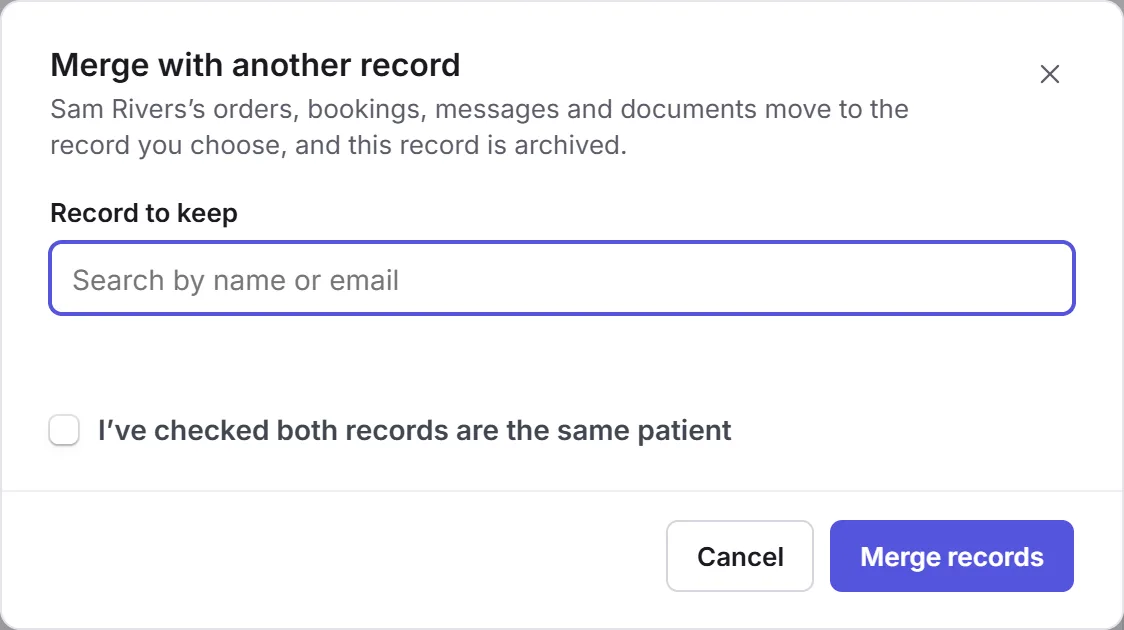
Merging needs to be done by an admin, or someone with Delete for customers. A record with protected files in Secure Documents can't be merged this way; Priorly says so.
Archiving someone
Choose Archive customer (or Archive patient) under More. Archiving hides them from active lists, stops them signing in, cancels their active subscriptions and removes their saved cards. Their records and IDs are kept, and you can restore them.
Give a reason if you like, then choose what else happens under Also:
- Remove login access
- Clears their password and reset links, so they can't sign in.
- Remove saved addresses
- Without the Clinic tool. Addresses already on orders don't change.
- Turn off marketing
- Unsubscribes them from marketing emails and texts. Service messages may still be sent.
- Clear their account's contact details
- Without the Clinic tool: removes their name, email and phone from the account.
- Schedule full anonymisation
- Choose the date their details are anonymised everywhere it's safe. Use a date after the clinical, prescribing, audit and legal retention periods.
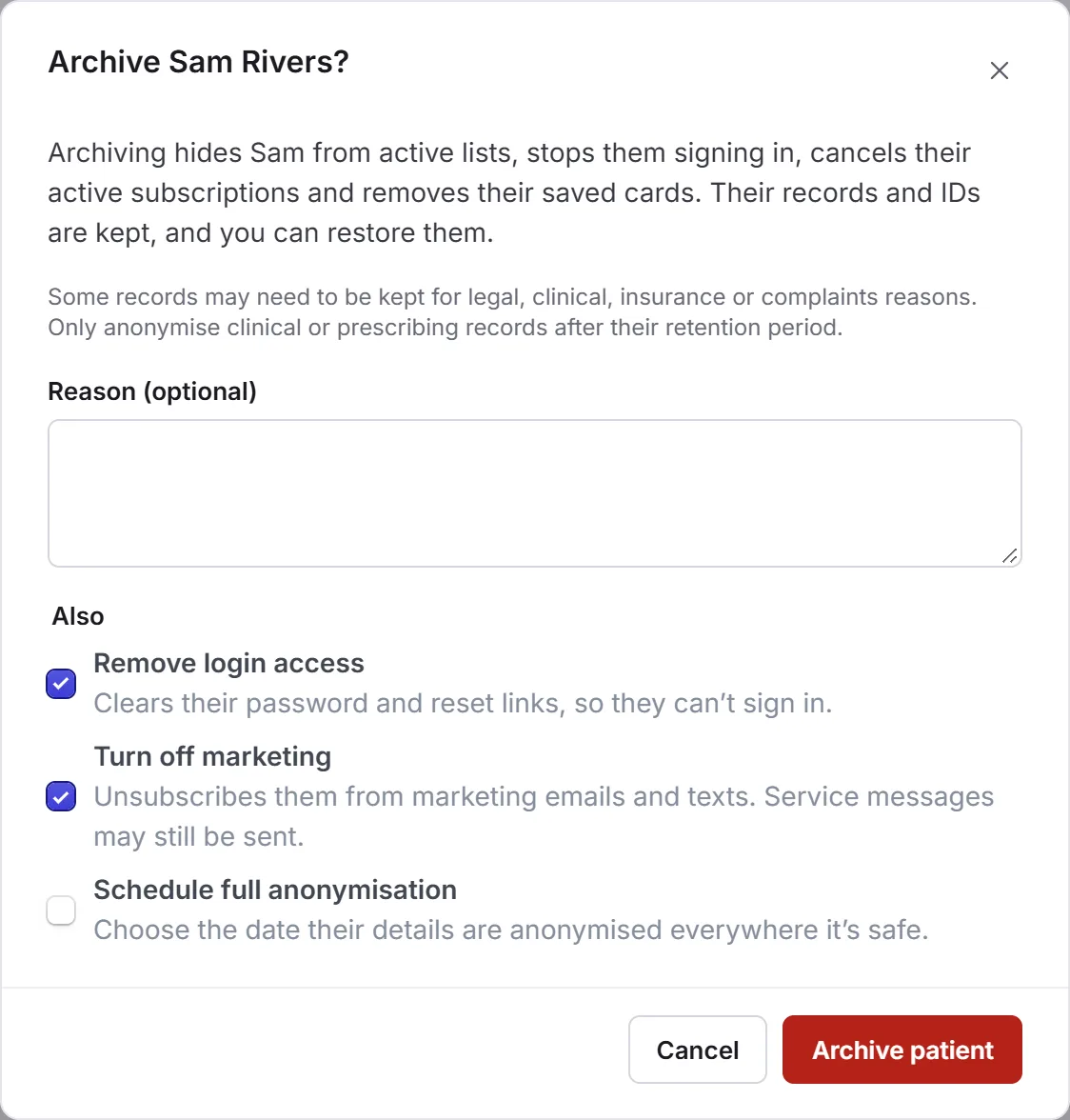
Some records may need to be kept for legal, clinical, insurance or complaints reasons. Only anonymise clinical or prescribing records after their retention period.
To bring someone back, open them from the Archived tab and choose Restore customer under More.
When someone deletes their account
A customer can delete their account themselves. Their record then shows it under Open, with Review, and More has Deletion request. Choose:
- Anonymise their details
- On the date you choose, their name, date of birth, phone and addresses are removed everywhere it's safe to. Their orders and records are kept.
- Keep their details
- Nothing is anonymised. They stay archived and can't sign in.
If nobody reviews it, they're anonymised on the date Priorly shows.