Working on tasks
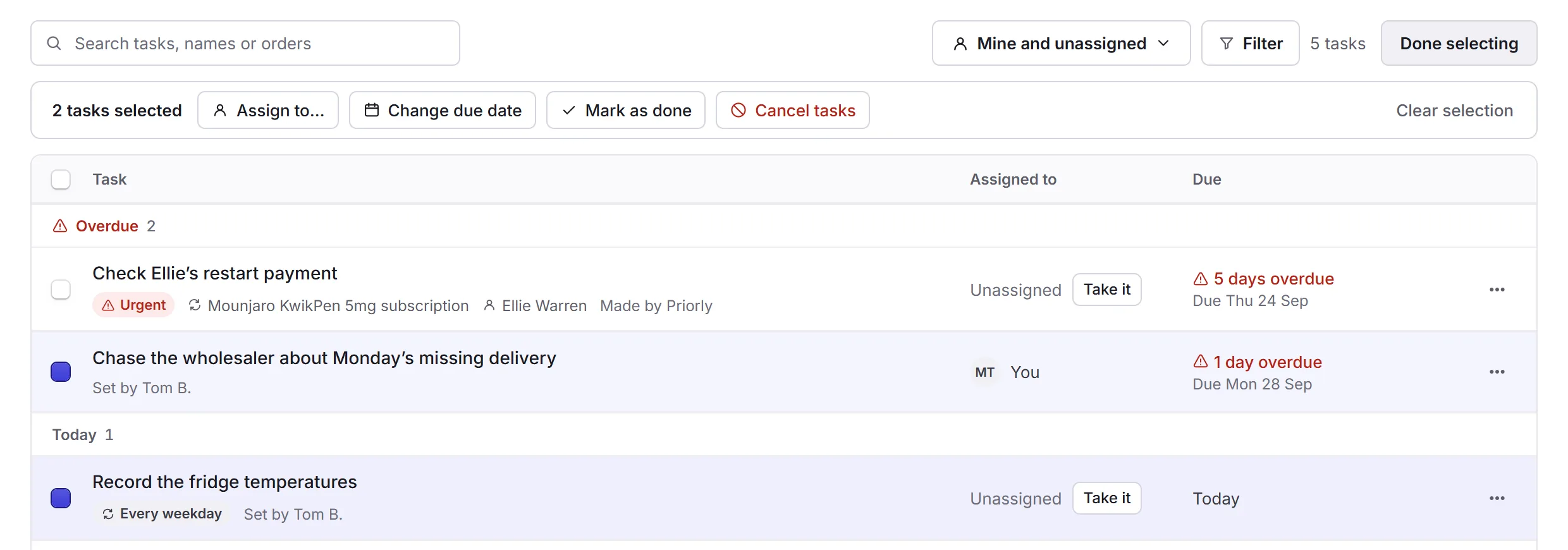
Open a task to see everything about it, take it, finish it, or hand it on. Notes keep your team up to date, and Select changes several tasks at once.
Opening a task
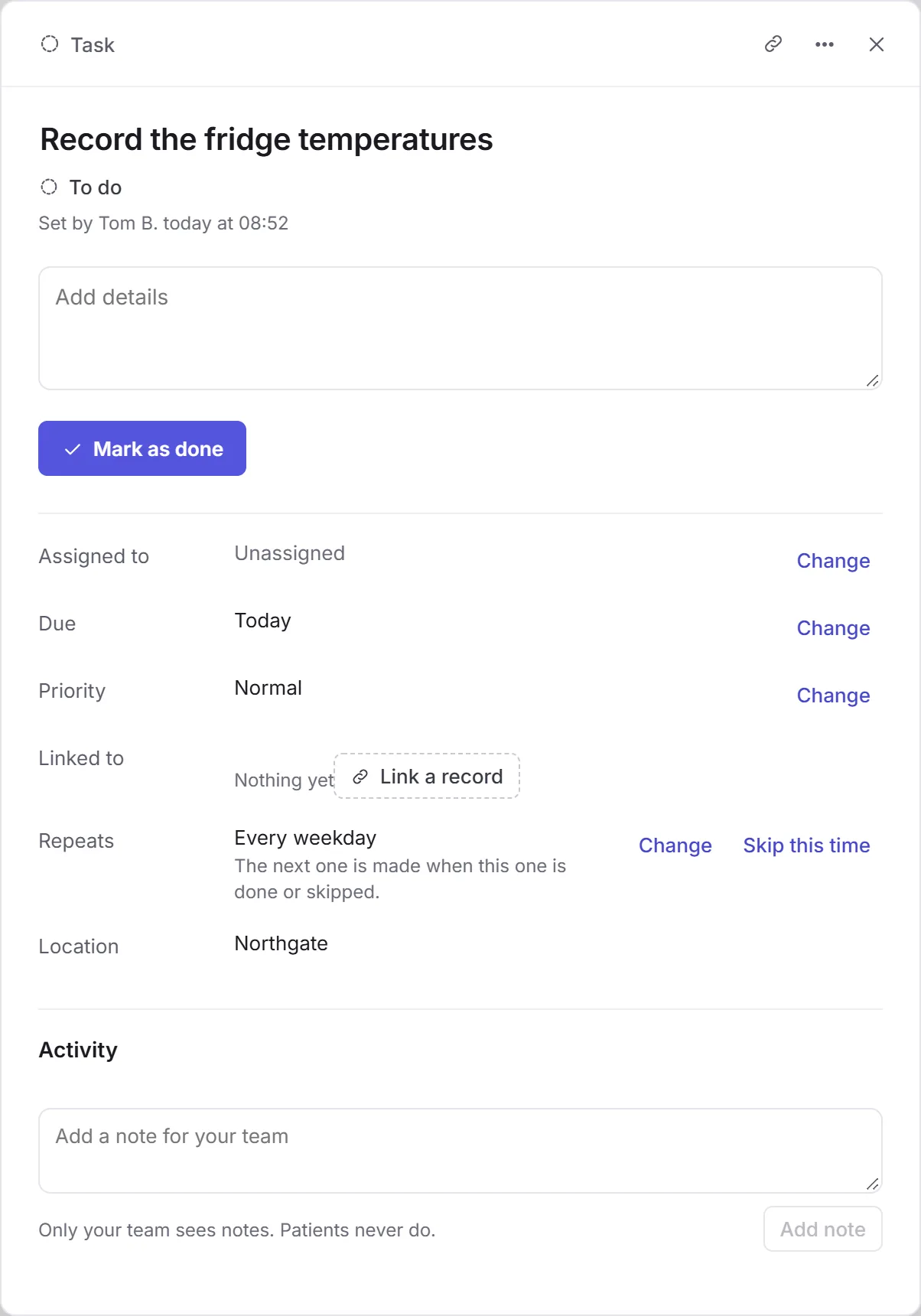
Click a task's title. It opens beside the list, with its own link, so you can send it to a colleague: the link button at the top, or Copy link under More.
- The title and details
- A task someone on your team made can be renamed. Add details holds anything the person doing it needs to know.
- Assigned to
- Take it makes it yours; Change gives it to someone else, or makes it Unassigned again.
- Due
- Change offers today, tomorrow, in a week, in four weeks, a date you choose, or No due date.
- Priority
- Low, Normal, High or Urgent. Urgent and high tasks are tagged in the list.
- Linked to
- The orders, patients, subscriptions or colleagues it's about. Link a record adds one, and the task then shows on that record's page too.
- Repeats
- How often it comes back. See Repeating tasks.
What you can change depends on your Tasks permission in Staff. Without it, you see the task but not its Change buttons.
Finishing a task
Click Mark as done in the task, or its round tick in the list. You can finish a task that's yours, or one nobody has taken yet. It moves to Done, where Reopen brings it back if it was finished by mistake.
Some tasks finish another way:
- a task that needs a document is finished by uploading it, or signing it. See Document tasks;
- a patient's task is finished when they do it in their account;
- a task Priorly made says what to check, and closes once it's sorted. See Tasks Priorly makes.
Taking and handing on tasks
A task for Anyone on the team shows as Unassigned, so everyone can see it's free. Click Take it, in the list or the task, to make it yours; in a task's menu (…) it's Assign to me.
To hand a task on, use Assign to someone in its menu, or Change beside Assigned to in the task.
Repeating tasks
A task like the fridge temperatures can repeat: every day, every weekday, or on a pattern you set with Custom…. The list tags it with how often, such as Every weekday.
Only one copy is open at a time: the next one is made when this one is done or skipped. Skip this time, beside Repeats, moves on to the next one without doing this one, and asks why. Change sets a new pattern, or stops it repeating.
Notes and activity
Activity, at the foot of a task, lists who did what and when: who made it, took it, changed it or finished it. Write in Add a note for your team and click Add note to leave a note there. Only your team sees notes; patients never do. The list shows how many notes a task has.
Cancelling a task
Choose Cancel task from a task's menu, or from More in the task. It asks Why is it cancelled?, and for a repeating task, whether to Keep repeating or Stop repeating. Tasks are never deleted: a cancelled task is in Done for 30 days, and search finds it after that.
More also has Duplicate, to start a new task from this one, and Reopen on a finished task.
Tasks Priorly makes
When something needs a person to look at it, Priorly makes a task, marked Made by Priorly. It says what happened in plain words, lists the facts, and ends with What to do, with a button to the record it's about.
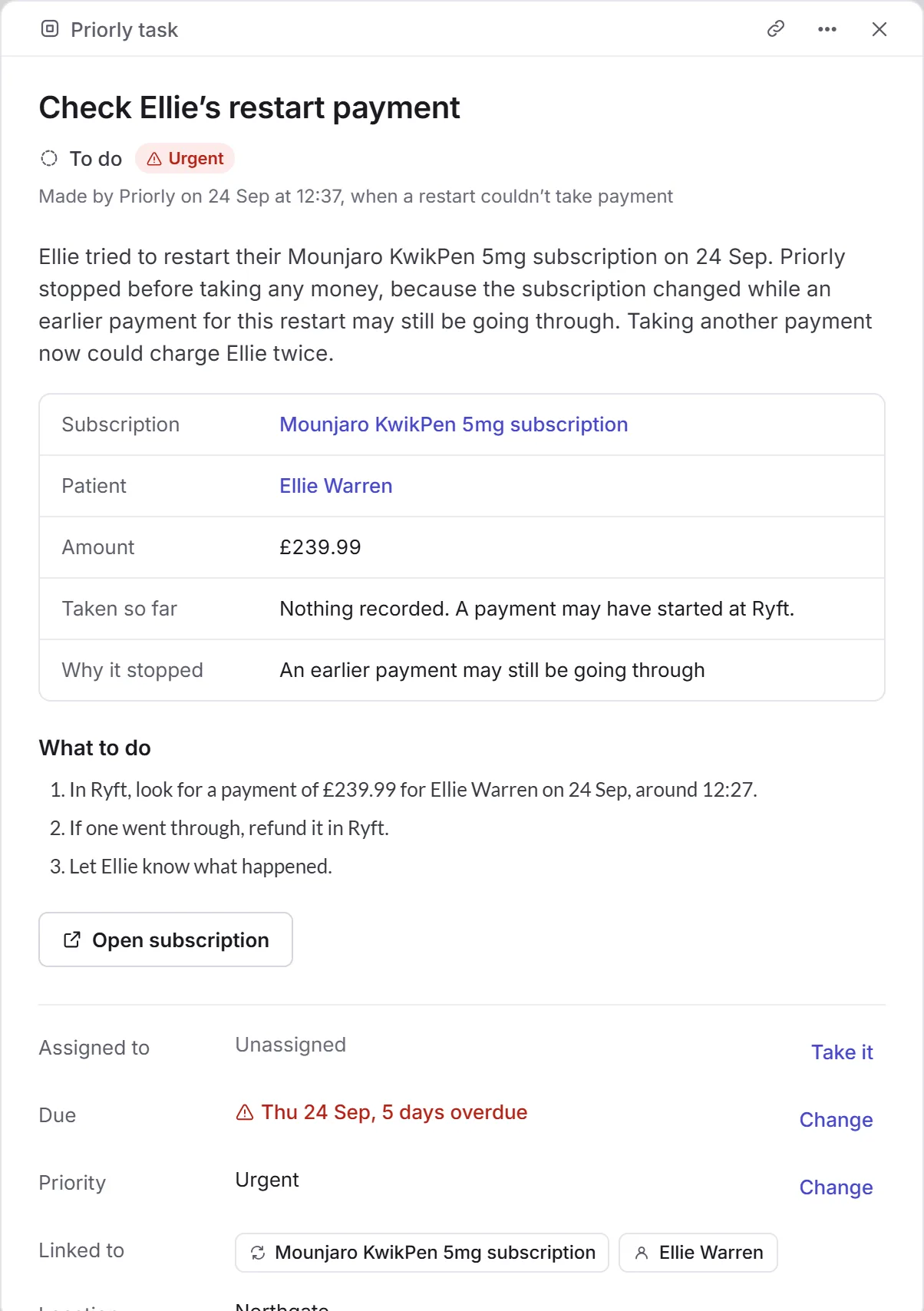
For a subscription restart that stopped before taking payment, Mark as checked records what you found. It needs the Payments, Subscriptions and Tasks (Edit) permissions.
Changing several tasks at once
Select
Click Select, beside the list's filters, then tick the tasks.
Choose what to do
The bar above the list has Assign to…, Change due date, Mark as done and Cancel tasks. Any task that can't be changed that way, like one Priorly made, is left as it is, and the message afterwards says how many.
Or stop
Clear selection unticks them all, and Done selecting puts the list back as it was.