A customer's record
Each customer has a record with its own link: who they are, what's open for them, what's happened, and a tab for each kind of thing they have with you, from orders to prescriptions.
The record
Click someone's name in the list, or anywhere else Priorly names them: an order, a booking, a conversation or a call. Overview opens first.
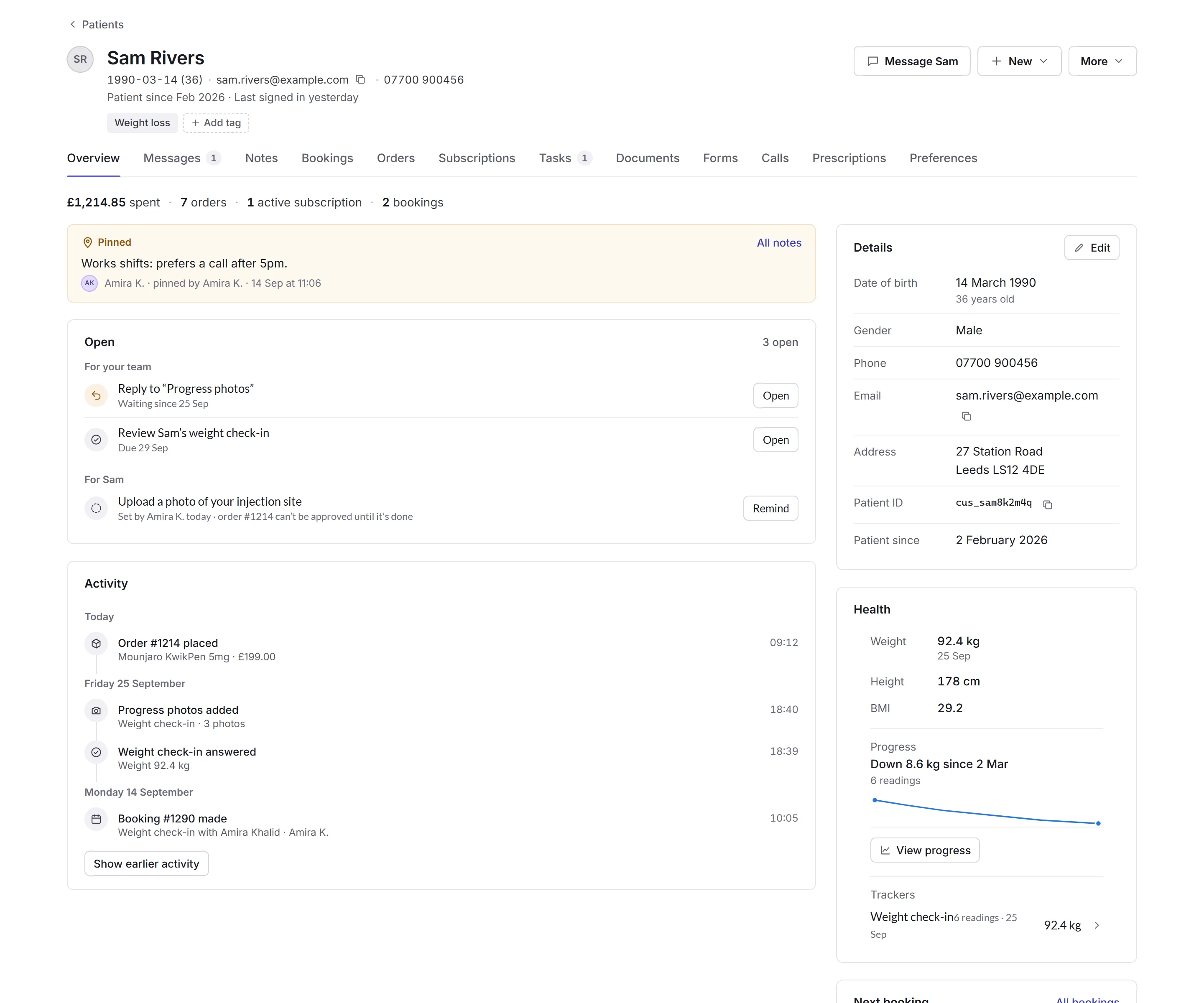
- Who they are
- Their name, date of birth and age (at a Clinic business), email (with a copy button) and phone, when they joined, and when they last signed in to their account. An Identity checked badge shows once their identity is checked.
- Tags
- Labels your team shares, like Weight loss. Add tag finds one or makes a new one; click a tag for Remove tag.
- Message, New and More
- See Message, New and More.
- The tabs
- One for each kind of record. See The tabs.
- The summary
- What they've spent, and how many orders, active subscriptions and bookings they have.
- A pinned note
- Notes your team pinned to the top. All notes opens the Notes tab.
- Open
- What's waiting: for your team, like a reply to send, an order to review or a task, and for them, like a task in their account or a form to fill in, with Remind. Each has a button to deal with it.
- Activity
- What's happened, newest first, by day: orders, bookings, messages, forms, photos and more. Show earlier activity goes further back.
- Details
- Their details, with Edit. See Editing their details.
- Health
- At a Clinic business, for staff who can see health information: their weight, height and BMI, how their weight has changed (View progress), and the trackers they fill in.
Further down, Next booking, Subscriptions and Payment methods (their saved cards, with Manage) show when they have them.
Message, New and More
- Message
- Followed by their first name: write to them. It starts a conversation in the Inbox, and they see it in their account. It needs an email on their record.
- New
- Booking and Video call open the calendar and Video calls, Prescription (at a Clinic business) opens Prescriptions, Task makes a task linked to them, and Form to fill in sends them a form for their account.
- More
- Viewing their account, a password reset email, copying their ID, the access log, editing, merging and archiving. See Editing, merging and archiving.
The tabs
Each tab has its own link, and only shows if you can see what's in it:
- Messages
- Their conversations: All, Open, Closed and Archived. The tab counts how many need a reply.
- Notes
- Notes for your team. Write in Add a note for your team and click Add note. A note's menu can Pin to the top, Edit it, show its Earlier versions, or Delete it.
- Bookings, Orders and Subscriptions
- Theirs, newest first, each opening where it lives.
- Tasks
- Tasks linked to them, with New task. You can also do a task in their account for them, like uploading a file they gave you.
- Documents
- Their files, with Upload. A file's menu can rename it, change its type, show it to them or hide it from them, add a hold, or move it to the trash.
- Forms
- The forms they've filled in, with Send a form and Correct an answer.
- Calls
- Their video calls, with New video call.
- Prescriptions
- Their prescriptions, with New prescription.
- Preferences
- Whether they're on your Mailing list, and which Notifications they get, with Unsubscribe.