Owners and closing
Each conversation has one owner, so a customer gets one person answering. Close a conversation when it's done, lock it if it shouldn't be reopened, and start new ones with New message.
Who answers
A new conversation is Unassigned, and the first person to reply owns it. To choose its owner yourself, click the owner button at the top of the conversation and choose You, a colleague, or Unassigned.
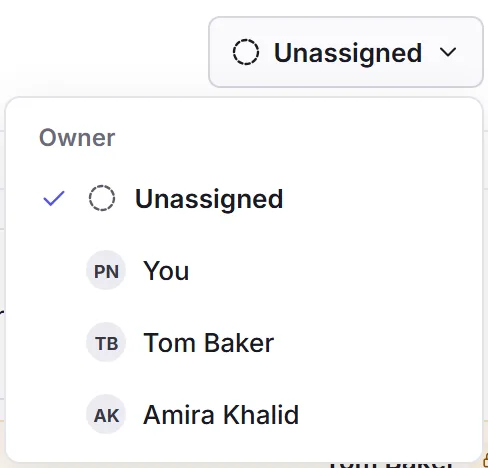
Only the owner replies. Everyone else who can see the conversation can still add notes, and the reply box says who's handling it. The owner can hand it on, or anyone can take it while it's unassigned. A business admin can change any conversation's owner, or click Take over to answer it themselves.
Closing a conversation
Click Close at the top of a conversation when there's nothing more to say. It moves to Closed. If the customer replies, it opens again and moves to Needs reply. Reopen brings it back yourself.
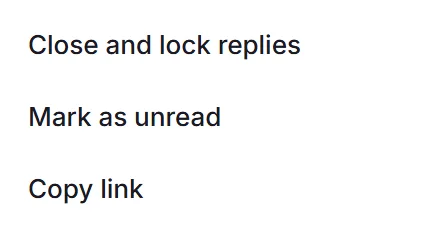
More (…) has the rest:
- Close and lock replies
- Closes it so the customer can't reopen it by replying. Only your team can reopen it. On a conversation that's already closed, it's Lock replies, and then Unlock replies.
- Mark as unread
- When the customer wrote last, puts the dot back so you or a colleague come back to it.
- Copy link
- A link straight to this conversation, for your team.
The owner, anyone while it's unassigned, and business admins can close, reopen and lock a conversation. Conversations waiting on the customer can also close by themselves: see Inbox settings.
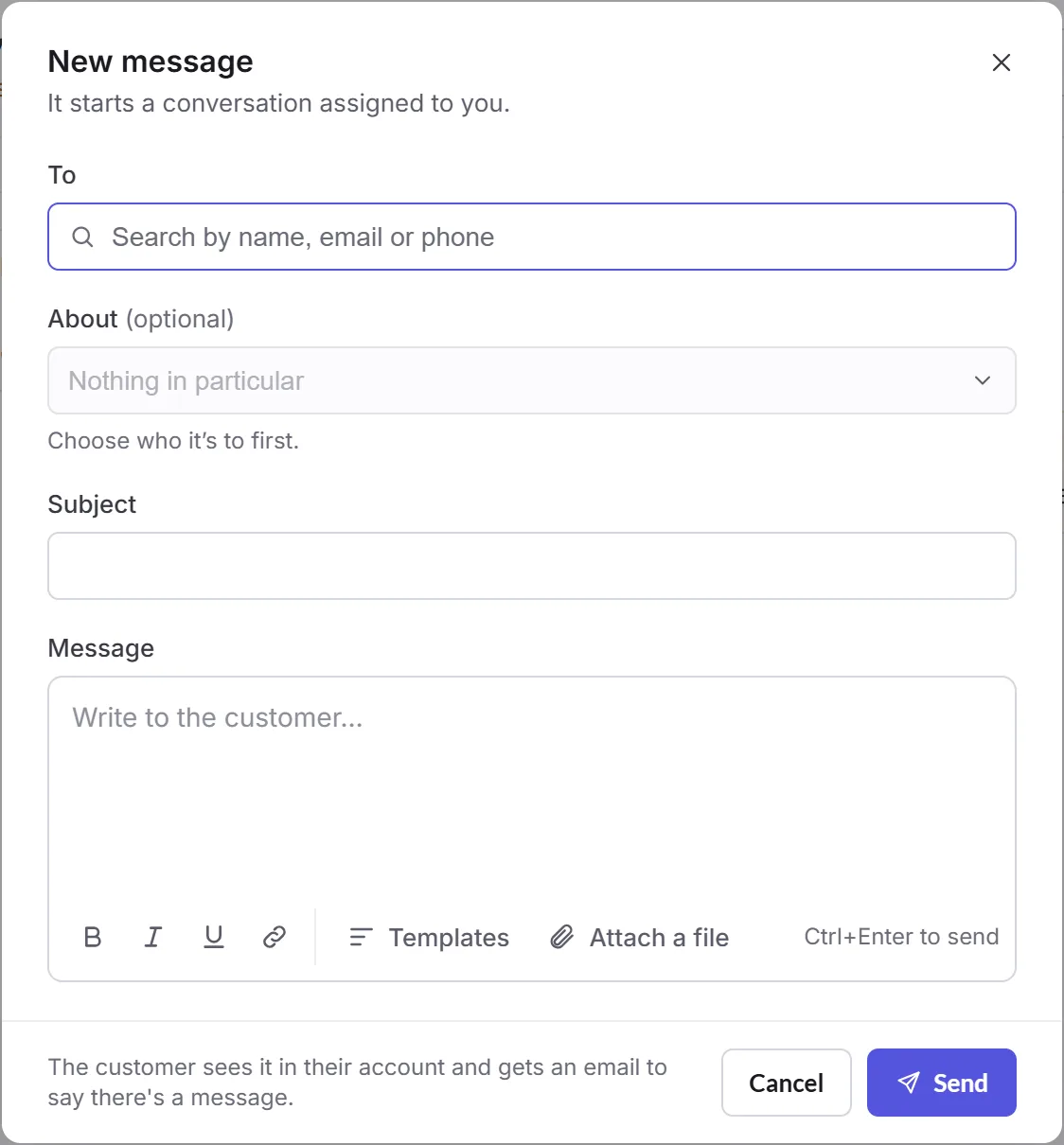
New message
To
Click New message, then search for the customer by name, email or phone.
About (optional)
Choose one of their orders, bookings or subscriptions, or leave it at Nothing in particular. If there's already a conversation about it, your message goes there (reopening it if it's closed), so the history stays in one place. If a colleague owns that one, Priorly says so: open it to add a note, or ask them.
Subject and Message
Write a subject and your message, with Templates and Attach a file as in a reply, then click Send.
It starts a conversation assigned to you. The customer sees it in their account and gets an email to say there's a message. Starting a conversation needs Edit for customers in your permissions, at your location or every location.