Refunds and disputes
A refund sends money back to the card it came from. A dispute is when a cardholder asks their bank to take a payment back; the bank decides, using what you send.
Refunding a payment
Open the payment
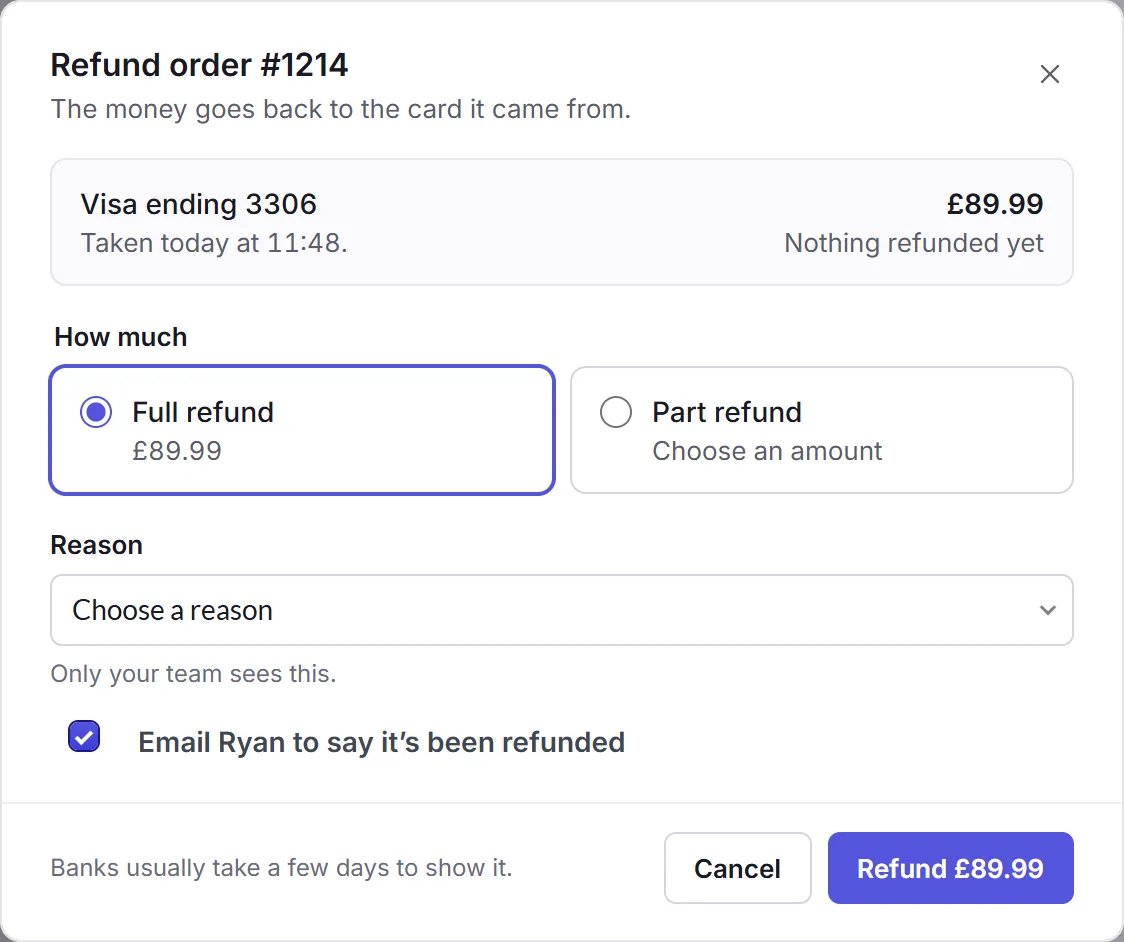
On the Payments tab, click the payment, then Refund. You can also refund from the order's page.
How much
Full refund, or Part refund with an amount.
Reason
Choose why, like Out of stock or The customer asked to cancel. Only your team sees it.
Refund
Leave Email ticked to tell them, and click Refund. Banks usually take a few days to show it.
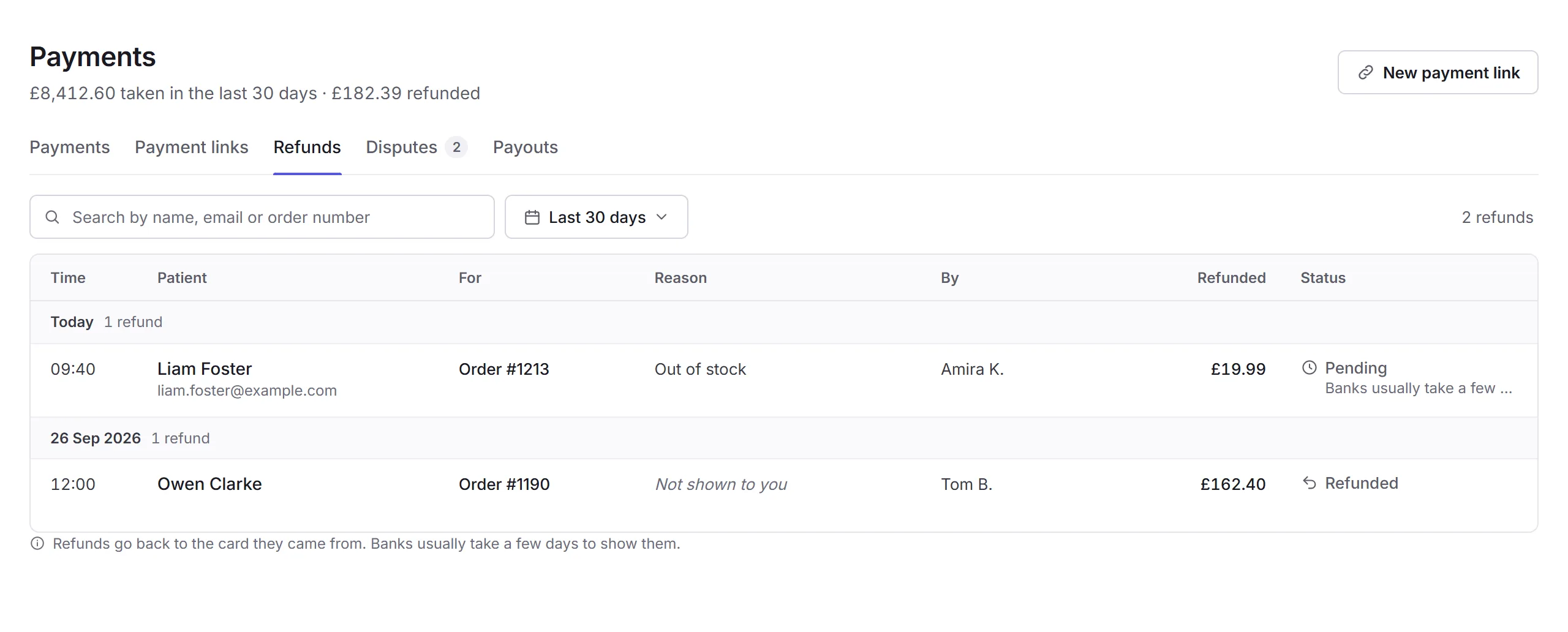
The Refunds tab lists every refund, with what it was for, why, who did it, and its status. Refunding needs the Issue refunds permission.
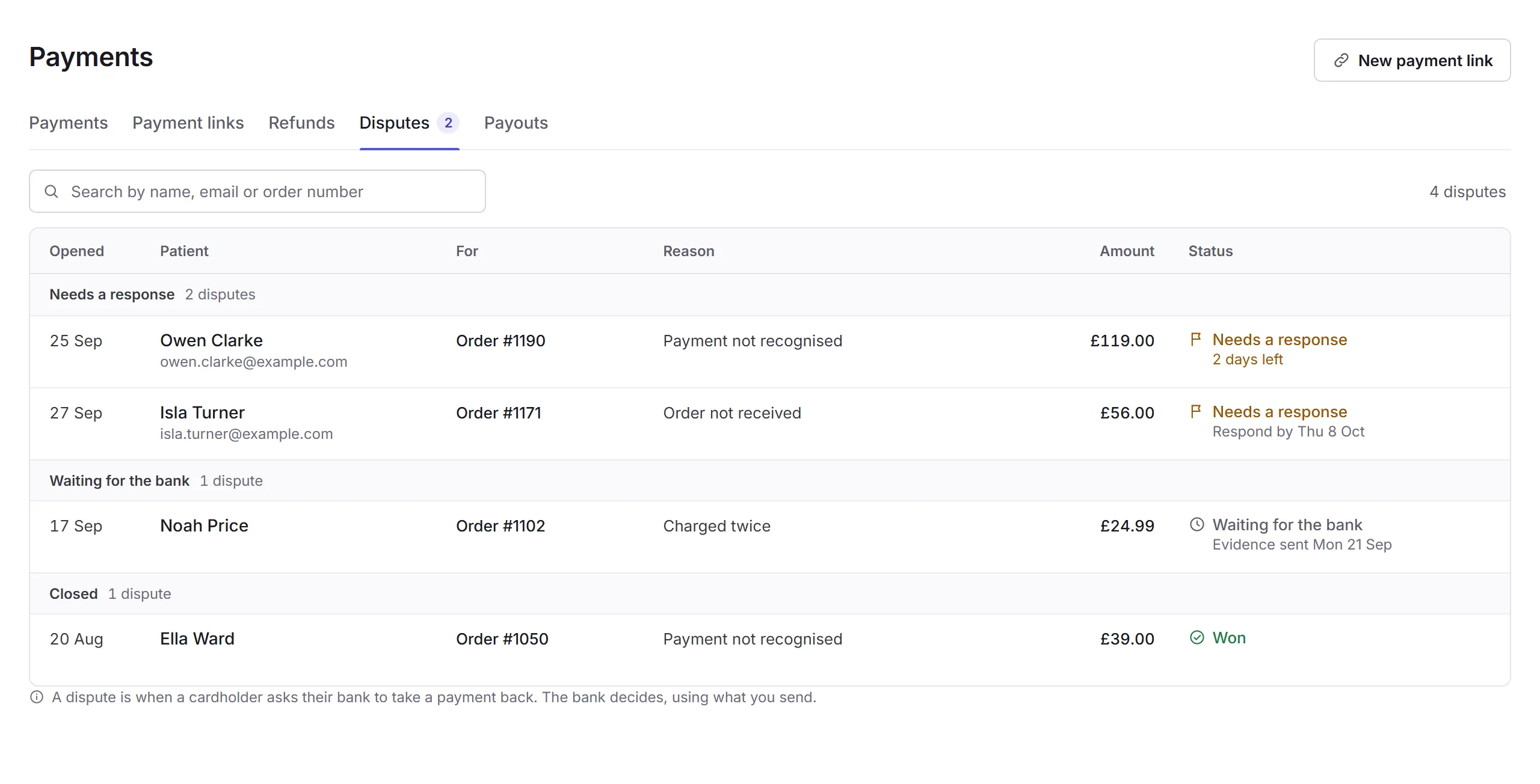
Disputes
The Disputes tab groups them by what they need: Needs a response, Waiting for the bank, and Closed. The tab's count is how many need a response.
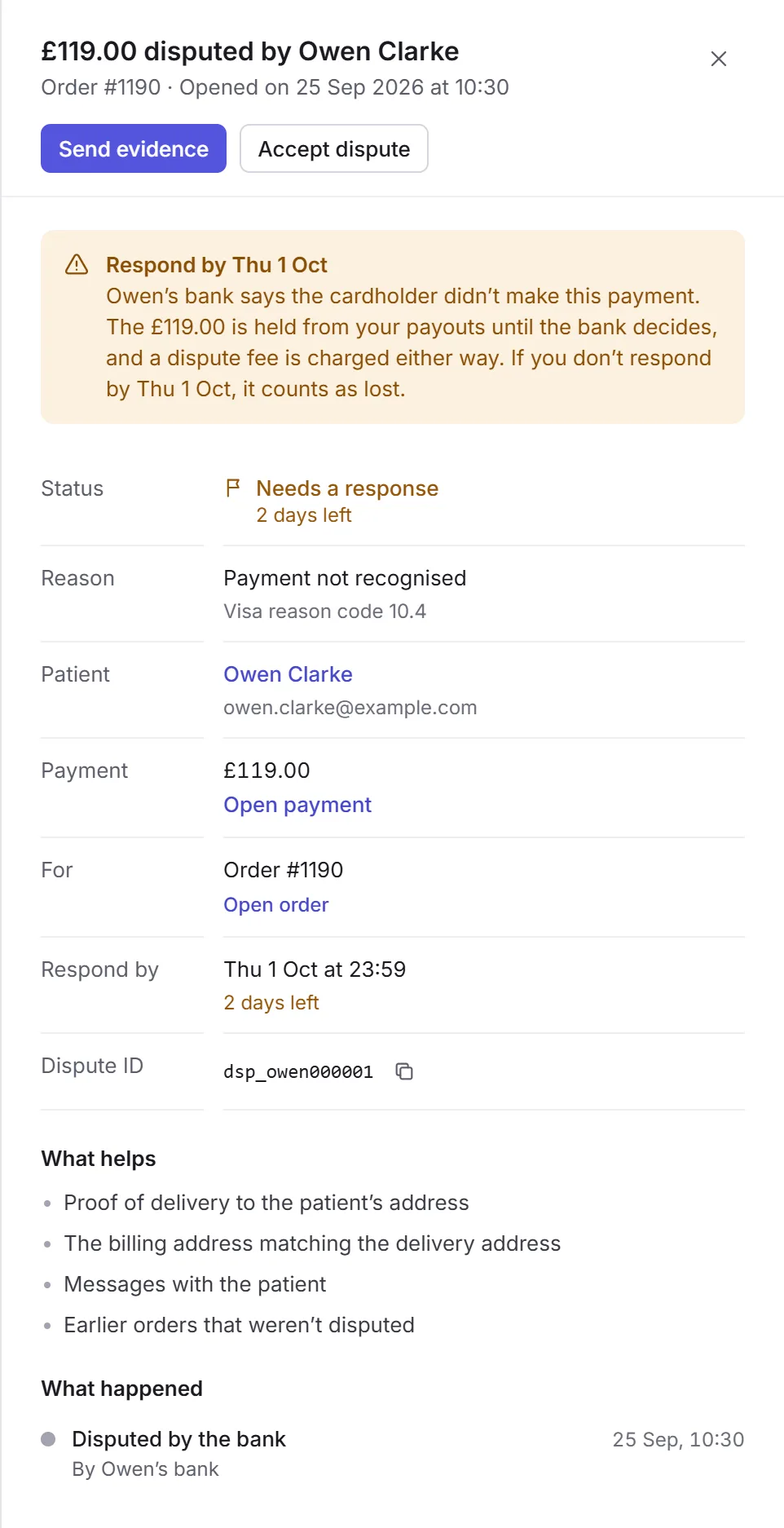
Open one to see why the bank says it was disputed, and when you must respond by. Until the bank decides, the amount is held from your payouts, and a dispute fee is charged either way. If you don't respond in time, it counts as lost.
Answering a dispute
Send evidence
Click Send evidence.
Explain
Under Explain why this payment is right, say what happened. Check the delivery and billing addresses.
Files
Add a file for each kind, like proof of delivery or messages with the customer: a PDF, JPG, PNG or CSV. Tick Include the receipt to send the order's receipt too.
Send
Click Send evidence, and confirm. It then waits for the bank.
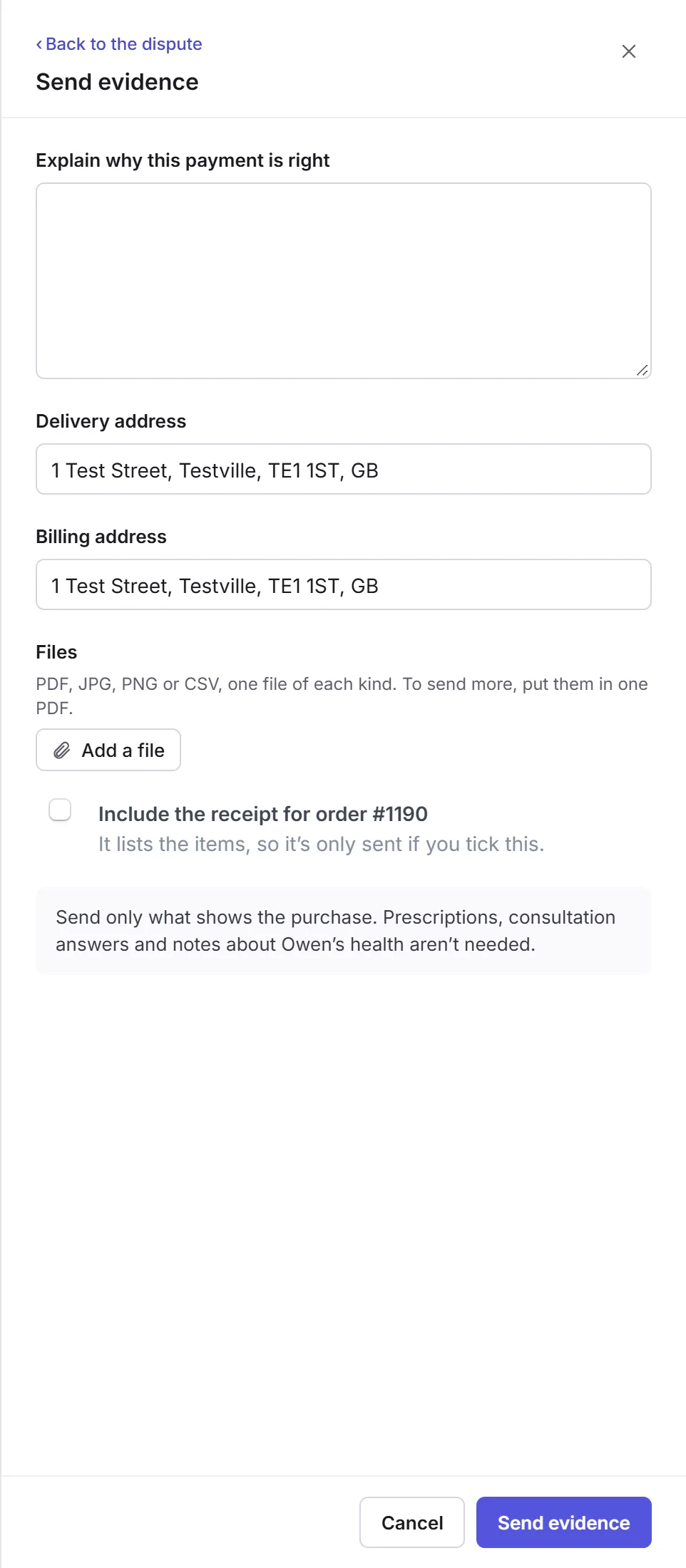
Send only what shows the purchase: prescriptions, consultation answers and notes about their health aren't needed. If you agree with the bank, Accept dispute ends it, and the cardholder keeps the money. Disputes need the Issue refunds permission.