Video calls overview
Video calls are consultations by video, in the browser: patients join from a link, with nothing to install. Video calls lists every call, says who's waiting, and opens each one to join it.
Your calls
Open Video calls from the sidebar. Calls are grouped under Now, Today, Tomorrow and later days. With no call open, the right side says who's waiting, or when your next call is. Your camera stays off until you open a call that's about to start.
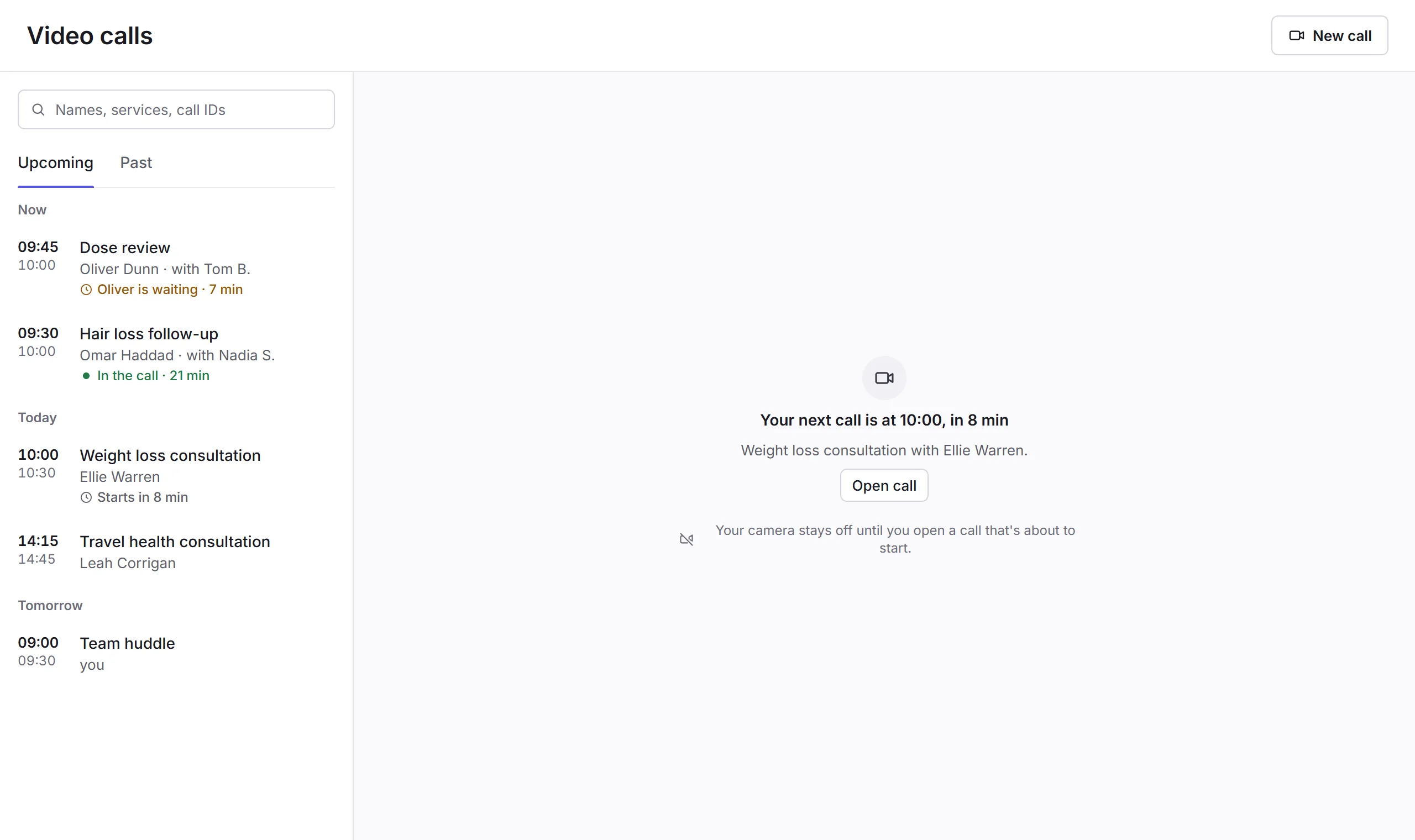
- New call
- Set up a call. See New call. Business admins also have a gear for Video call settings.
- Search
- Finds calls by a name, a service or a call ID.
- Upcoming and Past
- Calls still to come, and calls that have ended, with what happened in them.
- A call
- Its time, title, who it's with and who's hosting. Click it to open it.
- Its status
- Who's waiting and for how long, In the call, when it starts, or how it ended, and Recorded if it was.
- Who's waiting
- A patient waiting in one of your calls, with Open call.
Calls also come from bookings for a video service, made in the calendar or by patients themselves.
A call
Open a call to see when it is and who can join, check your camera and sound, and join it.
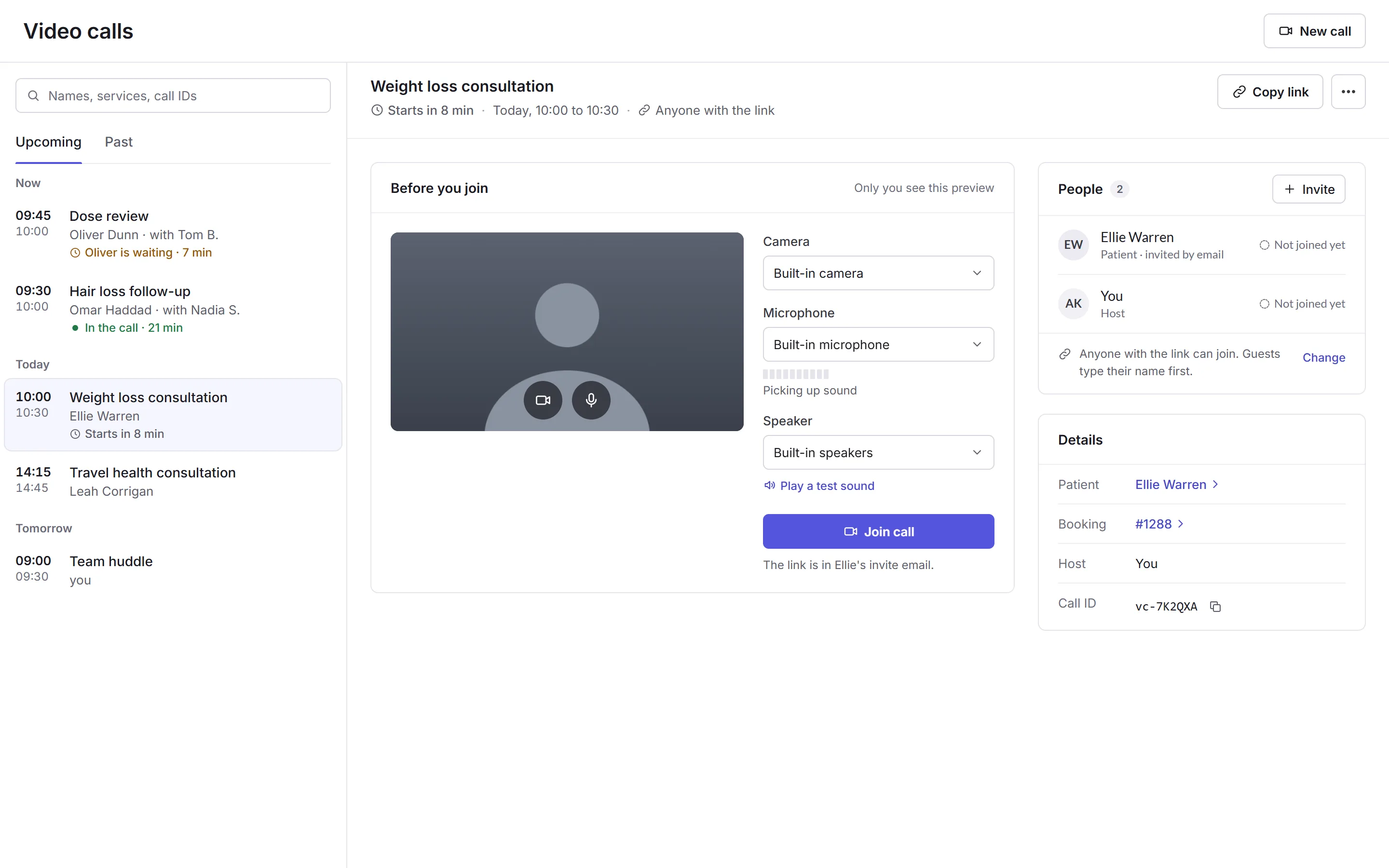
- Before you join
- Only you see this preview. Choose your Camera, Microphone and Speaker, and Play a test sound. Your camera turns on 15 minutes before the call. Then click Join call.
- People
- Who's invited and whether they've joined, with Invite, and who can join: Anyone with the link or Only invited people, with Change.
- Details
- The patient and booking, each a link, the host, and the call ID.
- Copy link and More
- Copy link copies the call's link. More (…) has Edit call, Copy call ID, the booking, and Delete call.
A call that's ended shows its recording, transcript, Olly's summary, your notes and its activity instead. See After the call.
In this section
Carry on with the detailed Video calls guides: