Tasks overview
Tasks is your team's to-do list: jobs you give each other, jobs a patient does in their account, and checks Priorly asks for. Each task shows who's on it and when it's due.
The task list
Open Tasks from the sidebar. To do groups what's left by when it's due: Overdue, Today, This week, Later and No due date.
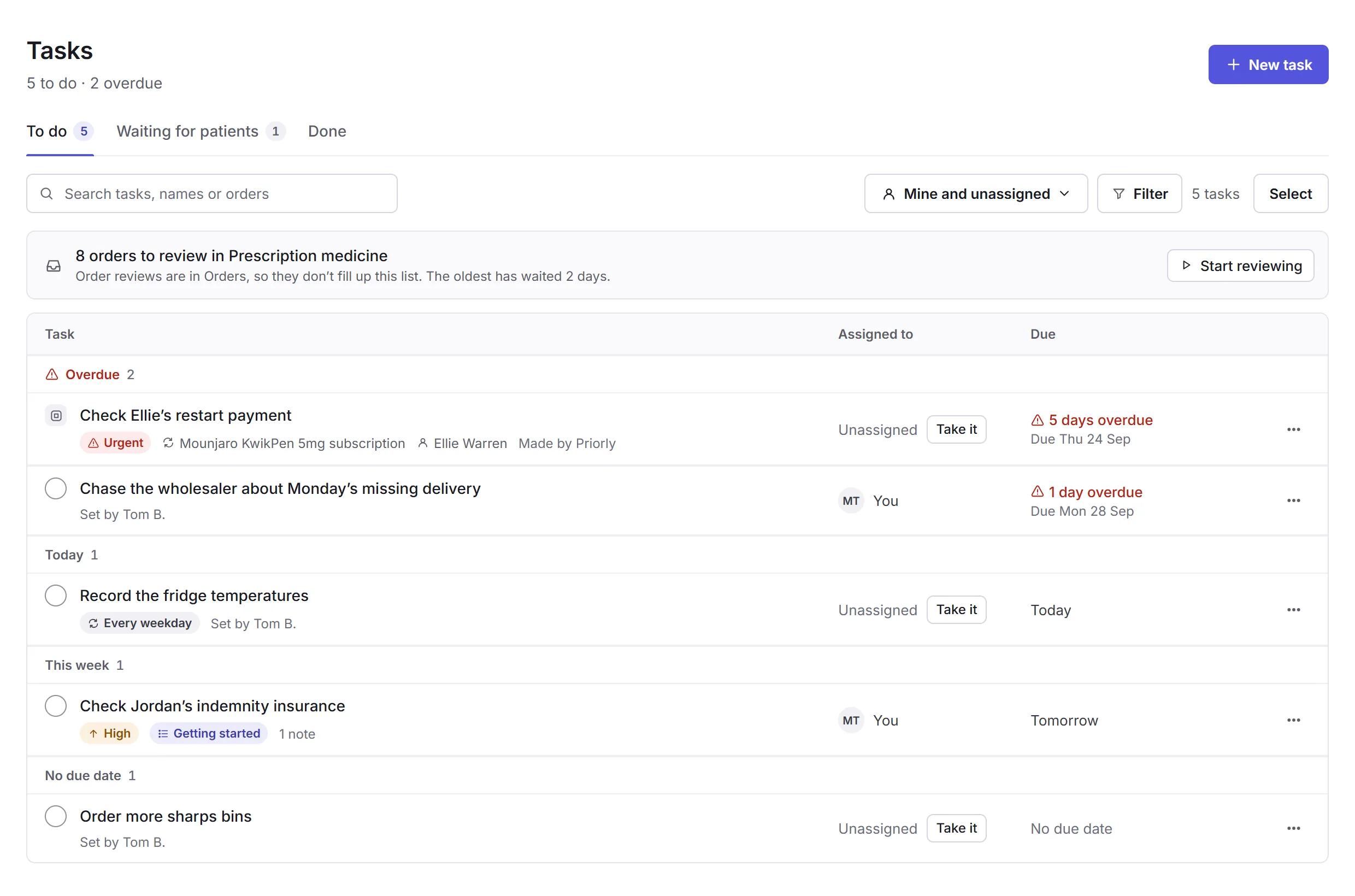
- The summary
- How many tasks are left to do, and how many of them are overdue.
- New task
- Make a task for yourself, a colleague, anyone on the team or a patient. See Making tasks. Business admins also see Task lists here.
- The tabs
- To do, Waiting for patients and Done. See To do, Waiting and Done.
- Search
- Finds tasks by their title, a name, or an order.
- Whose tasks, Filter and Select
- Choose whose tasks to see, narrow the list, or tick several to change at once. See Finding tasks.
- Orders to review
- Reviewing orders happens in Orders, so it doesn't fill up this list. This line says how many orders are waiting, and Start reviewing takes you there.
- A task
- Its title, then any tags (like Urgent, a task list's name or how often it repeats), what it's linked to, and who set it. Click the title to open it.
- Mark as done
- The round tick finishes a task in one click. A task Priorly made, or one that needs a document, has no tick: open it to see what it needs.
- Who it's assigned to
- You, a colleague, or Unassigned with Take it, which makes it yours.
- When it's due
- How many days overdue it is, with the date it was due under it, or Today, Tomorrow, a date, or No due date.
- Its menu
- Open task, assigning it, Change due date, Mark as done, a reminder for a patient's task, and Cancel task, as far as you're allowed.
To do, Waiting and Done
- To do
- Your team's tasks that aren't finished.
- Waiting for patients
- Tasks a patient does in their account, like uploading a photo or updating their details. It says what's waiting for each one, such as an order, and has Remind. If your business doesn't have the Clinic tool, it's Waiting for customers. See Tasks for patients.
- Done
- What was finished, skipped or cancelled in the last 30 days, and by whom, with Reopen. Older tasks are kept, and search still finds them.
Finding tasks
On To do, the button beside Filter chooses whose tasks you see: Mine and unassigned, Assigned to me, Unassigned, Everyone, or one person. If you can see tasks at every location, and there's more than one, you can also choose a location.
Filter narrows the list by:
- Due
- Overdue or Due today.
- Priority
- Urgent or high.
- Linked to
- Tasks about An order, A patient, A subscription or Someone on the team.
- Made by
- Tasks from Priorly, A task list or A recording.
Which tasks you see at all depends on your Tasks permission in Staff. Your Home page also says how many tasks are assigned to you, with Open tasks.
Where tasks come from
- Your team, with New task: here, or from the Tasks card on an order, a patient, a subscription or a booking.
- Priorly, when something needs a person to check it, such as a subscription restart that couldn't take payment. These say what happened and what to do.
- Task lists: a set of tasks a business admin gives to someone new. See Task lists.
- A recording, from what was agreed in a video call.
Tip: every task stays linked to what it's about, so it shows on that order's, patient's, subscription's or booking's page too, in its Tasks card.
In this section
Carry on with the detailed Tasks guides: