Inbox overview
The Inbox holds every conversation with your customers: about an order, a booking, a subscription or progress photos, or nothing in particular. It shows what needs a reply and who on your team is answering it.
The Inbox
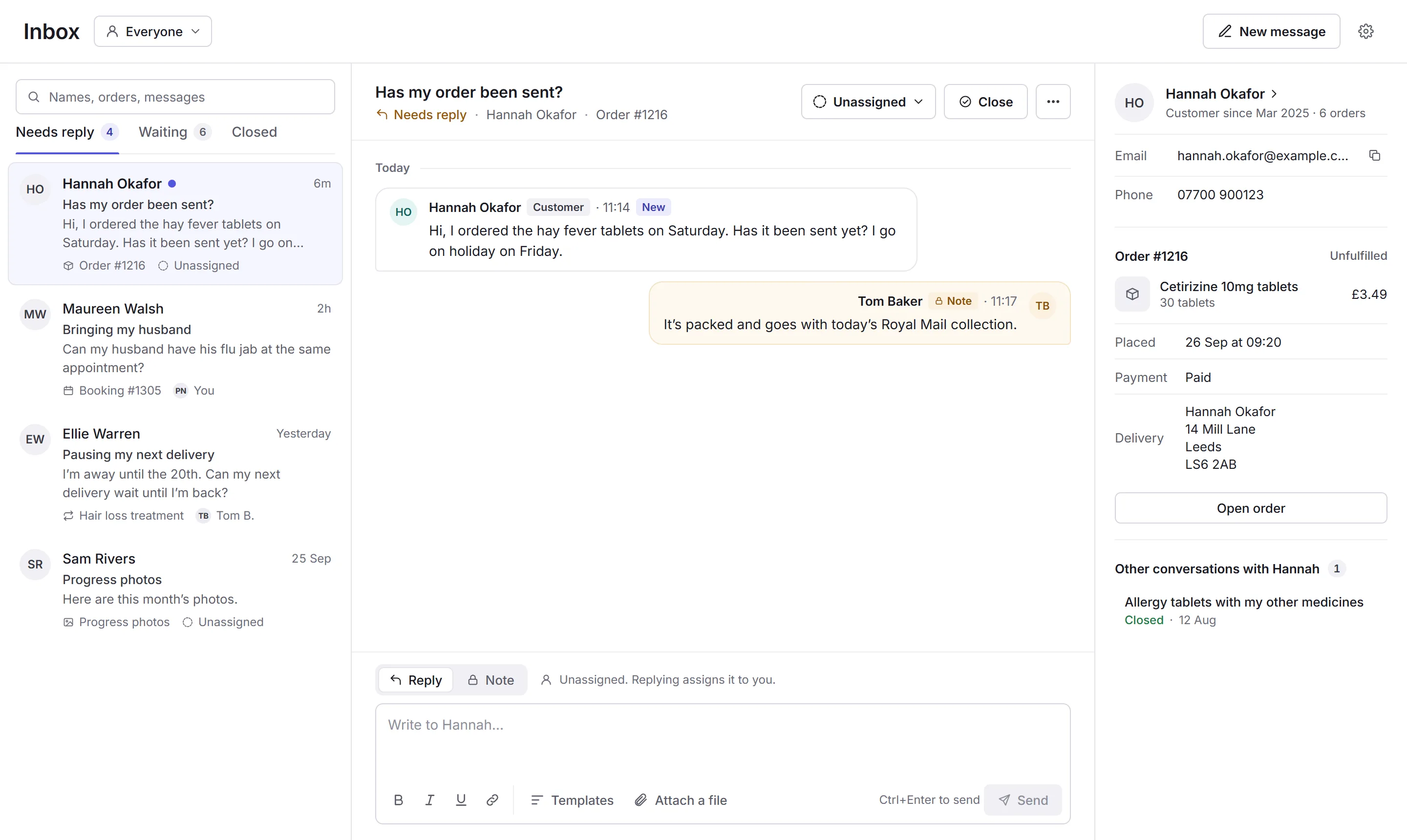
Open Inbox from the sidebar. Conversations are on the left; the one you open is in the middle, with the customer's details beside it. With nothing open, it says how many conversations need a reply, and Open the oldest takes you to the one that's waited longest.
- Whose conversations
- Everyone's, those Assigned to me, or those still Unassigned, each with how many need a reply. The Inbox remembers your choice.
- New message and Inbox settings
- Start a conversation with a customer. See New message. Business admins also have a gear for Inbox settings.
- Search
- Finds conversations by a name, email or phone number, a subject, an order or booking number, a plan's name, or words from a message or note.
- The tabs
- Needs reply, Waiting and Closed. See Needs reply, Waiting and Closed.
- A conversation
- The customer, when they last wrote, the subject, the start of the last message, what it's about and who owns it. A dot means there's something you haven't read.
- Its title, status and topic
- The subject, then whether it needs a reply, the customer, and what it's about, like an order.
- Who owns it
- The person answering it, or Unassigned. See Who answers.
- Close and More
- Close when it's done; More (…) can also lock replies, mark it unread, or copy a link to it. See Closing a conversation.
- A message from the customer
- Tagged Customer, and New until you've seen it.
- A note for your team
- Tagged Note. Only your team sees notes; the customer never does.
- Reply or Note
- Write to the customer, or leave a note for your team. The line beside it says what sending does here.
- Templates and Attach a file
- Start from one of your message templates, or send a file. See Replying and notes.
- Details
- The customer (their name opens their record), their email and phone, what the conversation's about, with a button to open it, and their other conversations. Details, at the top of the conversation, shows or hides it.
Needs reply, Waiting and Closed
Priorly moves conversations between the tabs for you:
- Needs reply
- The customer wrote last. New messages from customers arrive here.
- Waiting
- You've replied, and it's waiting on the customer. If they reply, it moves back to Needs reply.
- Closed
- Finished. If the customer replies to a closed conversation that isn't locked, it moves back to Needs reply.
Conversations waiting on the customer can close by themselves after a number of days: see Inbox settings.
Where conversations come from
- a customer writing from their account, about an order, a booking or a subscription;
- a customer asking about a set of their progress photos;
- your team, with Message customer on an order, Message followed by their first name on a customer's record, or New message here.
Every conversation about an order also shows on the order's page, under Messages. See Messaging.
In this section
Carry on with the detailed Inbox guides: