Products overview
Products holds everything you sell: physical products, digital ones and memberships. Under it in the sidebar are Inventory, Trackers, Review layouts, Fulfilment and Profiles, which shape how products are stocked, sent and checked.
Your products
Open Products from the sidebar. Click a product's name to open its page.
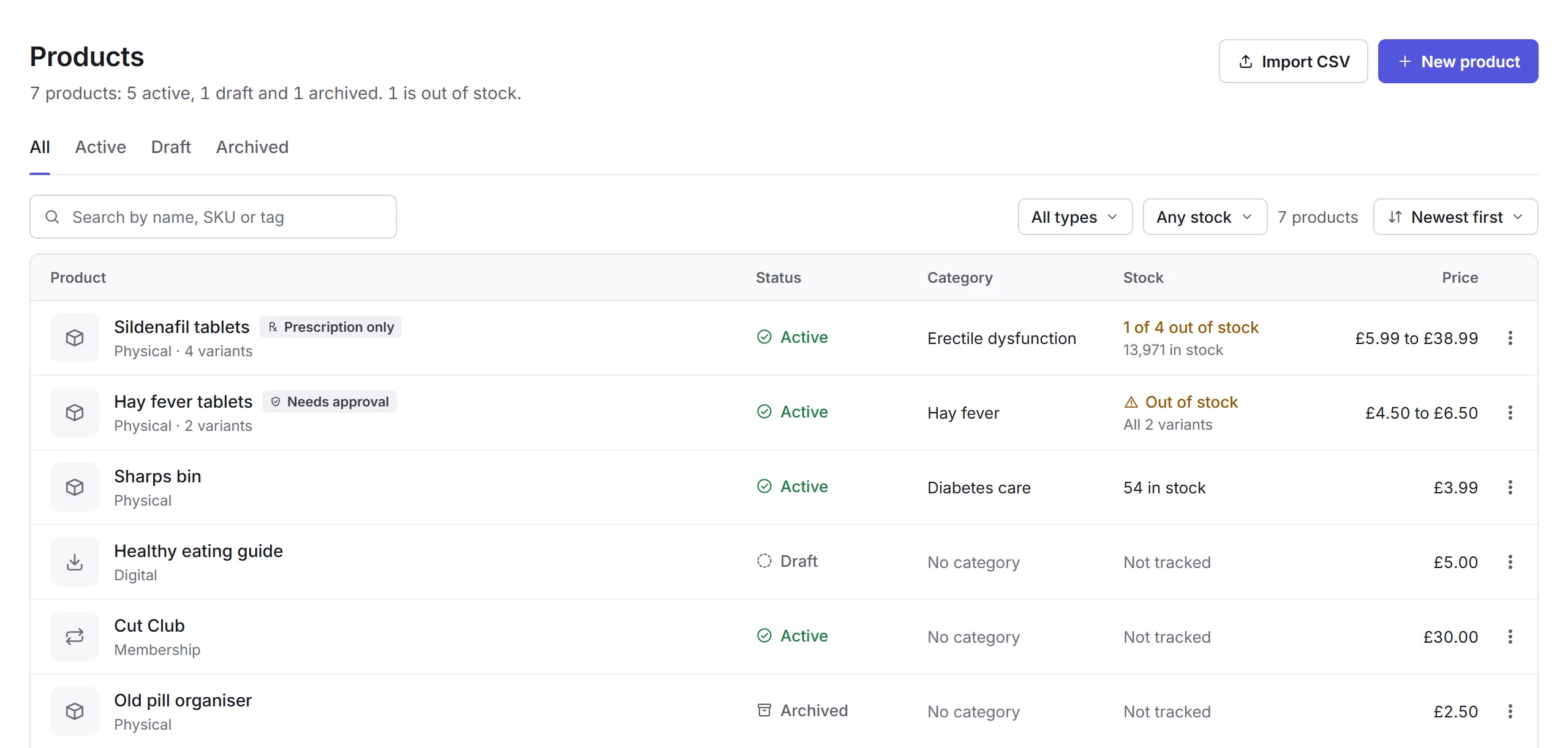
- The summary
- How many products you have, how many are active, drafts or archived, and how many are out of stock.
- Import CSV and New product
- Add many products from a spreadsheet, or one. See Adding a product.
- The tabs
- All, Active, Draft and Archived.
- Search, type, stock and sort
- Find products by name, SKU or tag; show only Physical, Digital or Membership; show only those in stock, out of stock, or not tracked; and sort them.
- A product
- Its name, kind and number of variants, with Prescription only or Needs approval where it applies.
- Its status and stock
- Active (on your store), Draft (only your team sees it) or Archived, and how much is in stock. A product's menu (…) has Open product, Duplicate, View on store, Archive, Restore and Delete.
Adding a product
New product
Click New product and choose what kind it is: Physical, Digital or Membership. You can't change this later.
Fill it in
Only its name is needed to save it as a draft. Fill in its price, stock, delivery and anything customers or your team need. See A product's page.
Create product
Under Status, choose Active to put it on your store, or Draft so only your team sees it. Then click Create product.
Duplicate makes a copy as a draft: add its SKUs and stock before it goes on sale.
Archiving and deleting
Archive takes a product off your store. Orders and subscriptions already made carry on. Restore brings it back as a draft. Delete is only for a product nobody has ordered, and can't be undone. Each needs the matching Products permission: Create, Edit or Delete.
In this section
Carry on with the detailed Products guides: