Profiles
A profile suggests the sections for one kind of product's page on your store, like Key facts and How it works for a medicine. It only suggests: a product's page gets the sections someone adds in its content editor, in its own words.
Your profiles
Open Profiles, under Products in the sidebar; it shows to admins. Each profile shows the sections it suggests, the products that use it, and when it was changed. A profile's menu has Duplicate and Delete.
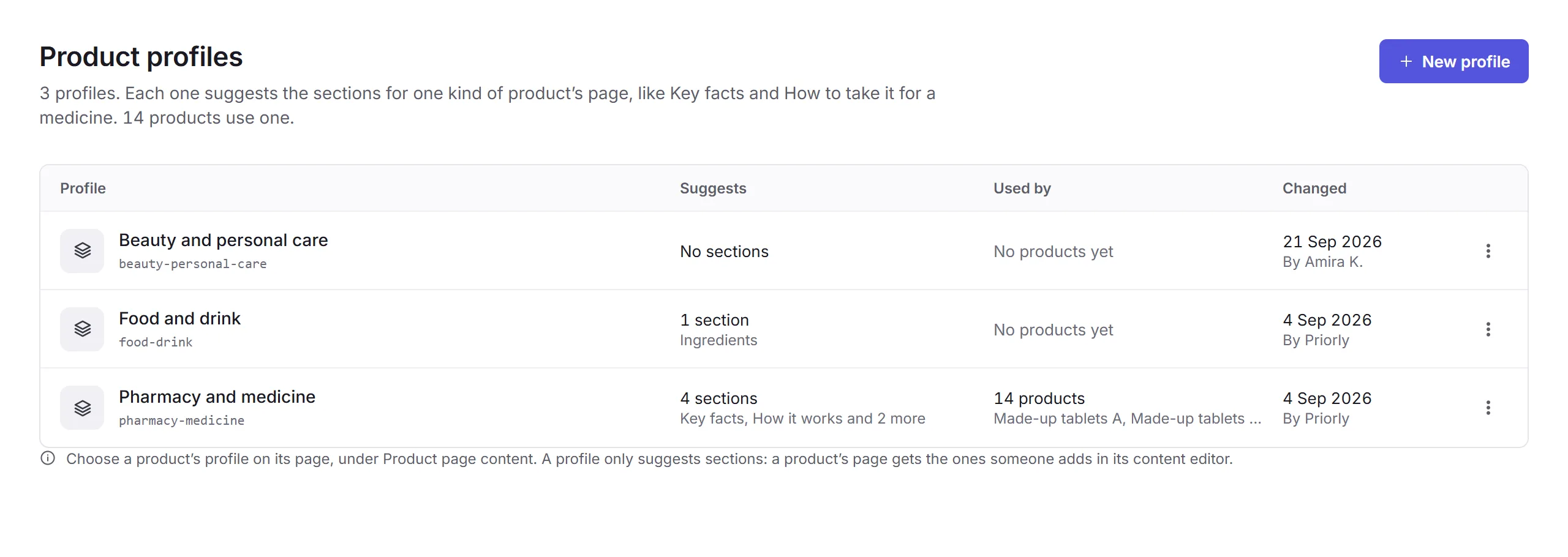
A profile's page
New profile
Click New profile, give it a name, and start with no sections or a copy of another profile's.
Suggested sections
Click Add a section: Text, Image with text, Questions and answers, Table, Key facts, Key points, Callout or Sources. Give each a heading and any starting words, then drag them into order.
Save
The Preview shows a product's page with every suggestion added. Click Save.
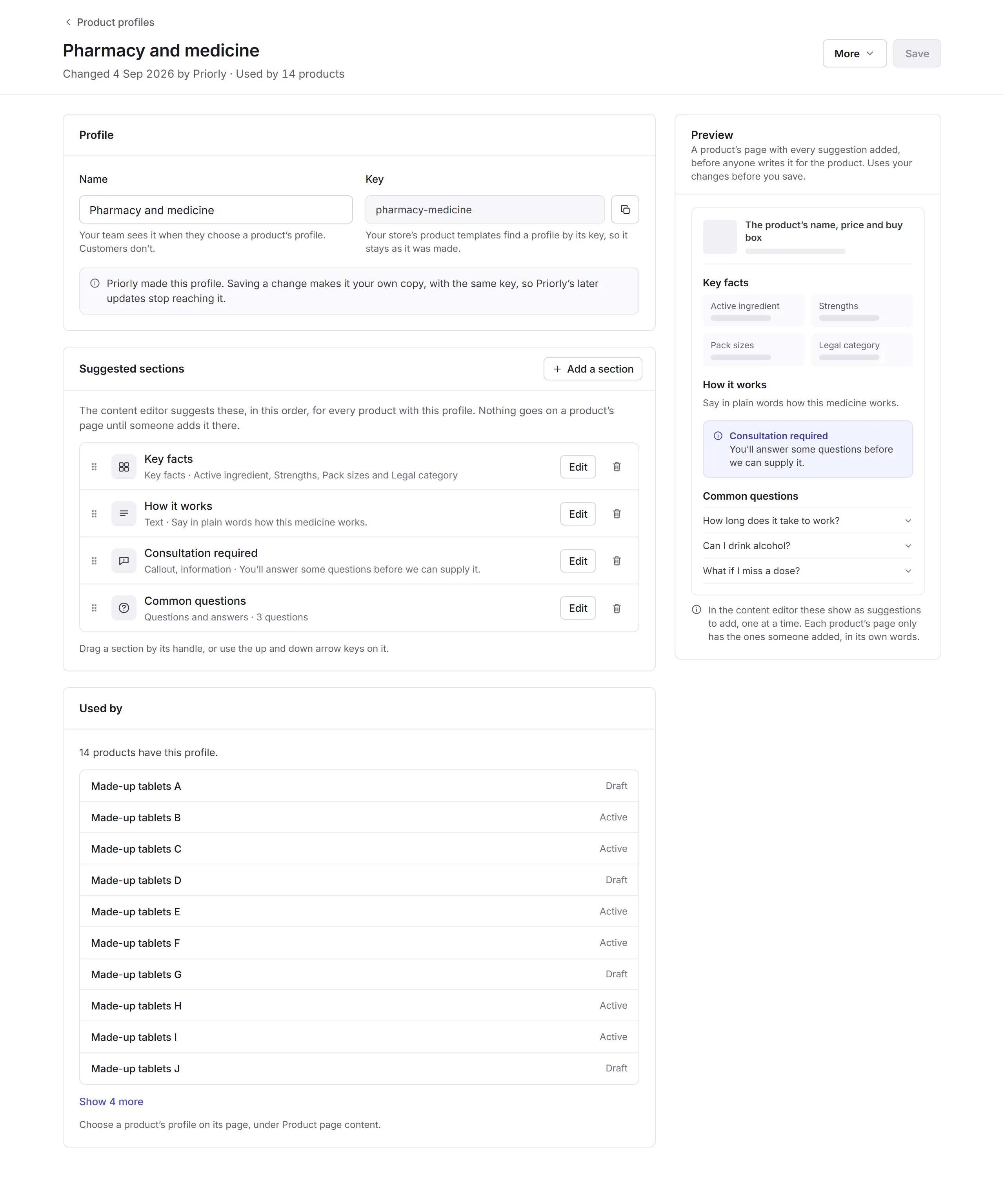
- Key
- Your store's product templates find a profile by its key, so it never changes, even when you rename the profile.
- Profiles Priorly made
- Saving a change makes it your own copy, with the same key, and Priorly's later updates stop reaching it.
- Used by
- The products with this profile. Choose a product's profile on its page, under Product page content. A profile can't be deleted while products use it.