Task lists and team documents
A task list is a set of tasks you give to people in one go, like everything someone needs to do when they join. Team documents are the procedures your team reads and signs. Both are for business admins, from Task lists in Tasks.
Task lists
Click Task lists at the top of Tasks. Each list shows how many tasks it has and who they're for, whether it's Given to everyone who joins or Given by hand, who had it last, and when it last changed.
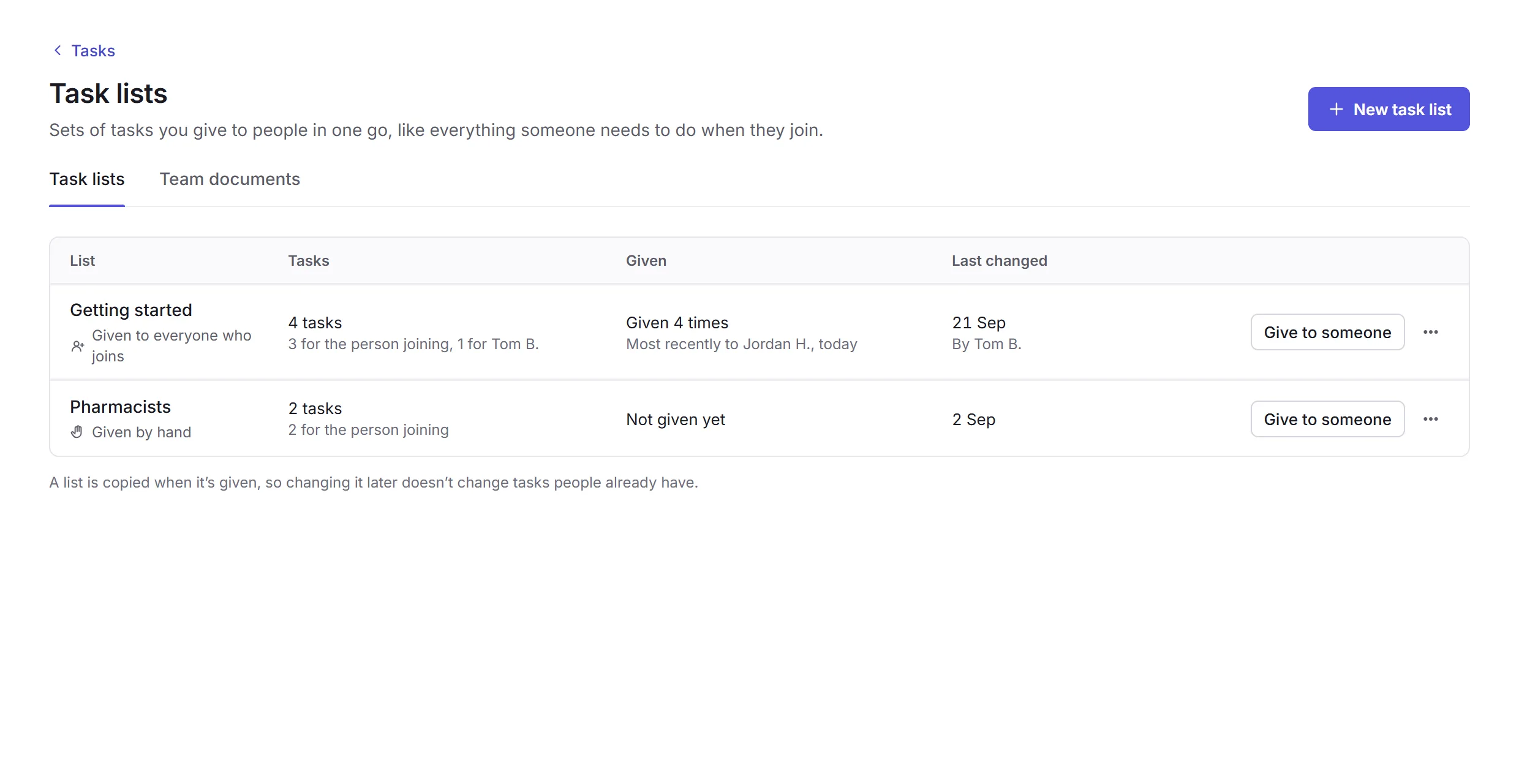
Making a list
New task list
Click New task list, give it a name, and click Make list. You add its tasks next.
About this list
Its Name and Description. The description is shown to people at the top of their tasks while any of the list is left to do.
Who gets it
Turn on Give it to everyone who joins and new people get it as soon as they accept their invitation. You can still give it to anyone yourself.
Tasks
Click Add a task for each one. Say who it's for (The person joining, or a colleague, like whoever sets up their hours) and when it's due: On the day it's given, a number of days after, or No due date. A task can also ask them to upload a document, or read and sign one. Type
{first}in a title to put in the first name of the person it's given to; the list shows it as "first name".Save list
Click Save list, or Discard to leave it as it was.
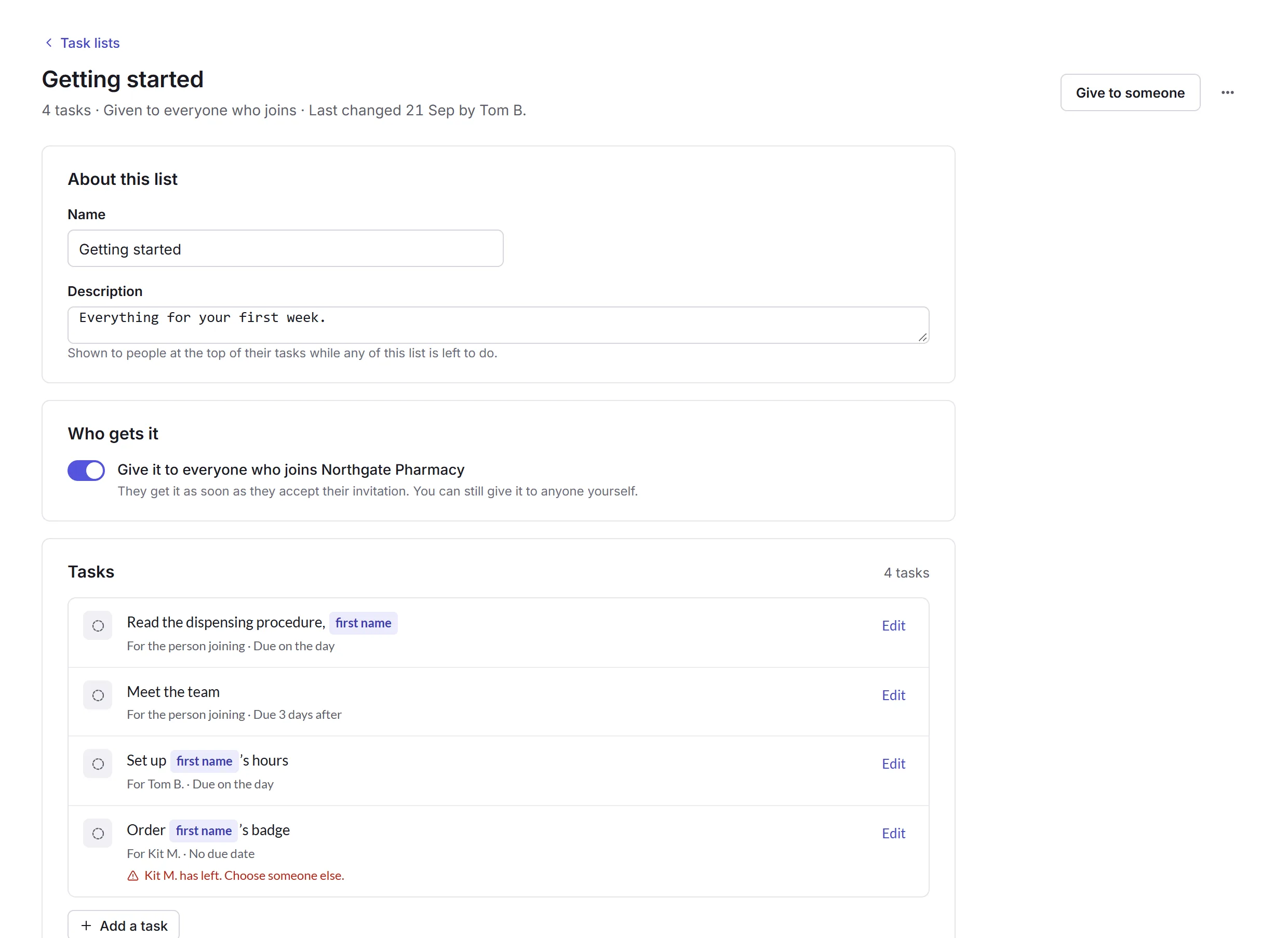
A list is copied when it's given, so changing it later doesn't change tasks people already have. If a colleague a task was for leaves, the list says so, and you choose someone else.
Giving a list to someone
Click Give to someone on a list, choose who, and click Give to someone again. It says if someone has had the list before. Their tasks appear in Tasks and on their Home page, with a card at the top of To do showing how many they've done and when they're due by.
A list's menu (…) also has Edit, Duplicate and Delete list. Deleting a list doesn't take tasks away from people who already have them.
Team documents
The Team documents tab keeps the documents your team reads, like your dispensing procedure, with who reads each one, how many have signed it, and when it's next reviewed.
Add a document
Click Add a document and choose the PDF. Give it a Name, and choose Who reads it: Everyone or Chosen people.
Review and sign
Set a Review by (optional) date, and Priorly gives you a task to review it a month before. Tick Ask them to read and sign it to give each reader a Read and sign task.
Each document's menu has Open, Upload a new version, See who's signed, Remind people who haven't signed and Archive. People always read and sign the latest version.