A form's settings
A form's page has its Questions, its Settings and its Submissions. Settings decide who can fill it in, where customers find it, who reviews the answers, and what Olly does with them.
The form's page
Click a form's name in Forms. At the top: its status, when it was last edited, and how many submissions it has, with Preview, More (the same choices as its menu in the list), and Go live on a draft. A form sent with a private link also has a Links tab.
On the right, Where answers go sums up every way customers can fill it in, where their answers go, and who reviews them, including changes you haven't saved yet.
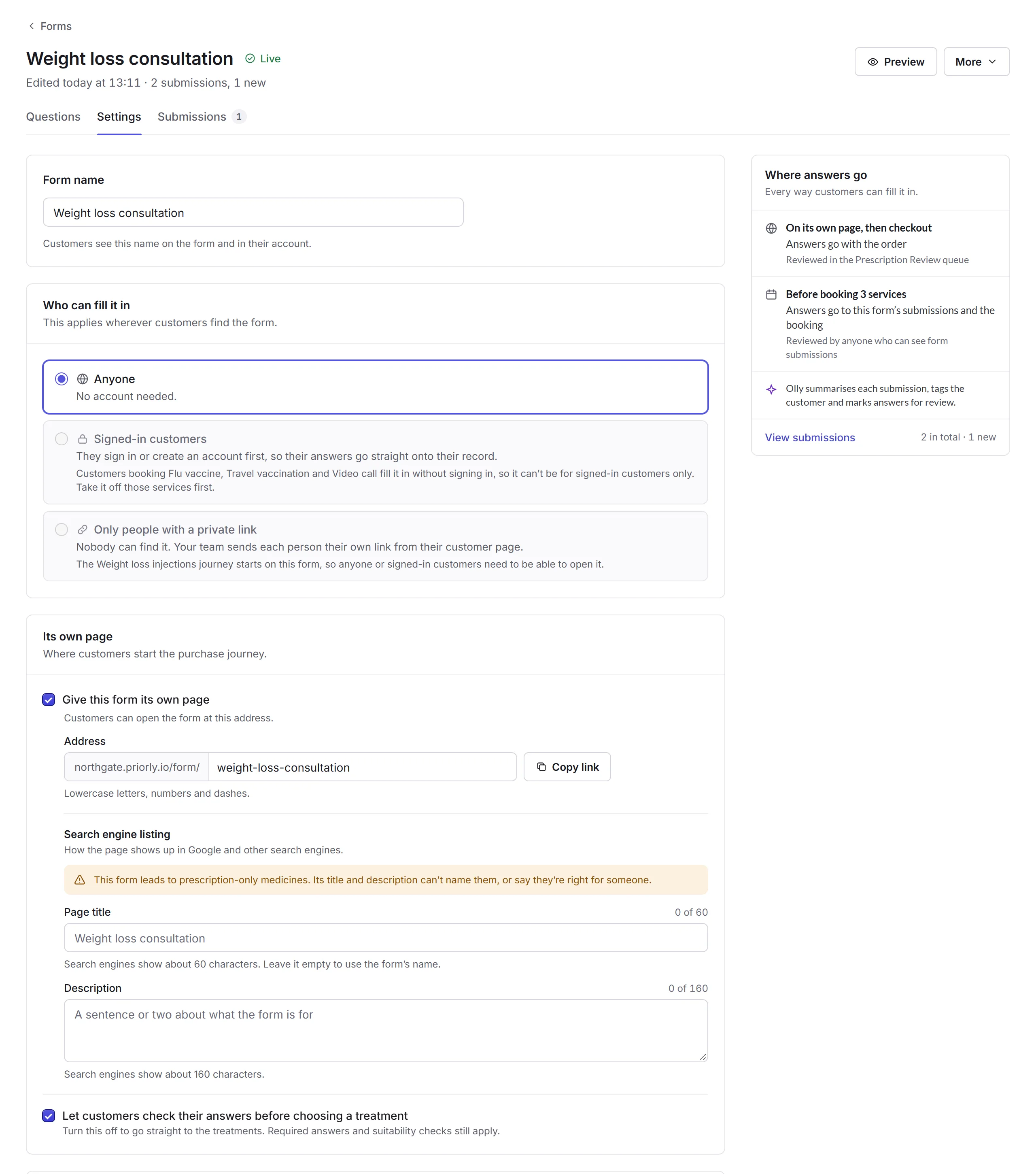
Who can fill it in
- Anyone
- No account needed.
- Signed-in customers
- They sign in or create an account first, so their answers go straight onto their record.
- Only people with a private link
- Nobody can find it. Your team sends each person their own link from their record, and the form's Links tab lists them, with New link and Revoke.
It applies wherever customers find the form. If a choice doesn't fit how the form is used, like a private link for a form a purchase journey starts on, Priorly says why and what to change first.
Where customers find it
- Its own page
- Tick Give this form its own page and choose its Address, with Copy link. Search engine listing sets its page title and description. A form that leads to prescription-only medicines can't name them there. For a form that starts a purchase journey, Let customers check their answers before choosing a treatment adds a page to check them.
- Purchase journeys
- After the last question, customers choose from products that match their answers, then pay. Journeys are set up in Storefront; this lists the ones that start on this form, with Open journey.
- Before a booking
- Customers who book one of these services fill in the form first, then pick a time, and their answers are added to the booking. Add services or Change services chooses them; a service can only have one form, so Priorly says if one moves.
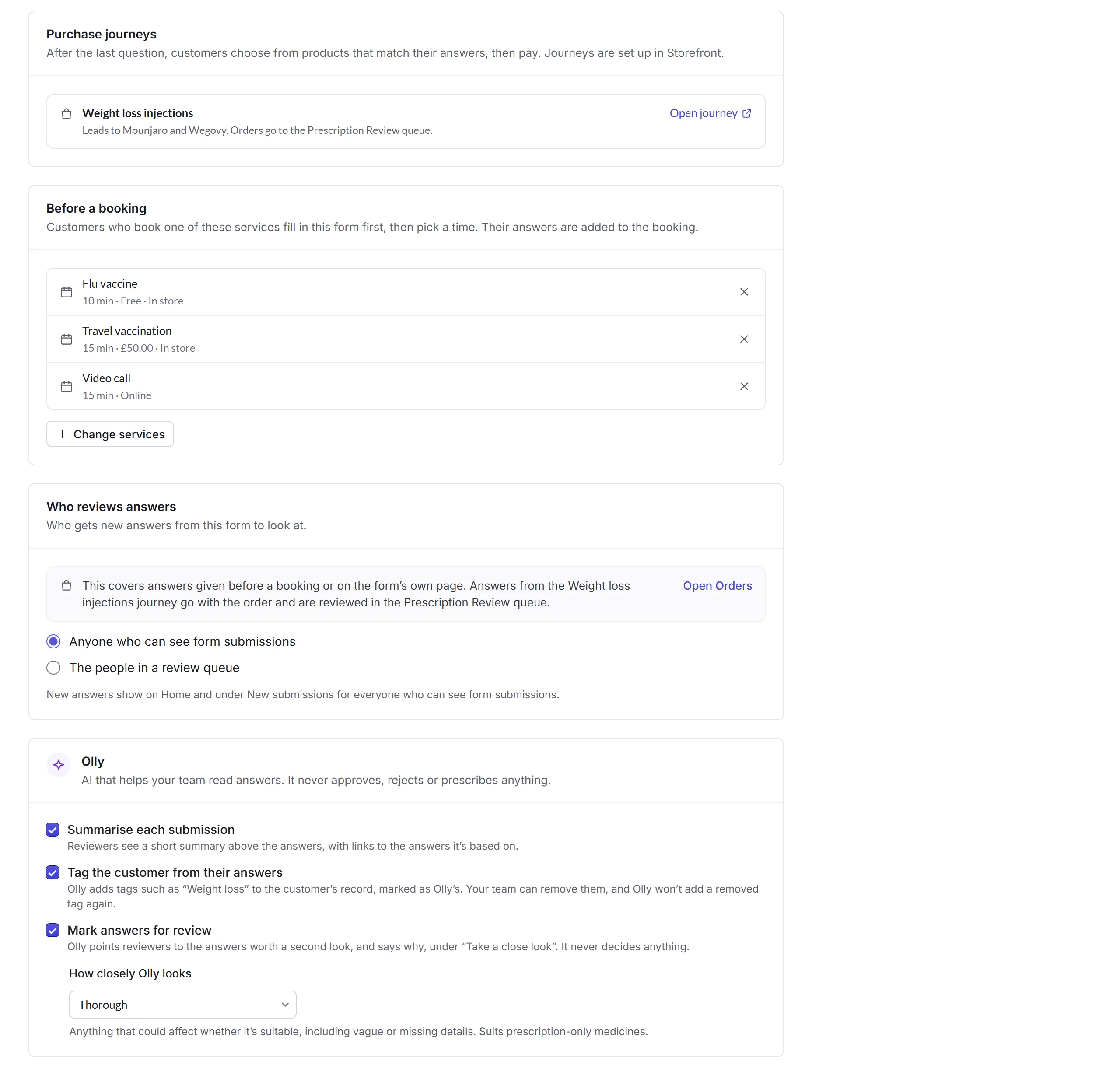
Who reviews answers
New answers from a form's own page or before a booking go to Anyone who can see form submissions, or to The people in a review queue you choose. They show on Home and under New submissions. Answers that go with an order, like a purchase journey's, are reviewed with the order instead, in the product's review queue.
Olly
Olly is AI that helps your team read answers. It never approves, rejects or prescribes anything. Names and contact details are taken out before Olly sees the answers.
- Summarise each submission
- Reviewers see a short summary above the answers, with links to the answers it's based on.
- Tag the customer from their answers
- Olly adds tags such as "Weight loss" to the customer's record, marked as Olly's. Your team can remove them, and Olly won't add a removed tag again.
- Mark answers for review
- Olly points reviewers to the answers worth a second look, and says why, under "Take a close look".
- How closely Olly looks
- Thorough notes anything that could affect whether it's suitable, including vague or missing details, and suits prescription-only medicines. Standard looks for red flags only: warning symptoms, pregnancy, allergies, medicines that clash, answers that contradict each other and mistakes, and suits pharmacy medicines. Light looks only for answers that contradict each other or look entered by mistake.
With all three off, Olly won't see this form's answers. Your team still sees every answer.
Saving and going live
Changes wait in a bar at the foot of the page: Save changes or Discard. If anything needs fixing, Priorly says what before saving. Leaving with unsaved changes asks first.
A draft goes live with Go live. It saves any changes first, and Priorly checks it. If there's something to know first, like the form not being used anywhere yet, it asks whether to Go live or Keep it as a draft.