Making tasks
Make a task for yourself, a colleague, anyone on the team or a patient. A task can also ask someone for a document, or to read and sign one.
Making a task
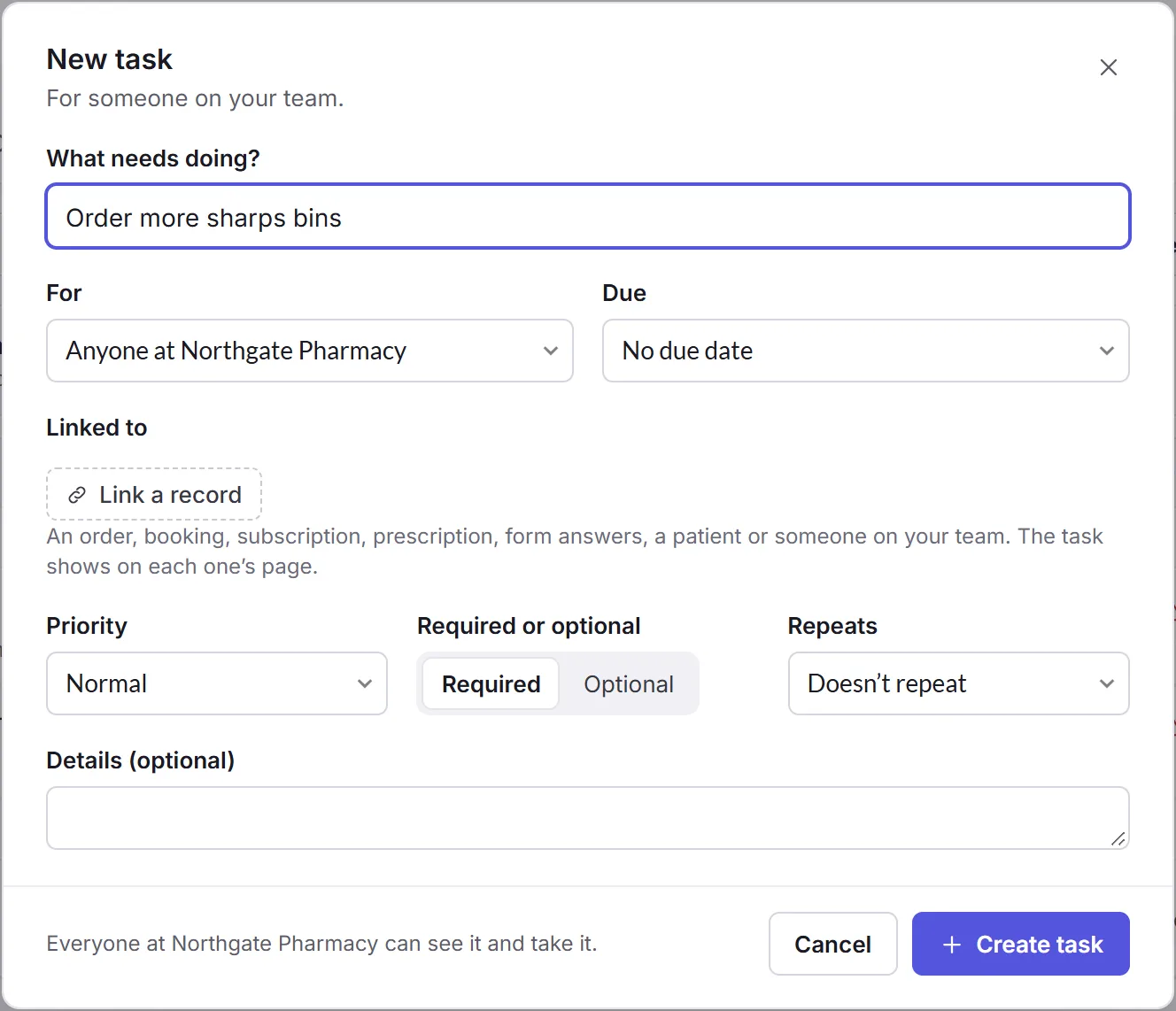
Click New task in Tasks, or in the Tasks card on an order, a patient, a subscription or a booking, which links the task to it for you. Making a task needs Create, under Tasks in your permissions.
What needs doing?
A short title, like "Order more sharps bins". It's the only thing you have to fill in.
How it's done
Tick it off for most tasks. Upload a document and Read and sign are for one person, so they show once you've chosen who it's for. See Document tasks.
For
Anyone at your business, Me, a colleague by name, or a patient, to do in their account. A task for anyone is unassigned until someone takes it.
Due, Linked to and Priority
When it's due, the records it's about (Link a record finds an order, booking, subscription, prescription, form answers, a patient or a colleague), and how urgent it is.
Required or optional
Optional tasks never hold anything up, never go overdue, and nobody is reminded about them.
Repeats and details
Repeats makes it come back every day, every weekday, or on a pattern of your own. Details (optional) holds anything the person doing it needs. Then click Create task.
Tasks for patients
Choose a patient under For, and the task goes to their account. What they do is one of:
- Upload a file
- Such as a photo or a letter, with the kinds of file and the largest size you'll take.
- Write a reply
- An answer to your question, in their own words.
- Update their details
- The details you choose, like their address or phone number.
- Leave a review
- A review of your business.
- Book a service
- A booking for the service you choose.
For an order or subscription (optional) ties it to one of theirs. Tick The order waits until this is done to hold the order until they've done it.
Their tasks are under Waiting for patients (or Waiting for customers), with what's waiting on each one. Remind emails them that a task is waiting, never what it is. Priorly reminds them too: before it's due, on the day, then 2, 5 and 10 days after. The task finishes by itself when they do it.

Document tasks
Two kinds of task are about a colleague's documents, so they're for one person at a time.
- Upload a document
- Asks them for a document, like a registration certificate or proof of insurance. Choose its Document type, and tick Ask when it runs out for one that expires: Priorly asks them for the new one 30 days before. Under Who checks it, choose a colleague to check it, with What to check (optional), or Nobody: uploading finishes it. They click Upload; the checker then clicks Accept, or Ask for a new one with what's wrong.
- Read and sign
- Asks them to read one of your team documents, like a dispensing procedure, and sign to say they have. They always see the latest version. They open it, tick that they've read and understood it, and click Sign.
Team documents are kept by business admins. See Team documents.