Payment settings
Once payments are set up, the Payments page's Settings tab shows your set-up, and lets a business admin change it.
The Settings tab
Open Payments, then Settings, or Payment settings in the sidebar's settings. If Ryft needs something, like a photo ID for someone in the business, it's listed at the top, with a button to add it.
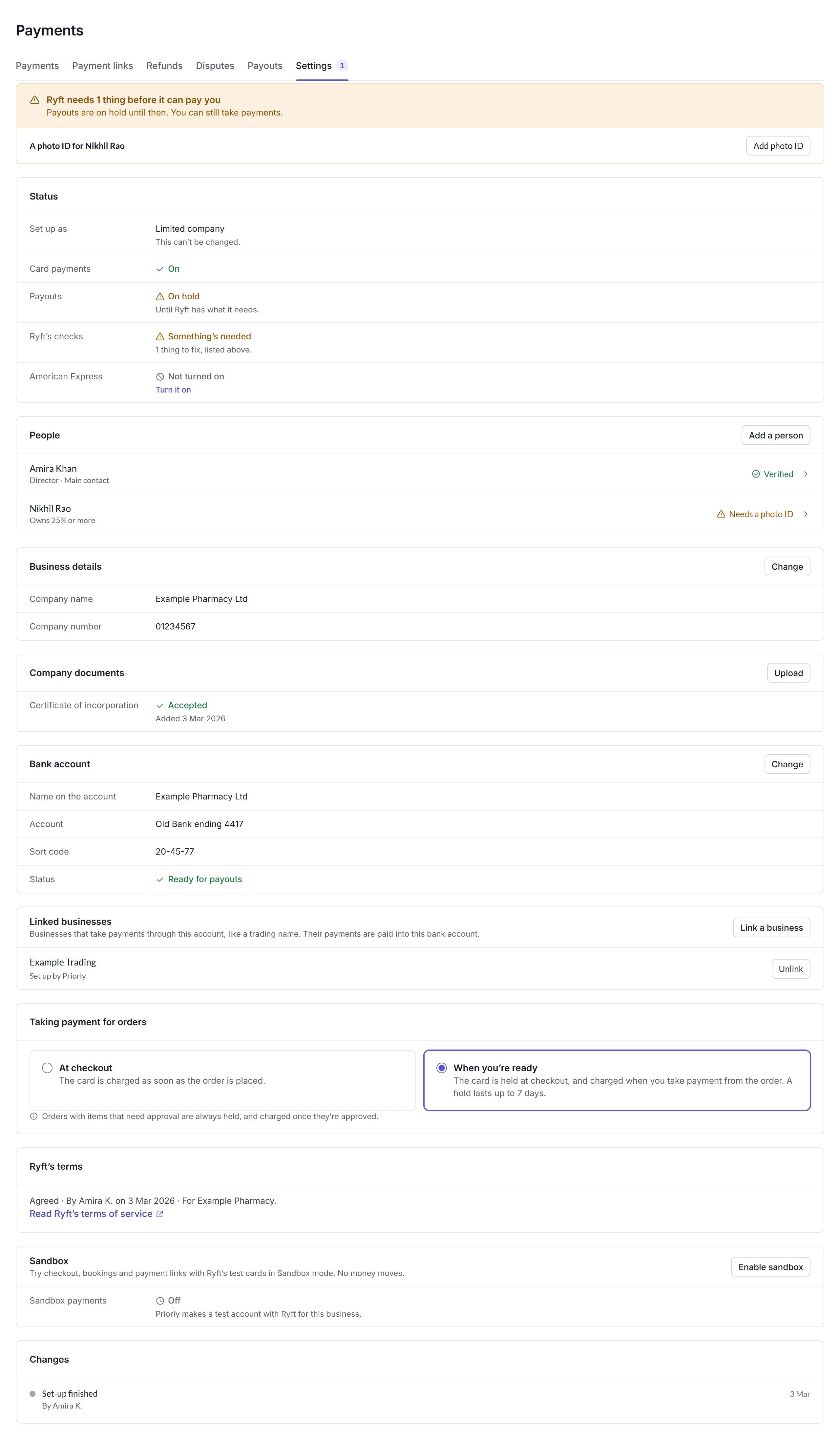
- Status
- How you're set up, whether card payments and payouts are on, and Ryft's checks. American Express can be turned on here.
- People, Business details and Company documents
- The people in the business and whether Ryft has checked them, the company's details, and the documents Ryft has.
- Bank account
- Where payouts go. Change asks for the name on the account, the sort code, the account number, and your Priorly password.
- Linked businesses
- Businesses that take payments through this account, like a trading name; their payments are paid into this bank account. Link a business makes a link code, which the other business enters while setting up payments. Either side can Unlink.
- Taking payment for orders
- At checkout, charged as soon as the order is placed, or When you're ready, held at checkout and charged when you take payment. Orders with items that need approval are always held, and charged once they're approved.
- Sandbox
- Enable sandbox to try checkout, bookings and payment links with Ryft's test cards. No money moves.
- Changes
- Every change to the set-up, and who made it.
The Settings tab is for business admins.