Staff overview
Staff lists everyone on your team, what they can do and where, and whether patients or customers can book them. It's also where you invite someone new.
Your team
Open Staff, under Team and tools in the sidebar. The tabs are Active, Invited (invitations not yet accepted) and Removed. Search by name, email or job title; with two or more locations, choose one; and Filter by access, whether they can be booked, and what they're a good match for.
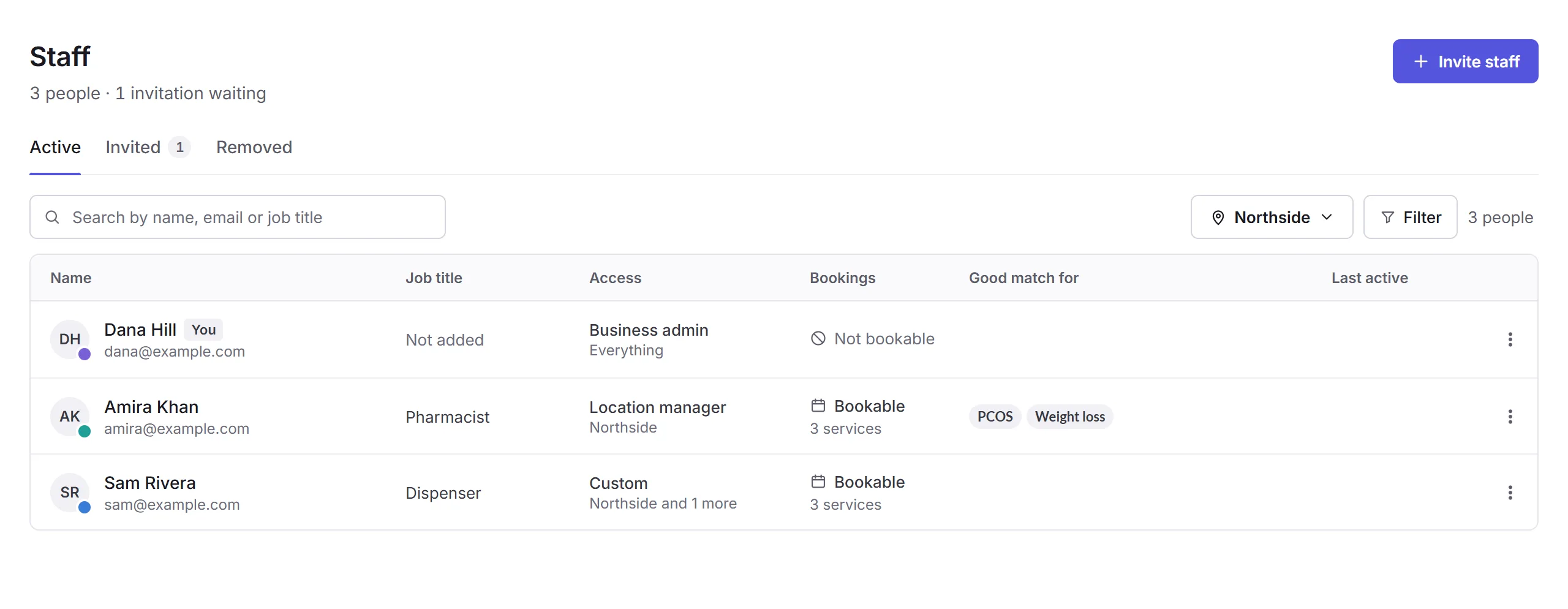
Each person shows their job title, their access and where, whether they can be booked, and when they were last active. A person's menu has Add time off and Remove from team; an invitation's has Resend invitation and Cancel invitation.
Inviting someone
Invite staff
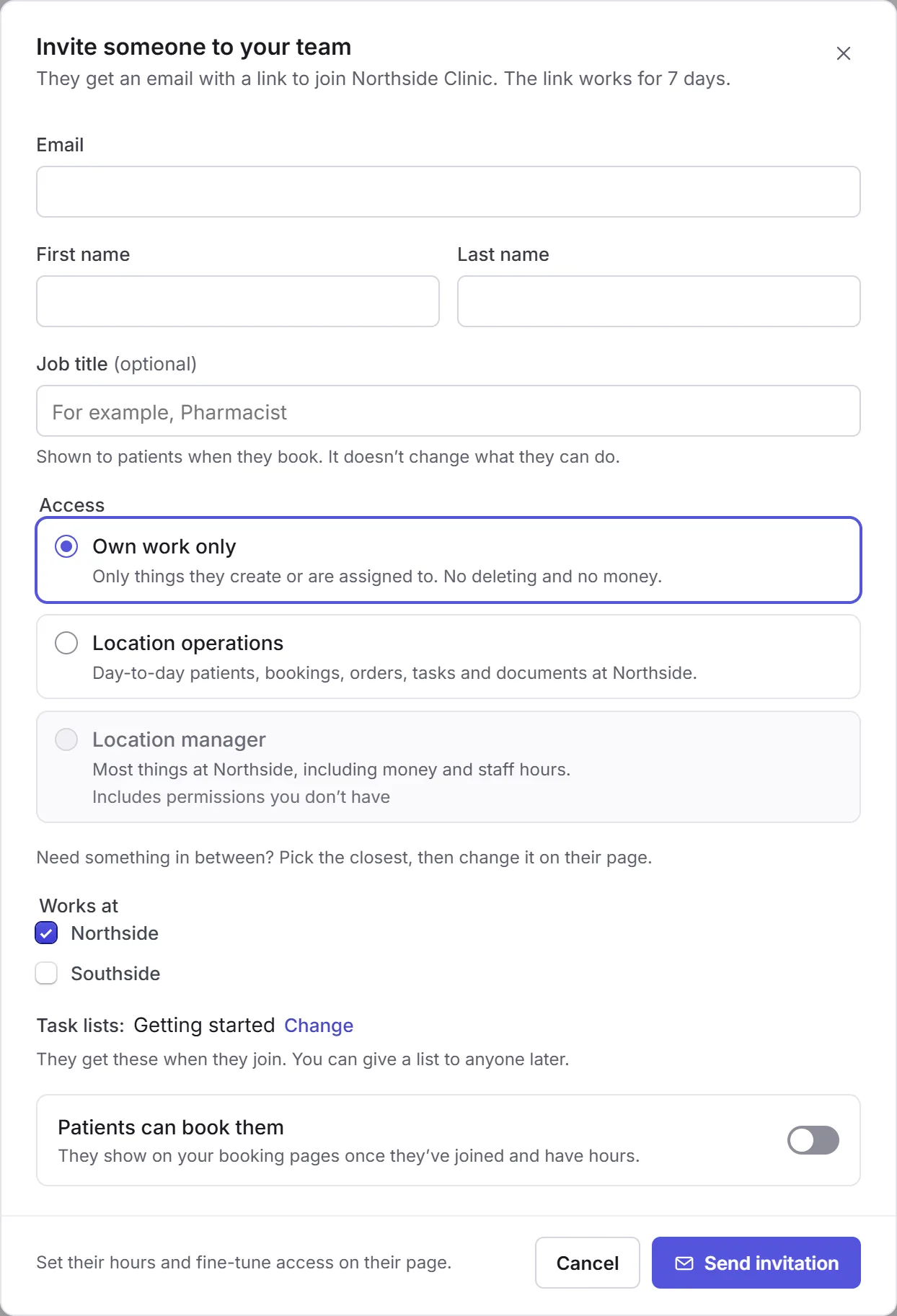
Click Invite staff, and enter their Email, First name, Last name and, if you like, Job title.
Access
Choose the closest: Own work only, Location operations or Location manager. Business admins can also make someone a location or business admin. You can fine-tune it on their page later.
Where and what
Choose where they work, any task lists they get when they join, whether patients or customers can book them, and their calendar colour.
Send invitation
Click Send invitation. They get an email with a link to join, which works for 7 days.
The link opens a page to join your business: they sign in, or create an account, with the email you invited. Resending an invitation sends a new link, and the old one stops working.
Who can use it
The Staff permissions: Create (invite), View, Edit and Delete (remove). Everyone can open their own page. Nobody can change their own permissions.
In this section
Carry on with the detailed Staff guides: