Business settings
Business settings holds what customers know you by: your name and contact details, your legal details, your web address, and your logo. Customers see them on your store, in emails and on receipts.
Your business's details
Open Business settings, under Settings in the sidebar. Only business admins can open it. Click Change on a card to edit it.
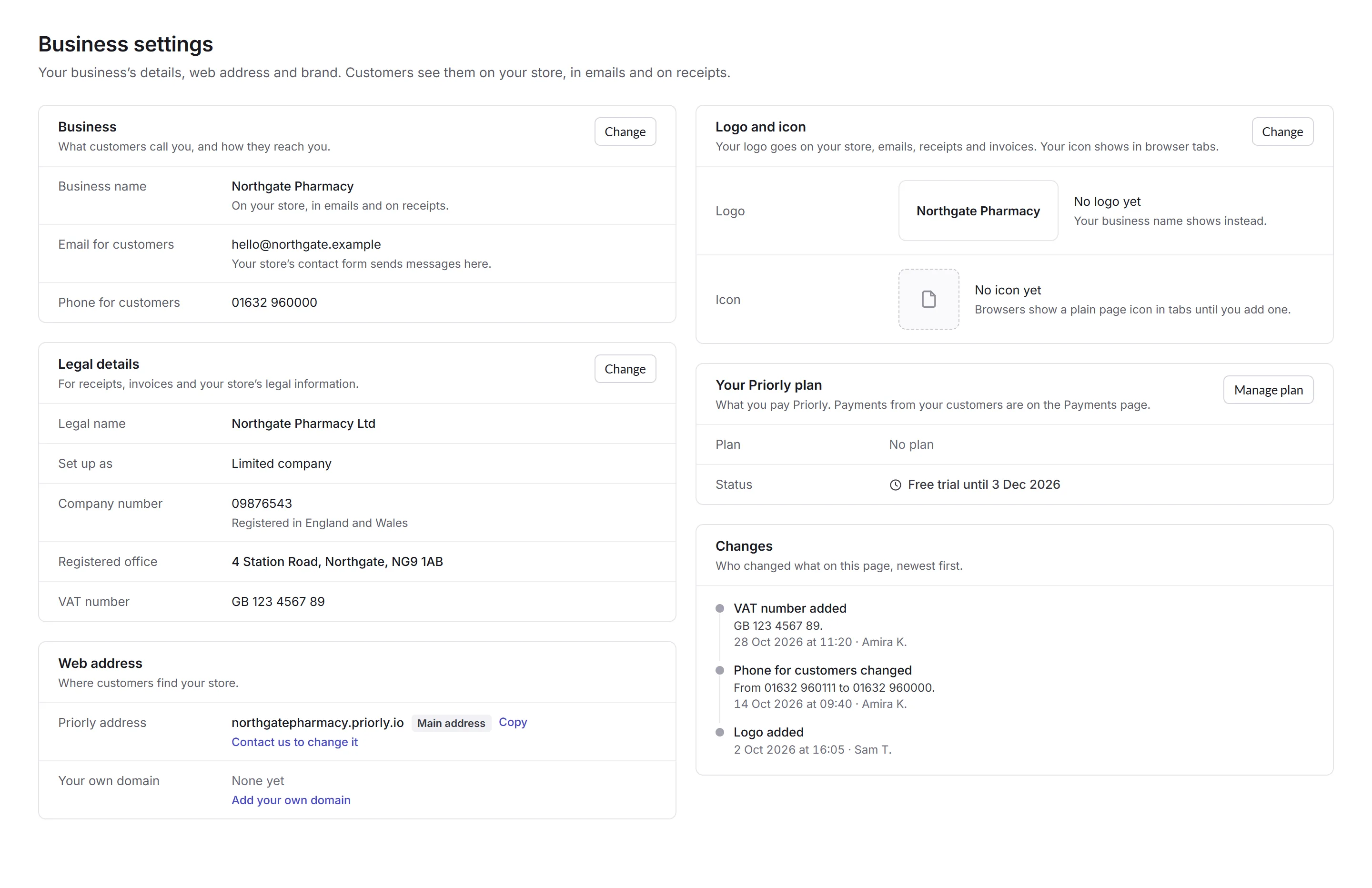
- Business
- Your business name, and the email and phone number customers use to reach you. Your store's contact form sends messages to that email.
- Legal details
- For receipts, invoices and your store's legal information. See Legal details.
- Your details
- Details your documents can use, like a registration number or your insurer. Add a detail gives it a name and a value. A location can have its own value.
- Web address
- Your Priorly address, and your own domain if you've added one. To add one, see Custom domains.
- Logo and icon
- Your logo goes on your store, emails, receipts and invoices. Without one, your business name shows instead. The icon shows in browser tabs. A logo can be an SVG, PNG or JPEG up to 5 MB; an icon a square PNG or SVG of at least 512 × 512 pixels. You see how each looks before you save.
- Your Priorly plan
- What you pay Priorly, and Manage plan. Payments from your customers are on the Payments page.
- Changes
- Who changed what on this page, newest first.
Time zones are set for each location, from its country. See Locations.
Legal details
Start with how the business is set up: a limited company, a limited liability partnership (LLP), a sole trader, or something else. The rest of the form follows from it.
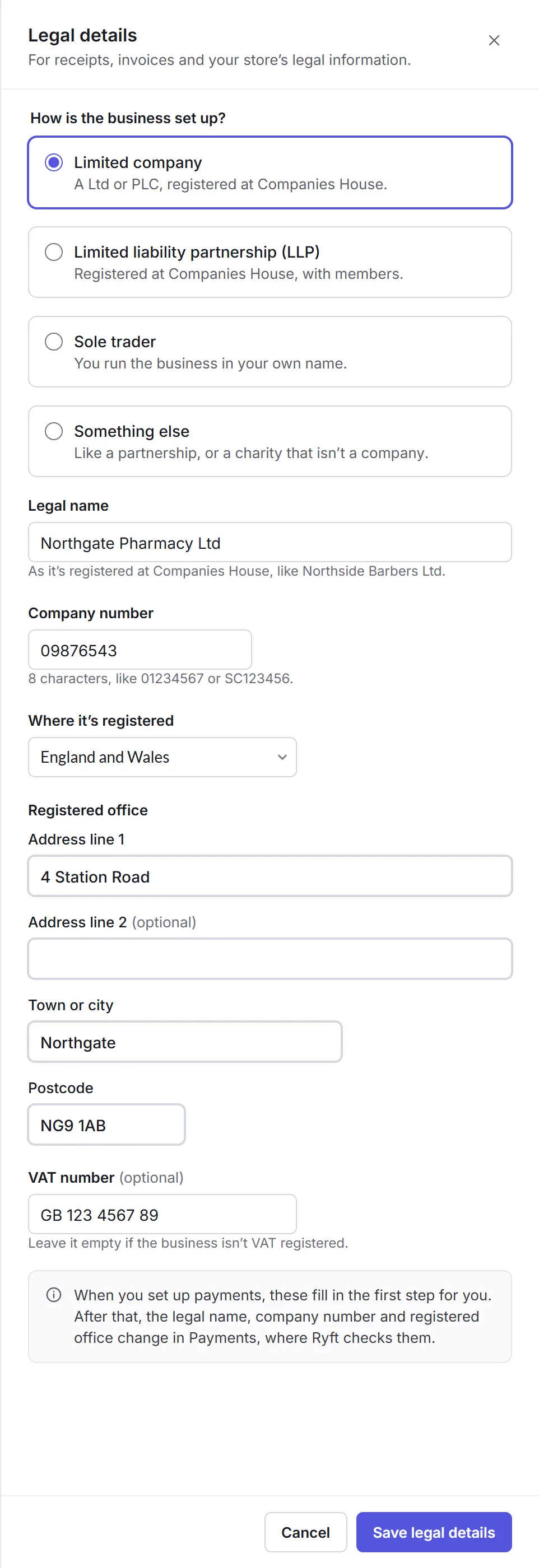
- A company or LLP
- Its legal name and number as registered at Companies House, where it's registered, and its registered office.
- A sole trader
- Your own name, shown as "your name, trading as your business name", and your business address.
- VAT number
- Leave it empty if the business isn't VAT registered.
Once you set up payments, the legal name, number and registered office come from your payment set-up, where Ryft checks them. Change them in Payments › Settings. You can still add or change the VAT number here.