Getting started
From signing up to your team's first day: set up your business and its first location, find your way around, and invite your team.
Your account and business
Sign up
On Priorly's sign-in page, click Get started, then give your name, country, email and a password, and click Create account.
Set up your business
Say whether it's a business or a sole trader and how it's set up, then give your own details, the business's details and the person who represents it. Last, choose your store's address, which ends in .priorly.io, and click Create business. Your business starts on a free trial.
Add your first location
Say whether it's a physical place, mobile or online, then give its name, address, contact details and opening hours, and click Create location. Priorly then opens Home.
You can change all of these later, in Business settings and Locations.
Finding your way
Everything is in the sidebar on the left. Its groups follow the help sections here: the everyday pages first, then Tools, Selling, Marketing and Team and tools.
- Your business
- At the top. Click it to switch location or business, open Manage locations, or turn on Sandbox mode, where you can try test orders, bookings and payments that customers never see.
- Go to
- Jump to any page or setting by name. Press Ctrl K, or ⌘K on a Mac.
- The bell
- Your notifications, kept for 90 days. See Notifications.
- At the bottom
- Ask Olly, Settings, and your name, for your staff page, your notifications, your account settings and signing out.
You only see the pages your permissions allow, so the sidebar can look different for each person on your team.
Home
Home shows what needs you now, and your day.
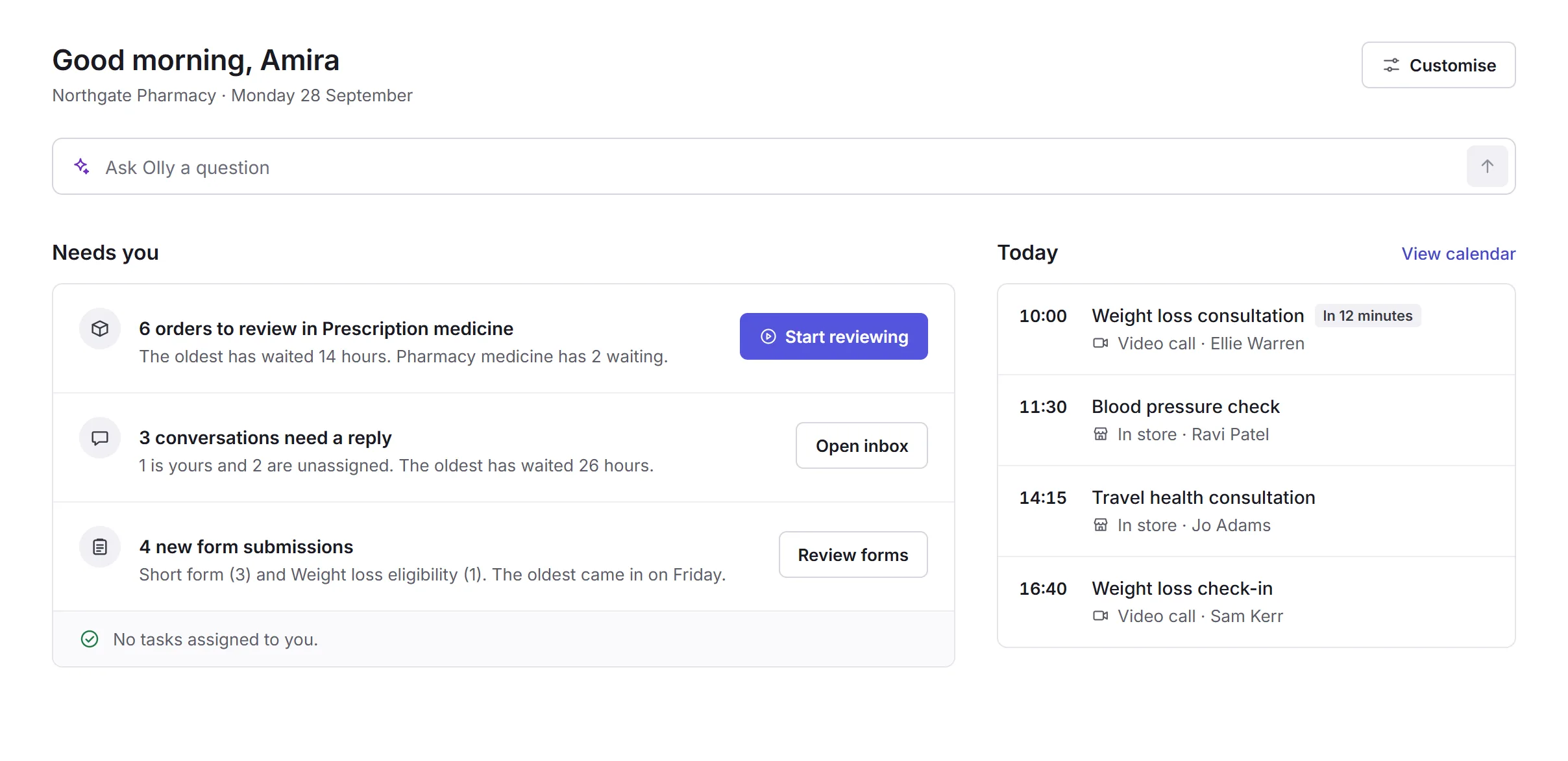
- Needs you
- Orders to review, conversations waiting for a reply, new form submissions and your tasks, each with a button to start. When there's nothing, it says so.
- The search box
- Find an order by its number, or a patient or booking by name, and see where an order has got to without leaving Home. With Olly, you can ask it a question here too.
- Today
- Your bookings for the day. A video call has Join call from 10 minutes before it starts.
- Customise
- Show, hide and reorder what's on your Home. Only you see the changes.
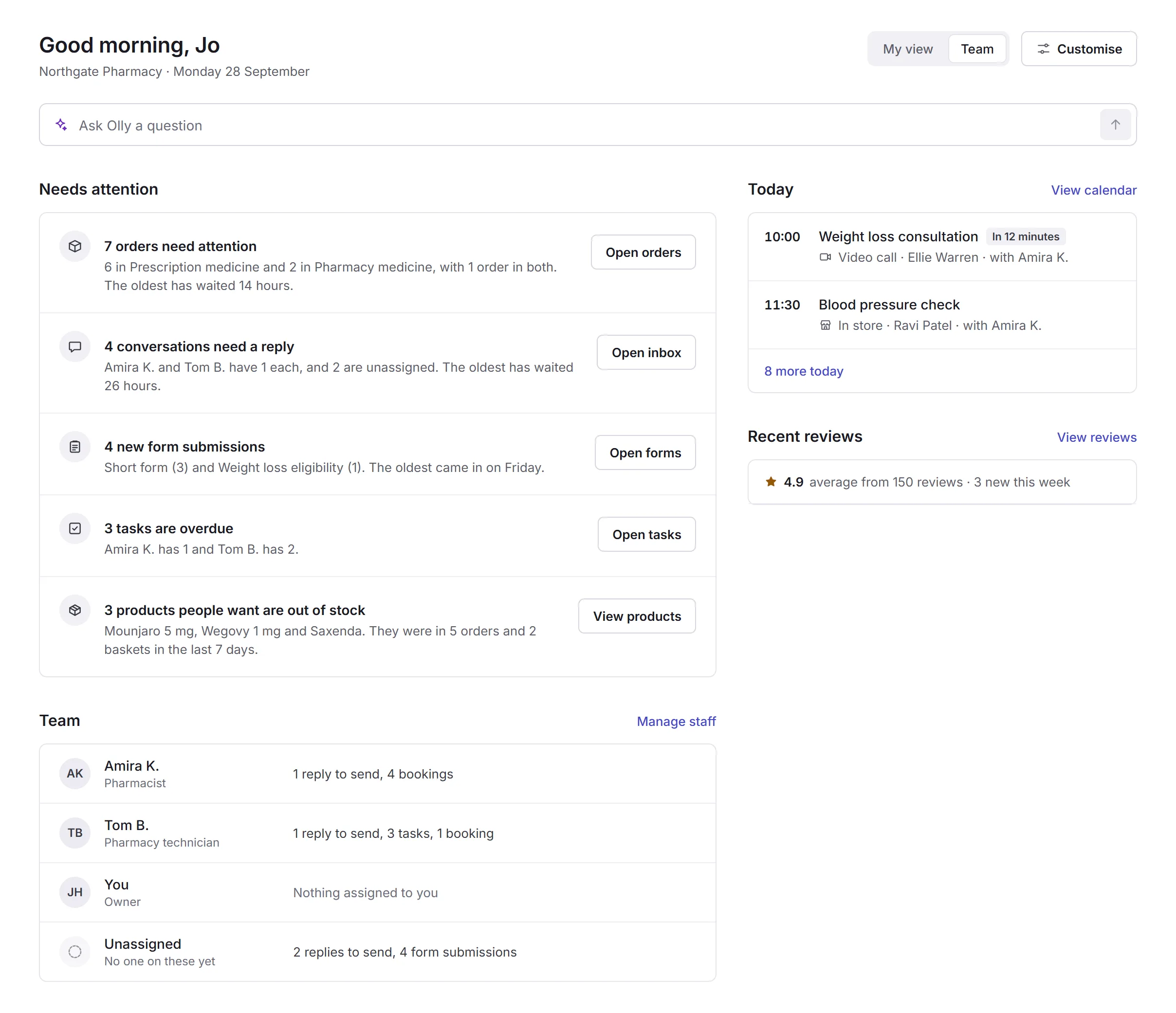
Business admins and location admins can switch to Team, to see what's waiting across the team and who has what.
Inviting your team
Open Staff and click Invite staff. Give their email, name and job title, choose their access and where they work, then click Send invitation.
They get an email with a link to join, which works for 7 days. They can sign in with a Priorly account they already have, or make one. Set their hours and fine-tune what they can do on their page in Staff. See Permissions and hours.
What to set up next
- Taking payments
- Set up payments in Payments: your business, the people behind it, documents and your bank account.
- Olly's guides
- Olly can take you through a job on the real page, step by step, like creating a service or a form, adding a staff member or approving an order. On Home, click Ask Olly at the bottom of the sidebar, then Browse all guides. Other pages suggest the guides for that page.