Claude
Connect your own Claude, the AI assistant, to Priorly. Claude can then read your business's content and save drafts for your team to check: articles, emails, products, store pages, your store's code and documents for customers. Claude never publishes anything, and never sees your customers.
Adding Claude
A business admin adds it once: open Apps, click Claude, then Add Claude. Each person on your team then connects their own Claude, signed in to Priorly as themselves, so every draft says whose chat it came from.
Priorly works with Claude on the web, the desktop and phone apps, and Claude Code. It doesn't connect to other AI assistants.
Connecting your Claude
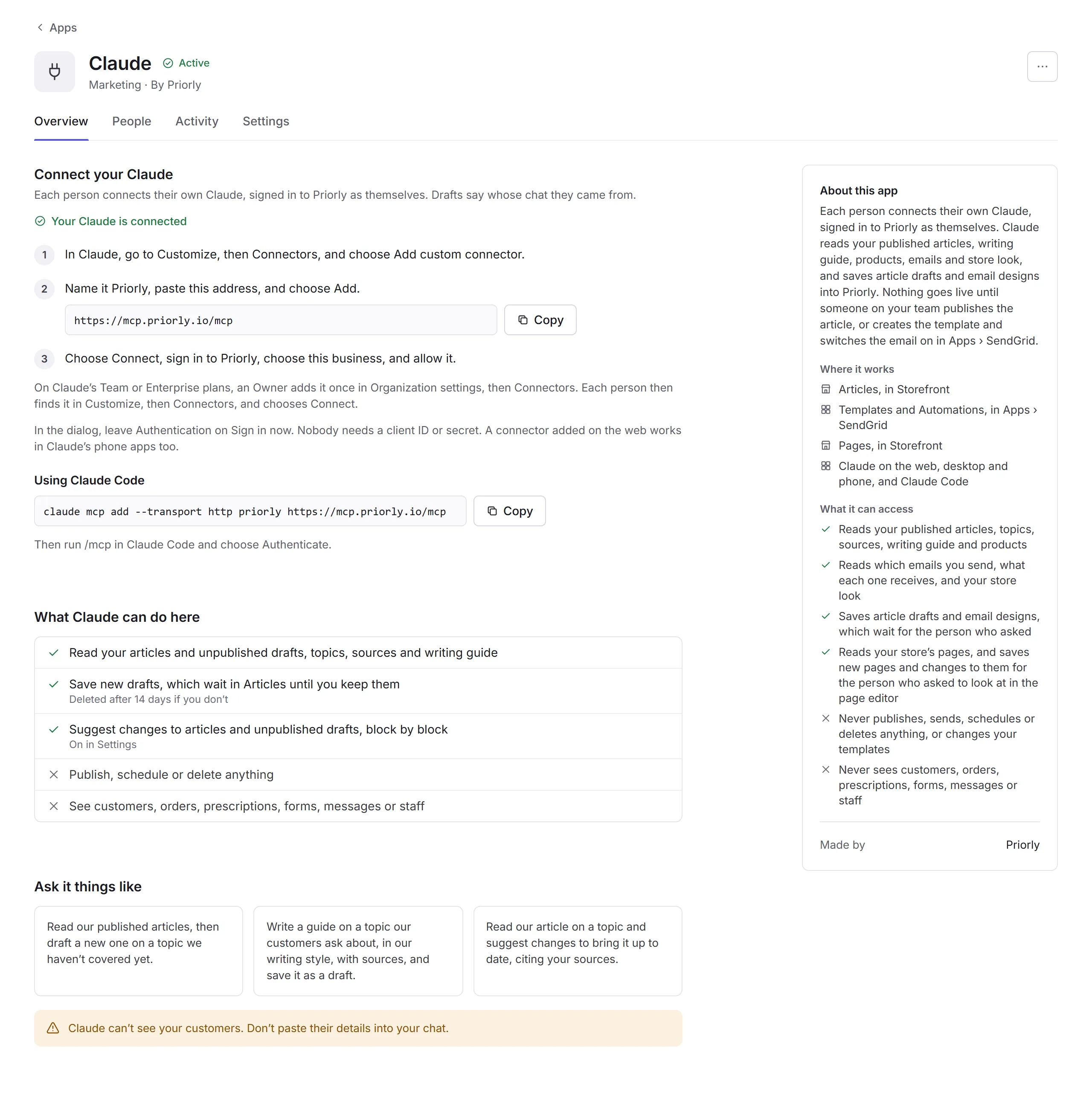
Apps › Claude shows you how, with the address to copy.
Add the connector
In Claude, go to Customize, then Connectors, and choose Add custom connector.
Paste the address
Name it Priorly, paste
https://mcp.priorly.io/mcp, and choose Add. Leave Authentication on Sign in now: nobody needs a client ID or secret.Sign in
Choose Connect, sign in to Priorly, choose your business, and allow it.
- Claude Team or Enterprise
- An Owner adds the connector once, in Claude's Organization settings, then Connectors. Each person then finds it in Customize, then Connectors, and chooses Connect.
- Claude's phone apps
- A connector added on the web works there too.
- Claude Code
- Run the command Apps › Claude shows, then
/mcp, and choose Authenticate.
Whenever Claude is connected to your Priorly account, Priorly tells you by email and in the bell, so you'd know if it wasn't you. You can't turn that notification off. As Claude learns to do more in Priorly, it asks you to allow the new things the next time it connects.
What Claude can do
Ask Claude in your chat, like "Read our published articles, then draft a new one on a topic we haven't covered yet." What it saves waits for the person whose Claude saved it, under From Claude, until they keep it.
- Articles
- Reads your articles and unpublished drafts, topics, sources and writing guide. Saves new drafts, and suggests changes block by block, in Articles.
- Emails
- Reads which emails you send and your store's look, and saves email designs and automations in Apps › SendGrid.
- Products
- Reads your products and their pages, and saves new products with their pages in Products.
- Store pages
- Reads your store's pages, and saves new pages and changes to them, which you look at in the page editor.
- Your store's code
- Reads your theme's files, and saves changes to your stylesheet and script in Theme › Your code.
- Documents for customers
- Reads what Files and links shows customers, and saves documents, like an aftercare leaflet, which wait there for you to add.
Each person's Claude can only do what their own permissions in Priorly allow. Claude never publishes, sends, schedules or deletes anything, and never sees customers, orders, prescriptions, forms, messages or staff. Don't paste customers' details into your chat.
People and Activity
- People
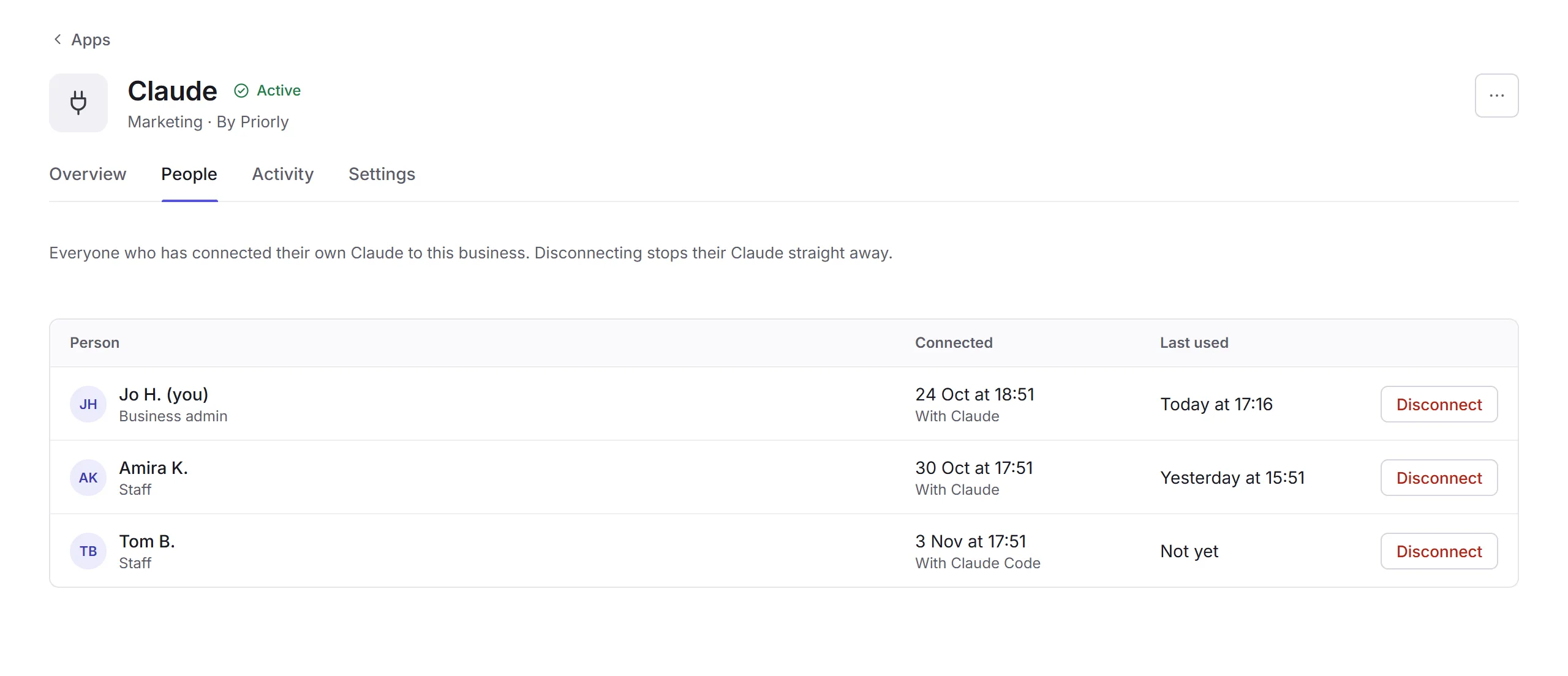
- Everyone who has connected their own Claude, with Claude or Claude Code, and when they last used it. Disconnect stops their Claude straight away.
- Activity
- What Claude did, like saving a draft or reading your articles. Never what was said in anyone's chat. Kept for 12 months.
Settings
Only business admins can change these.
- Suggesting changes
- Whether Claude can suggest changes to articles and unpublished drafts. Nothing changes until the person who asked keeps each one.
- Deleting drafts
- How long Claude's drafts wait before they're deleted if nobody keeps them: 3, 7, 14 or 30 days. The person gets a reminder the day before.
- Who can connect
- Staff with the Articles or Emails permission, or business admins only. Changing it to business admins only disconnects everyone else straight away.
- Writing guide
- Claude reads it before it drafts. Change it in Articles' Publication settings.
- Disconnect everyone
- Stops every person's Claude straight away. Drafts already saved stay.
To remove Claude, use the ⋯ menu at the top of its page, then Remove app. Everyone's Claude stops working with Priorly straight away; drafts already saved stay in Priorly.