Notifications
Admins choose who on the team hears about what, like new orders or bookings, in Settings › Notifications. Each person then chooses how their own notifications reach them, in Your notifications.
Who hears about what
Open Notifications, under Settings in the sidebar. Business admins change everything here. A location admin changes who hears about things at their own locations.
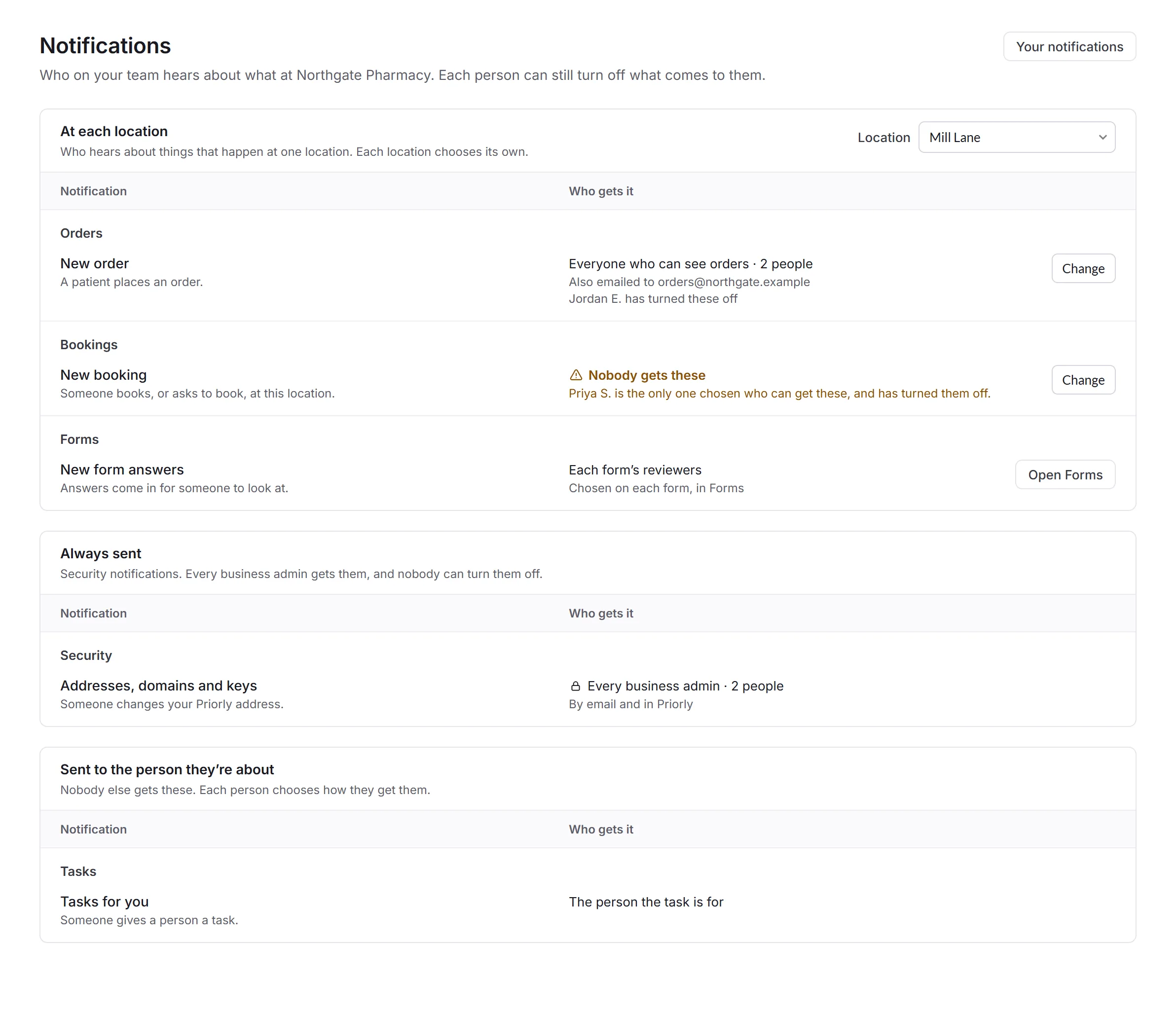
- At each location
- Things that happen at one location, like a new order, a new booking, a new message or a refund request. Choose the location at the top. Who gets new form answers is chosen on each form, in Forms.
- Whole business
- The same at every location, like disputes. Only business admins can change these.
- Always sent
- Security notifications, like a change to your bank details. Every business admin gets them, and nobody can turn them off.
- Sent to the person they're about
- Like a task given to someone, or a booking with them. Nobody else gets these.
A notification only shows here if your business uses it: bookings only if you take bookings, for example. Nobody gets these warns you when no one would hear about something.
Changing who gets one
Click Change beside a notification.
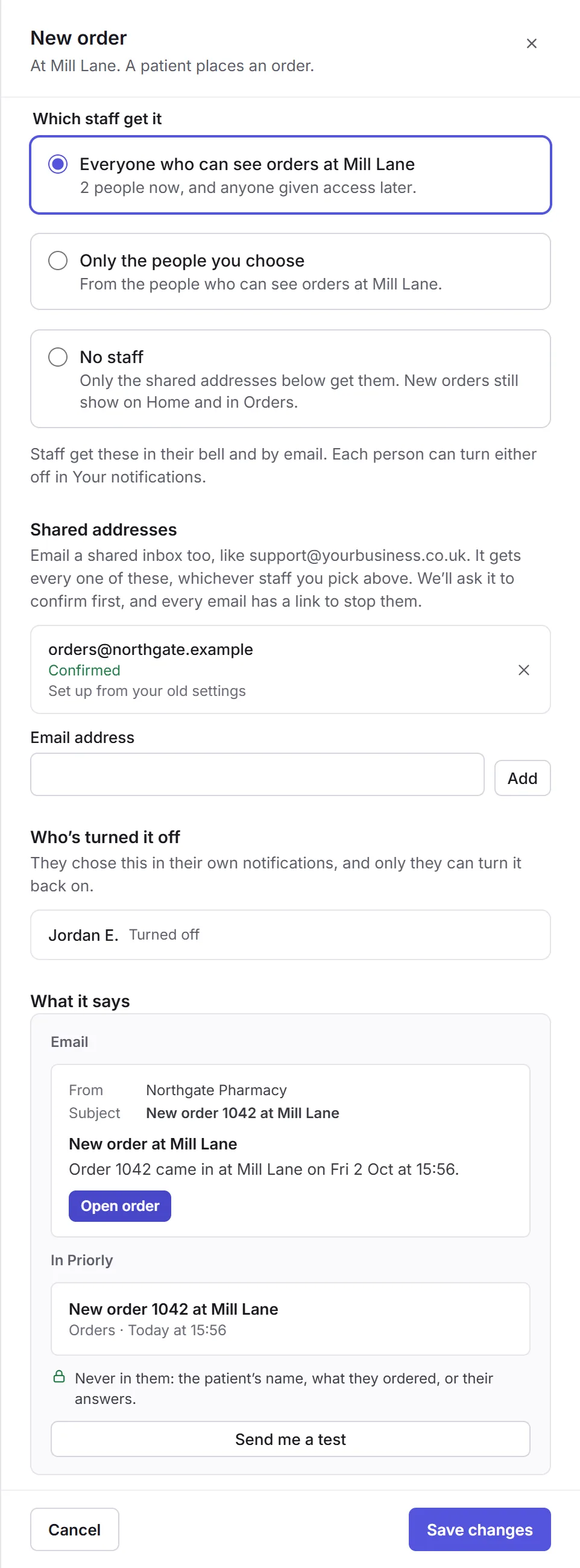
- Which staff get it
- Everyone who can see what it's about, like orders, at that location, including people given access later; Only the people you choose, with Add someone; or No staff.
- Shared addresses
- Up to 3 email addresses, like a shared inbox, that get every one of these. Priorly asks each address to confirm first, and every email has a link to stop them.
- Who's turned it off
- People who turned it off in their own notifications. Only they can turn it back on.
- What it says
- A preview of the email and of the notification in Priorly, with what's never in them, like a patient's name. Send me a test sends you one.
Your notifications
Everyone on the team chooses how their own notifications reach them. Click your name at the bottom of the sidebar, then Your notifications.
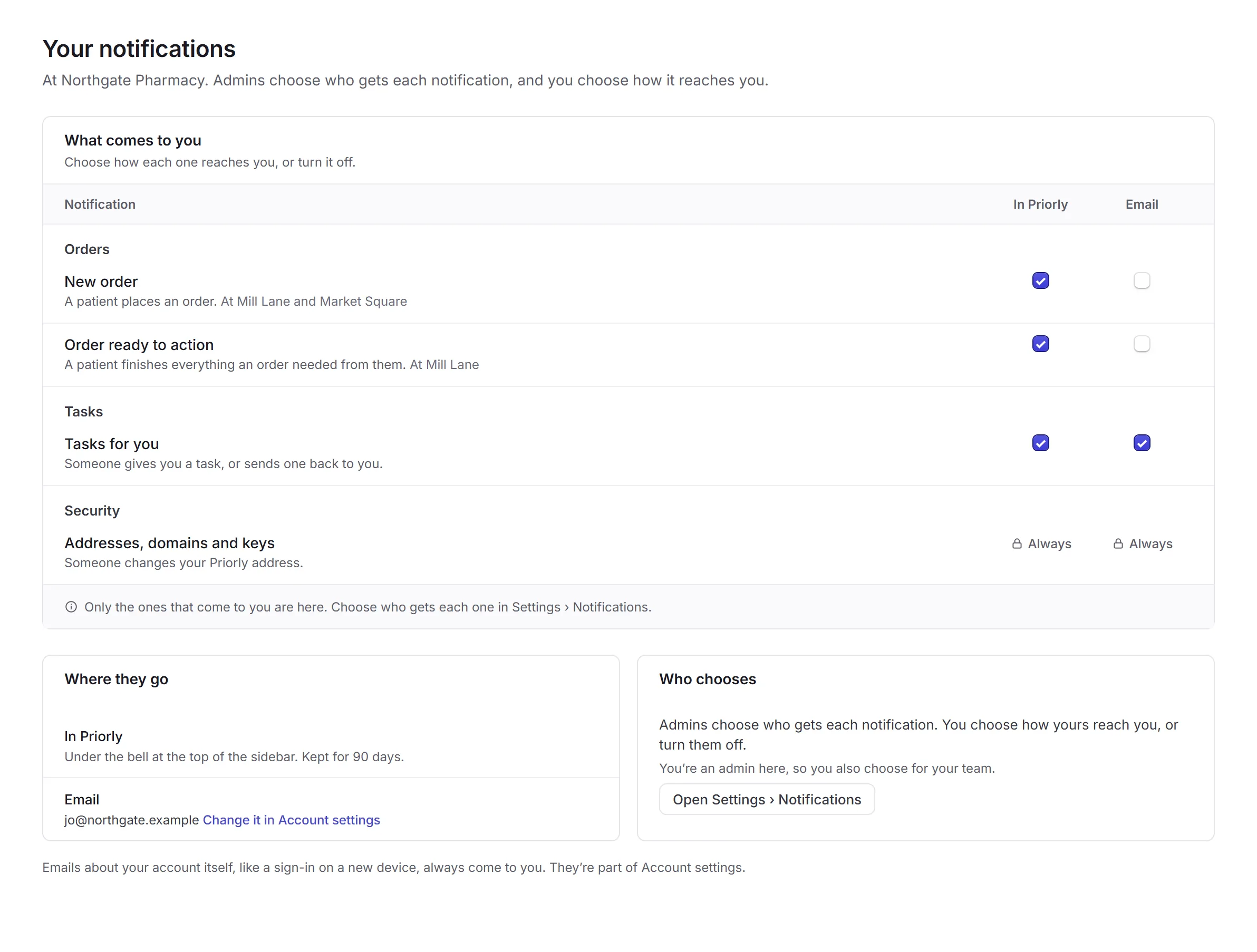
- What comes to you
- Each notification you get, with In Priorly and Email to tick or untick, then Save changes. Untick both to turn one off. Security notifications always come.
- Where they go
- In Priorly is under the bell at the top of the sidebar, kept for 90 days. Email goes to your account's email, which you change in Account settings. This browser turns on pop-up notifications on this computer.
You can't add a notification for yourself here. If you need one, ask an admin to add you in Settings › Notifications.