Pages, sections and theme
Every page customers can visit on your store, how you edit and publish one, the sections you reuse across pages, and how your store looks.
Pages
Storefront opens on Pages.
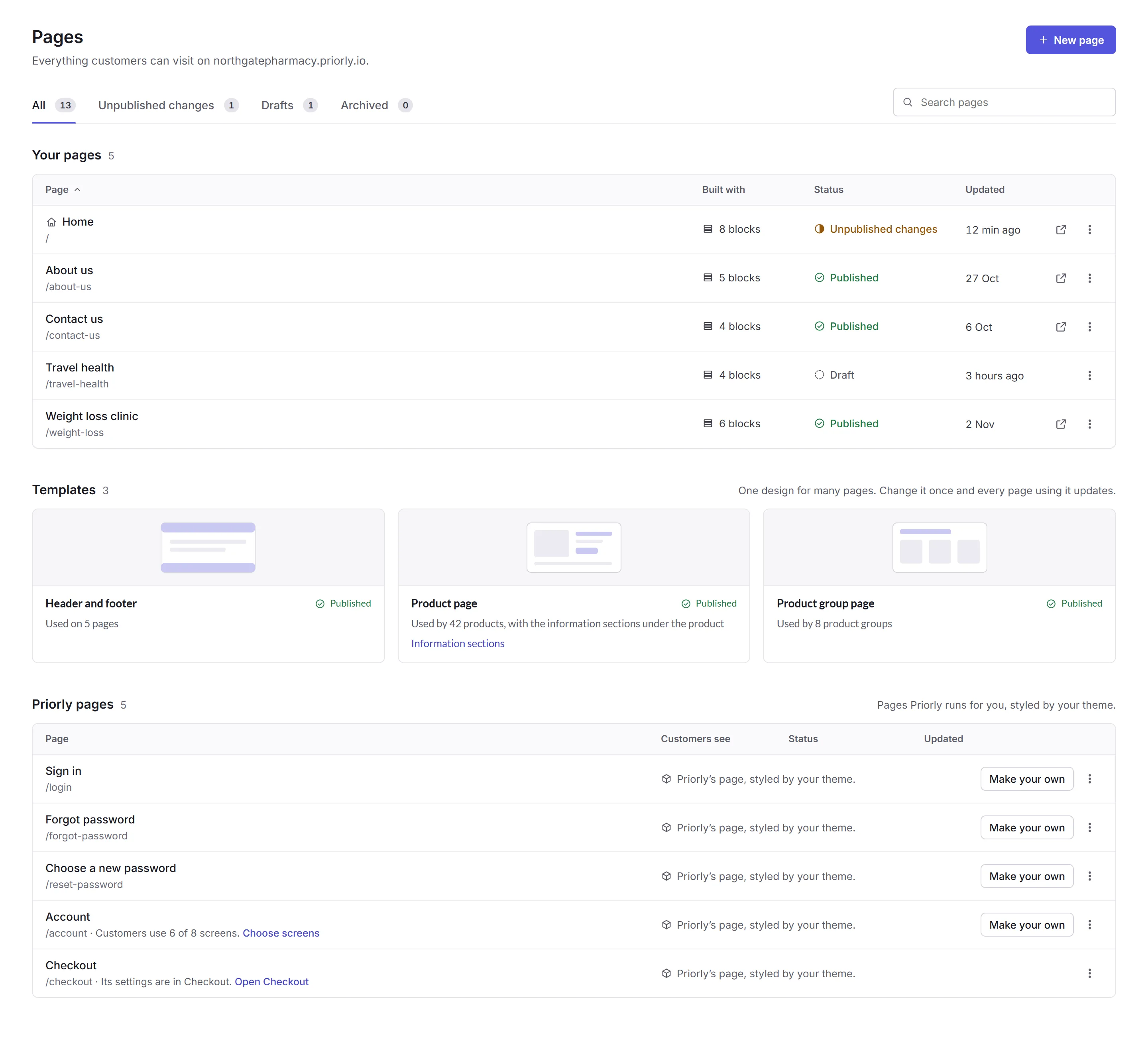
- Your pages
- Pages you've made, with how each is built, whether it's published, and when it changed. New page makes one. A page's ⋮ menu can open it on your store, copy its link or a preview link, duplicate it, or archive it.
- Templates
- One design for many pages: the header and footer, the product page and the product group page. Change one and every page using it updates.
- Priorly pages
- Pages Priorly runs for you, like signing in and the customer's account, styled by your theme. Make your own replaces one with a page you edit.
The tabs show only pages with unpublished changes, drafts, or archived pages. Archiving a page asks what its address should do next.
Editing a page
Click a page to open it in the editor. Type straight onto its blocks, and your changes are saved as a draft as you go.
- Edit, Side by side and Preview
- Work on the page, see it next to how customers will see it, or just the preview. Check it as a computer, tablet or phone.
- Adding
- Add section and Add a block add new parts to the page.
- Settings
- Block has the settings for what you've chosen. Page has the page's basics, how it shows in search results, its layout, and more.
- History
- Every version you've published, to look back at or restore.
- Share preview
- A link to show someone the page before it's published.
Click Publish to put your changes on your store. It shows what's changed first. Once published, you can still click Undo for a moment.
Sections
Sections are the parts pages are built from, like a hero, steps or questions and answers. Here you set each section type's starting design for your business, and make New sections of your own. Code components are sections written in code, for developers.
Theme
Theme is how your store looks.
- Design system
- Your brand, what your store is and how it should sound. The page editor checks each page against it, and Claude follows it when it drafts for your store.
- Form styling
- How fields and buttons look on your forms.
- Your code
- Your own stylesheet and scripts. Edit code, then publish.
- Phones and browsers
- The colour of the browser bar, and the background when someone adds your store to their phone's home screen.
Your logo and icon are in Business settings, and card payment fields are styled in Checkout.