Files and links
Files and links is your business's shared library: leaflets, forms, policies and useful links, in folders. Each can be for your team only, or shown to patients or customers in their account too.
The library
Open Files and links, under Team and tools in the sidebar.
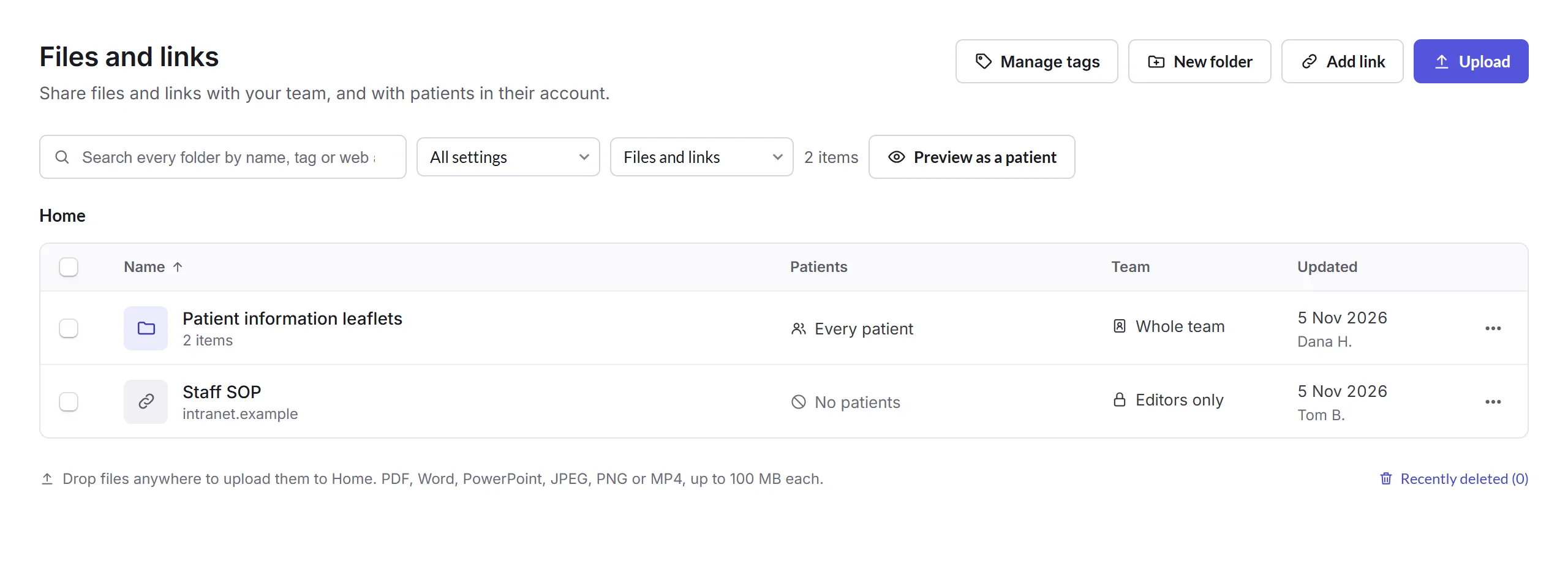
- Upload, Add link and New folder
- Add files (PDF, Word, PowerPoint, JPEG, PNG or MP4, up to 100 MB each), drop them anywhere on the page, add a web address, or make a folder.
- Search and filters
- Search every folder by name, tag or web address, and show only what a group can see, or only files or links.
- Patients and Team
- Who can see each one: every patient or customer, those with certain tags, or none; and your whole team, or editors only.
- Preview as a patient
- See the library as a patient or customer would.
Tick several to Move them, change Who can see them, or Delete them. Deleted ones stay in Recently deleted for a while, where you can restore them.
Who can see it
Click a file or link to change it. A file or link follows its folder's setting until you give it its own.
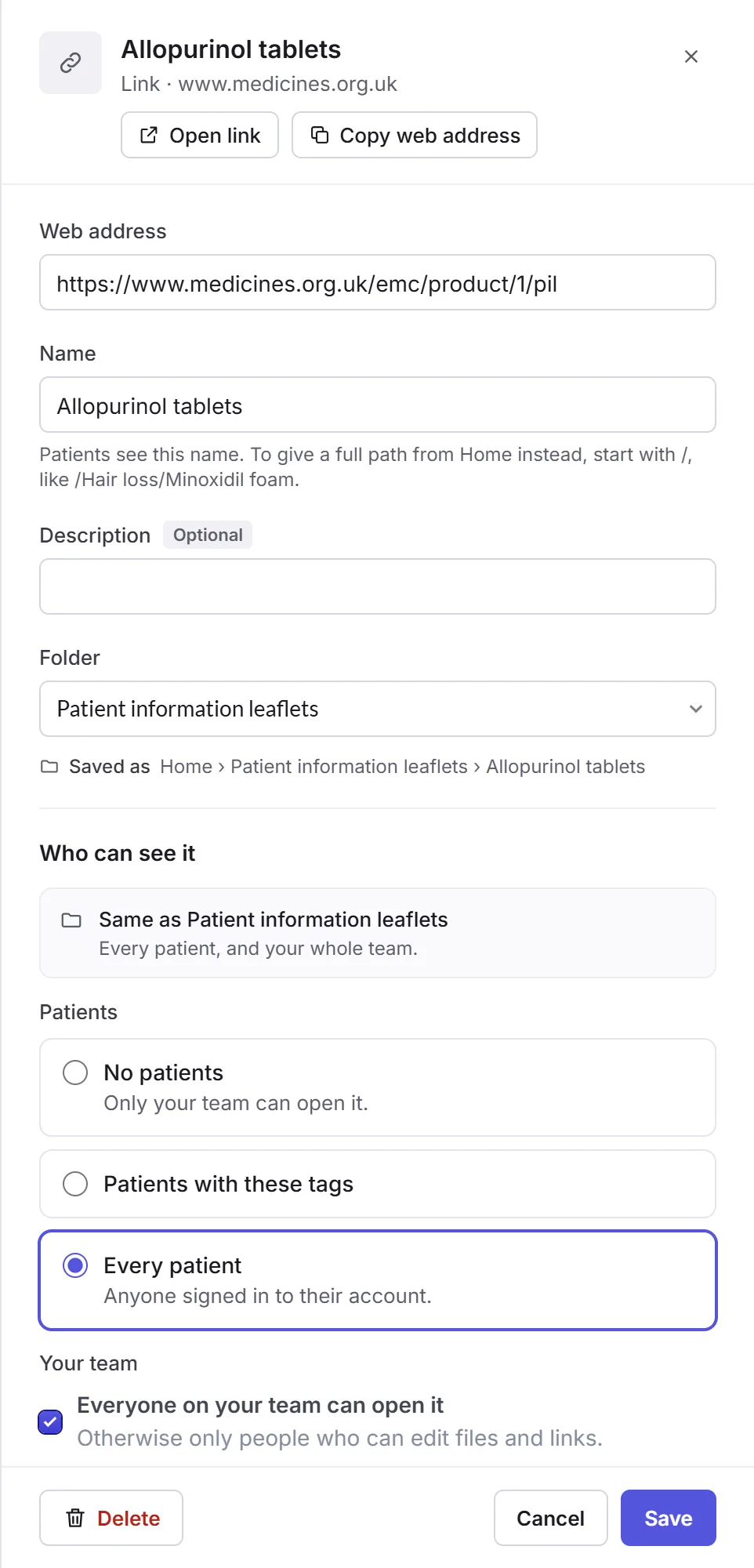
- Patients
- No patients (only your team), Patients with these tags, like everyone tagged Hair loss, or Every patient signed in to their account. A clinic says patients; anywhere else, customers.
- Your team
- Everyone on your team can open it, or only people who can edit files and links.
Manage tags lists your tags, with how many patients, files and products use each; admins can rename, combine or delete one.
Files and links need the Files and links permissions: View, Edit (adding, moving and sharing) and Delete, for what they added (Own) or everything (All locations).