Replying and notes
Reply to a customer from the box at the foot of a conversation, or switch it to Note to leave something for your team. Templates and files go in the same box.
Replying to a customer
Open the conversation
Click it in Needs reply.
Write your reply
With Reply chosen, write in the box. Bold, Italic, Underline and Link are under it.
Send
Click Send, or press Ctrl+Enter (⌘+Enter on a Mac).
The customer sees your reply in their account and gets an email to say there's a message. The conversation moves to Waiting, and under your reply it says when they've seen it, or Not seen yet.
The line beside Reply and Note says what sending does in this conversation:
- Unassigned. Replying assigns it to you.
- Nobody owns it yet, so your reply makes it yours.
- Closed. Replying reopens it.
- It's closed, and your reply opens it again.
- … is handling replies. You can add a note.
- A colleague owns it, so you can't reply, but you can add a note. A business admin can click Take over.
- Replies are off for this conversation. You can add a note.
- Replies are switched off for it, so only notes can be added.
Templates
Click Templates under the reply box to start from one of your message templates. It fills in the customer's name, and in a conversation about an order, the order number and what they last ordered. A template that needs an order only shows in a conversation about one. Anything else in braces, like {tracking}, is left for you to fill in before you send it.
Manage templates, at the foot of the menu, opens your templates in a new tab to add or change them. Priorly starts you with a few, like Order update, Need more info and Out of stock.
Sending and receiving files
Click Attach a file to send one file with a reply, up to 10 MB. To send another, send this one first, or remove it.
If you let customers attach files (see Inbox settings), theirs show in the conversation with Preview for pictures, Download and Delete. Files from customers are marked Not scanned, and Priorly checks you're happy to download one first: Download anyway.
Files customers send aren't scanned for viruses. Only open what you're expecting from someone you know.
Notes for your team
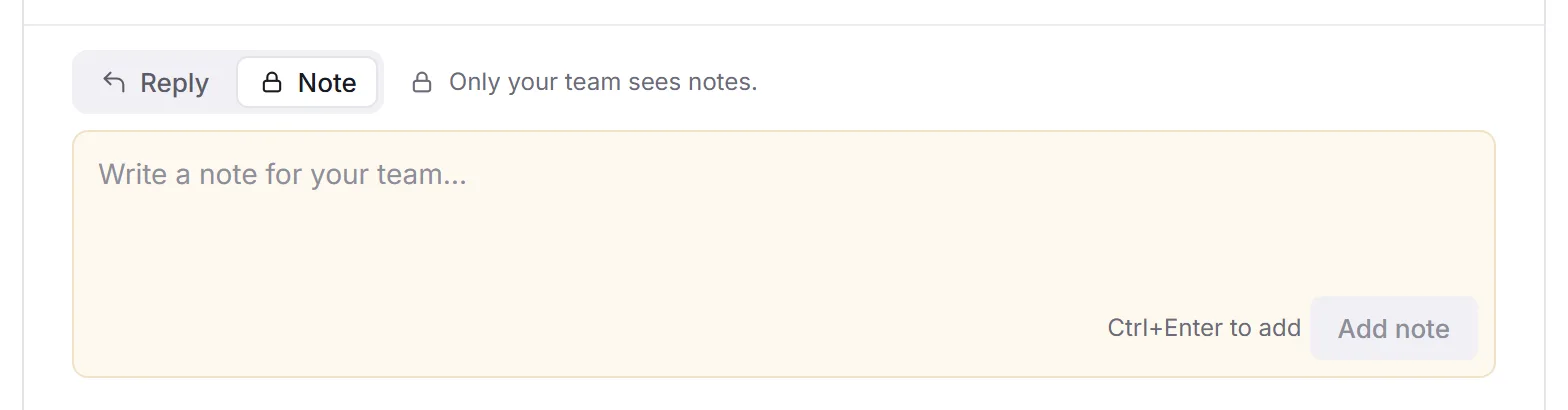
Click Note above the box, write, and click Add note. Notes sit in the conversation in yellow, tagged Note, and only your team sees them; the customer is never told. Anyone who can see the conversation can add one, even when they can't reply. Notes are plain words: no formatting, templates or files.
You can delete your own notes, and business admins can delete any note. Priorly asks first, as your team won't see it any more.