Timesheets
Timesheets gives each person on your team a timesheet for every month, filled in from their bookings or the hours they're due to work. They correct it, attach their own invoice and send it; a business admin checks it against the invoice, then approves it or sends it back.
Adding it
Open Apps, find Timesheets under More apps and choose Install app. Only business admins can add, pause or remove it. Until it's added, nothing about timesheets shows anywhere.
- Keep pay rates
- In the app's Settings. On, you set each person's rates on Rates, and every timesheet shows what it comes to beside the invoice. Off, timesheets show consultations and hours only.
- Tell each person their timesheet is ready on the 1st
- On the first days of each month, everyone with something on last month's timesheet hears it's ready to check and send.
Pausing or removing the app hides it again. Every timesheet and invoice is kept, and shows again if you add it back.
How each person is paid
The app's Rates view lists your team. How each person is Paid decides what their timesheet fills in.
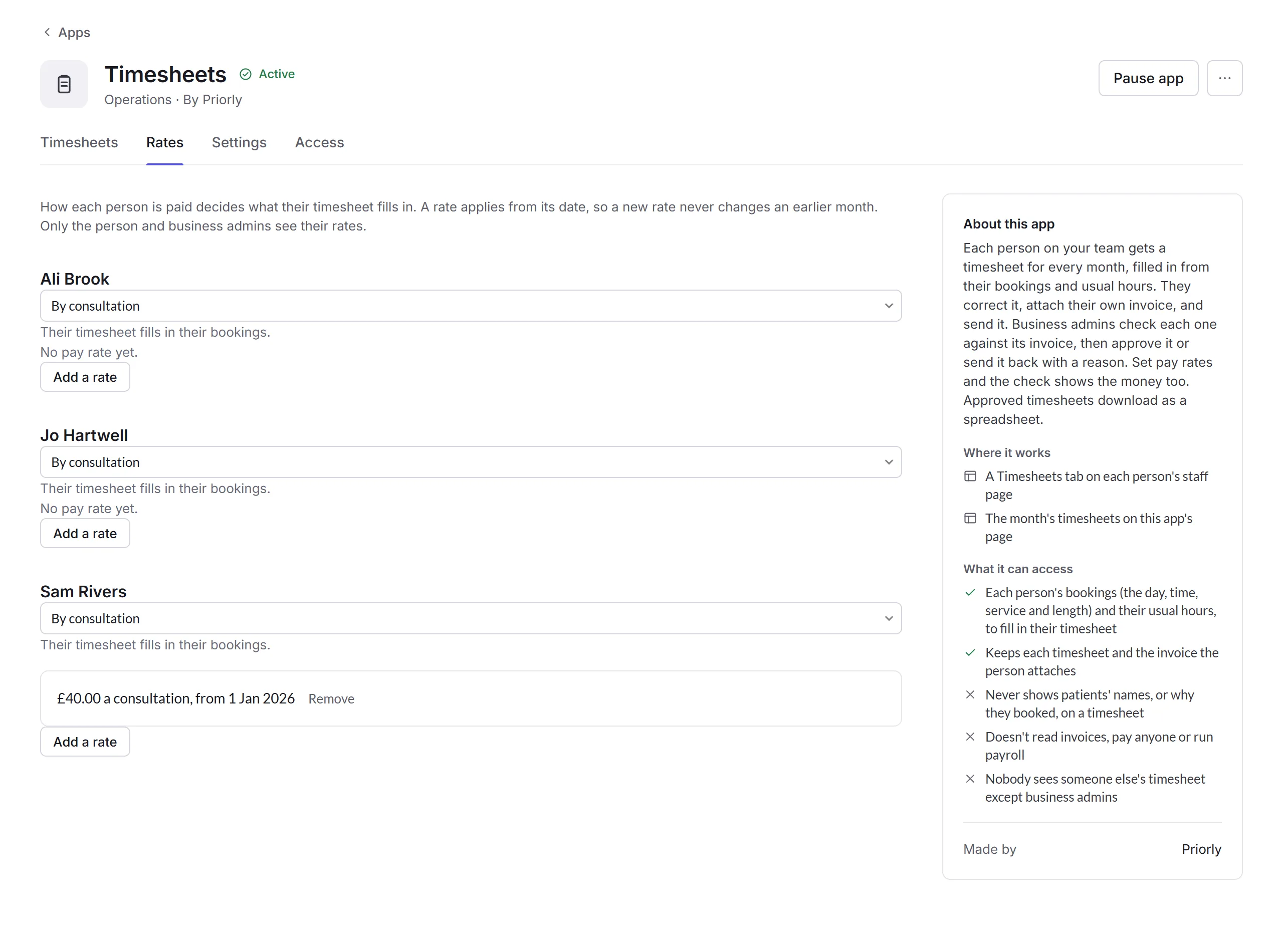
- By consultation
- Their bookings that month, one line each. A booking marked as a no-show is listed but left out. Booking requests that weren't confirmed aren't listed.
- By the hour
- Each day they were due to work at each of your locations, from their usual hours or set hours, less breaks and time off.
- Both
- Their bookings and their hours.
- Add a rate
- Per consultation (for one service, or any consultation) or per hour, from a date. A new rate never changes an earlier month. Only the person and business admins see their rates.
A person's timesheet
Each person finds theirs on their own staff page, under Timesheets (click your name, then Your staff page). It opens on last month for the first ten days of a month, and this month after that. Nobody else on the team can see it, except business admins.
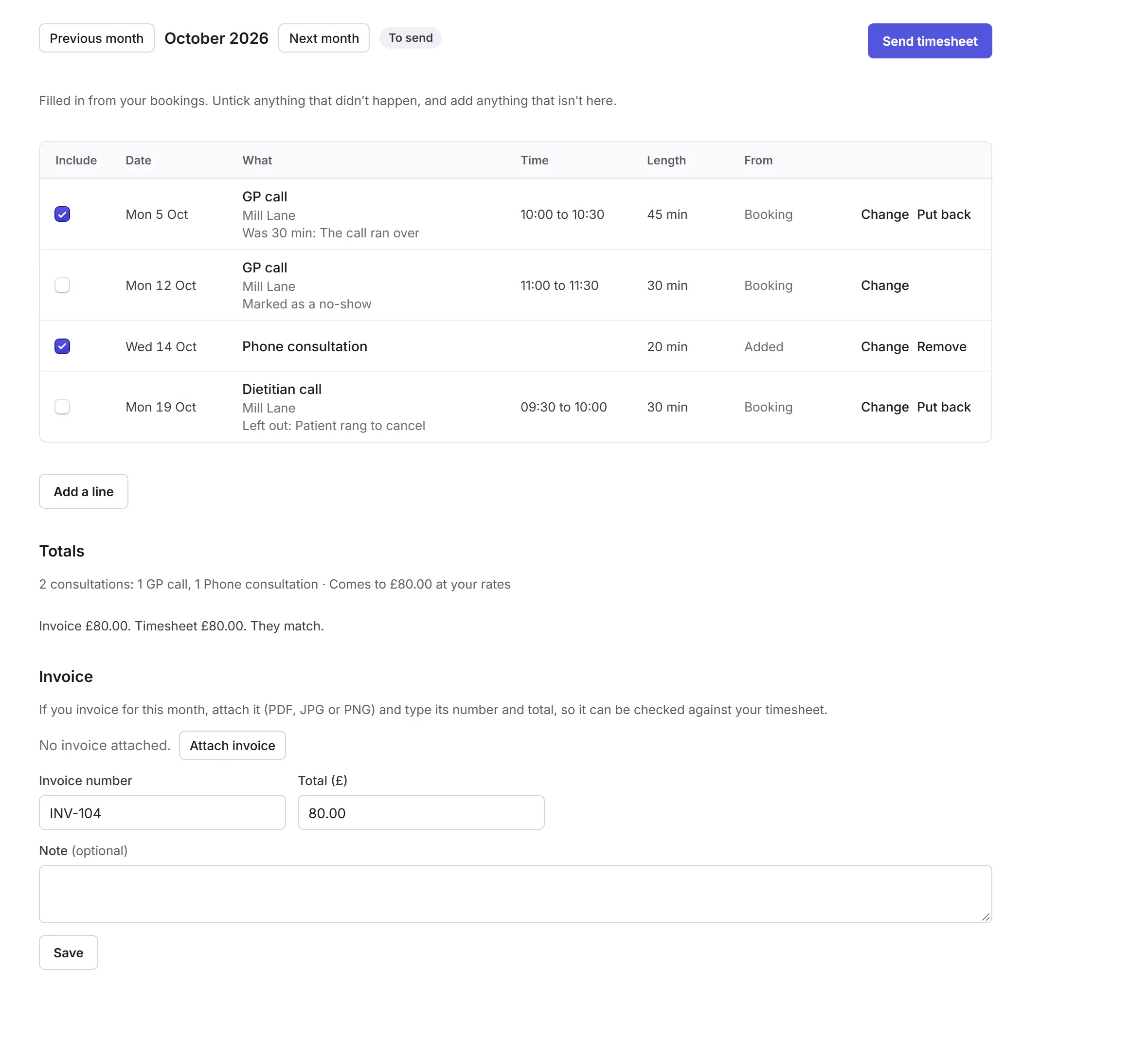
- Include
- Untick anything that didn't happen, and say why. Tick it again to put it back.
- Change
- A booking's length, or a day's start, finish and break, with why it changed. The line shows what it was; Put back returns it to what Priorly recorded.
- Add a line
- Something that isn't there, like a phone consultation: the day, a consultation or hours worked, and how long. Remove takes off a line you added.
- Totals
- Consultations by service and hours, and, with pay rates, what it comes to and whether the invoice's total matches.
- Invoice
- Attach invoice (a PDF, JPG or PNG), then type its number and total and choose Save. Priorly never reads it. Attaching another replaces it.
- Send timesheet
- From the last day of the month. After that it can't be changed unless a business admin sends it back.
A video call shows what Priorly saw, like Call held: 22 min with the patient or The patient didn't join the call. It's there to help, and never changes a line by itself. Timesheets never show patients' names, or why they booked.
Checking timesheets
The app's Timesheets view lists everyone's timesheet for the month you choose, for business admins.
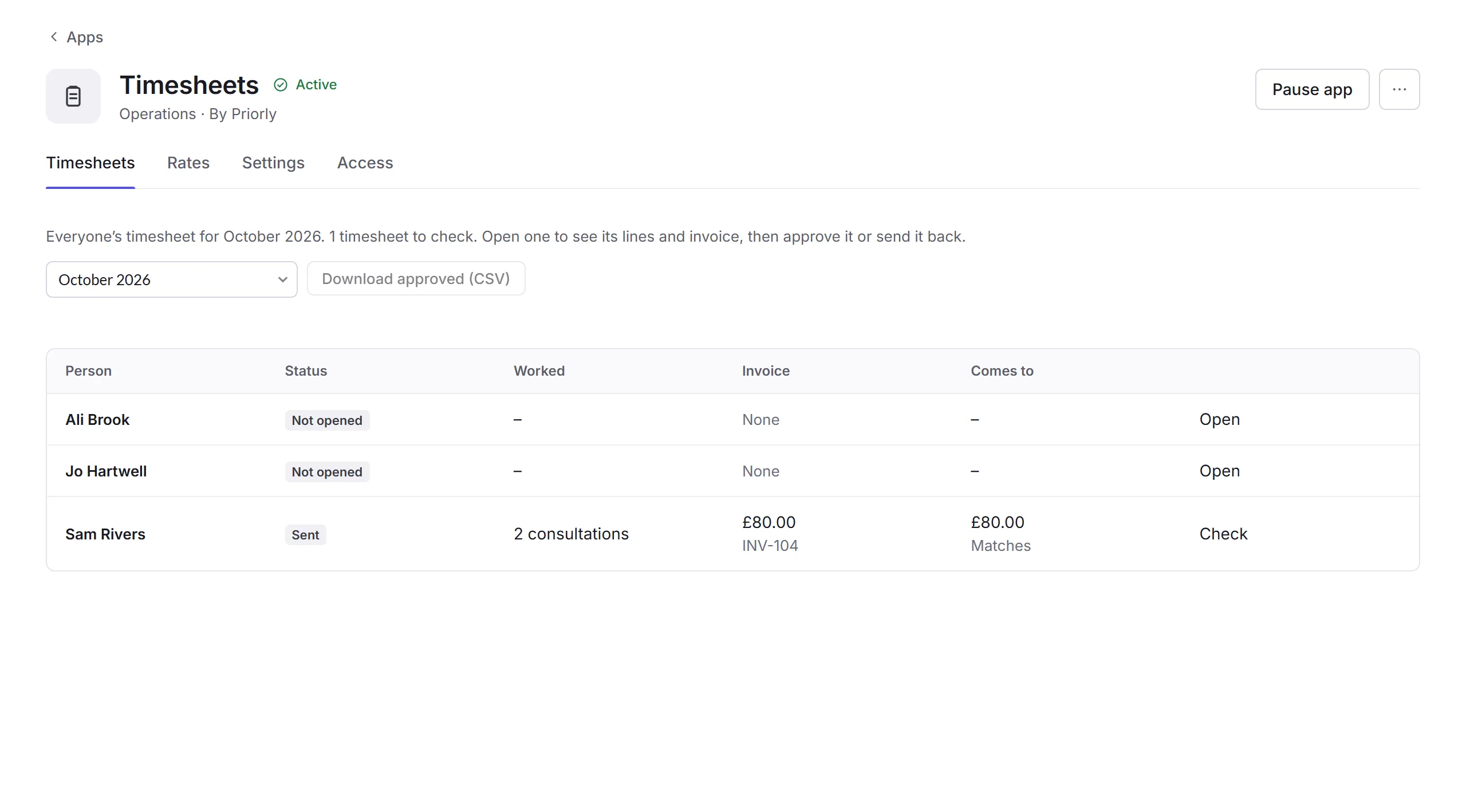
Open one
Choose Check beside a sent timesheet. It opens on the person's staff page, with their lines, what changed and why, the invoice and the check.
Approve or send back
Approve locks it. Send back asks what needs changing; the person sees it, changes the timesheet and sends it again.
Download
Download approved (CSV) gives every approved timesheet for the month as a spreadsheet: each line, and each invoice's number and total.
If an approved timesheet needs changing, Reopen it with a reason; it goes back to the person. Each send, approval, send-back and reopening is in the person's Activity, which only they and business admins see.
Timesheets and their invoices are kept for six years after the month they're for, then deleted.
Sending to Xero
With Xero connected, an approved timesheet with an invoice total has Send to Xero on the person's tab, for business admins. Choose the expense Account it goes on, then Send to Xero.
- The bill
- A draft bill from a contact for the person (made from their name and email if Xero hasn't got them), dated the day it was approved and due 30 days later: one line for the invoice's total, with its number, and their invoice file attached. Approve it in Xero; Priorly never does.
- Send to Xero again
- Updates the same bill while it's still a draft in Xero, like after a timesheet is reopened. Once it's approved in Xero, change it there.
Xero isn't used in Sandbox mode. If Xero doesn't take a bill, the tab says why.
Notifications
- Timesheet ready
- To the person, on the first days of the month.
- Timesheets to check
- To every business admin, when someone sends theirs.
- Timesheet checked
- To the person, when theirs is approved or sent back.
All three come in Priorly and by email, and say the month and who, never how much or why. Each person can turn them off in Your notifications.