Sandbox mode
Sandbox mode lets you try Priorly with test orders, bookings and payments. Customers never see them, no money moves, and they never count in your live figures.
Switching it on
Click your business's name at the top of the sidebar, then Sandbox mode. The page reloads in sandbox.
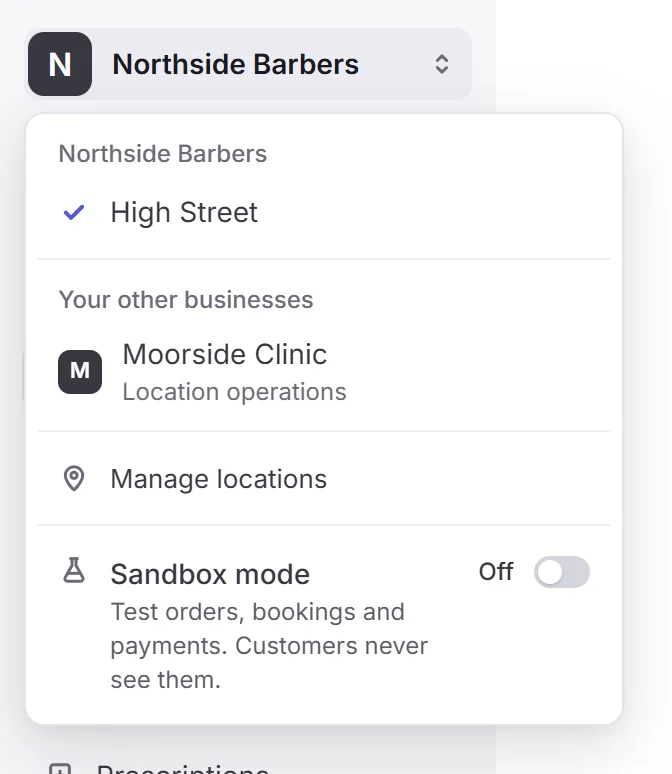
It's just for you: switching it on doesn't change what anyone else on your team sees. It stays on, at every business you belong to and in every tab, until you switch back.
While it's on
A bar across the top says you're in sandbox, and your business's name has a Sandbox tag.

- Kept apart
- Orders, bookings, customers, subscriptions, form submissions and tasks. You only see test ones in sandbox, and only real ones in live.
- Shared
- Your products, services, forms and settings are the same in both, so you test with what you really sell.
- Notifications
- Only test notifications show under the bell, and none of them are emailed.
Opening something from the other mode, like a test order from a link while you're in live, says which mode it's in, so you can switch.
Test payments
Sandbox payments use test cards, so no money moves. A business admin switches them on once, in Payments › Settings, with Enable sandbox. Then checkout, bookings and payment links take test cards in sandbox.
At a checkout in sandbox, View test cards lists them. For example:
- 4012 0000 0006 0085
- A Visa card that pays straight away.
- 4918 1900 0000 0002
- A Visa card that asks for an extra check, as some banks do.
- 4000 0000 0000 1000
- A card that's declined, for not having enough money.
Use any expiry date in the future and the security code 100.
Back to live
Click Switch to live on the bar, or switch Sandbox mode off in the menu. Your test orders and bookings stay in sandbox for next time.
To let someone else try your store with test payments without signing in, make a sandbox link in Settings › Developers. Anyone with the link can use it until it runs out or you revoke it.